Overview
A maintenance entry documents work performed on an aircraft. Each entry includes:
- Date and times (airframe, engine, propeller hours)
- Description of work performed
- Parts used and referenced data
- Mechanic signature and certificate number
- Optional photos and document attachments
Creating a New Entry
- Go to Airframes and select your aircraft
- Tap Maintenance to view the logbook
- Tap the + button to create a new entry
- Fill in the required fields (see below)
- Add optional attachments and tracking info
- Tap Save
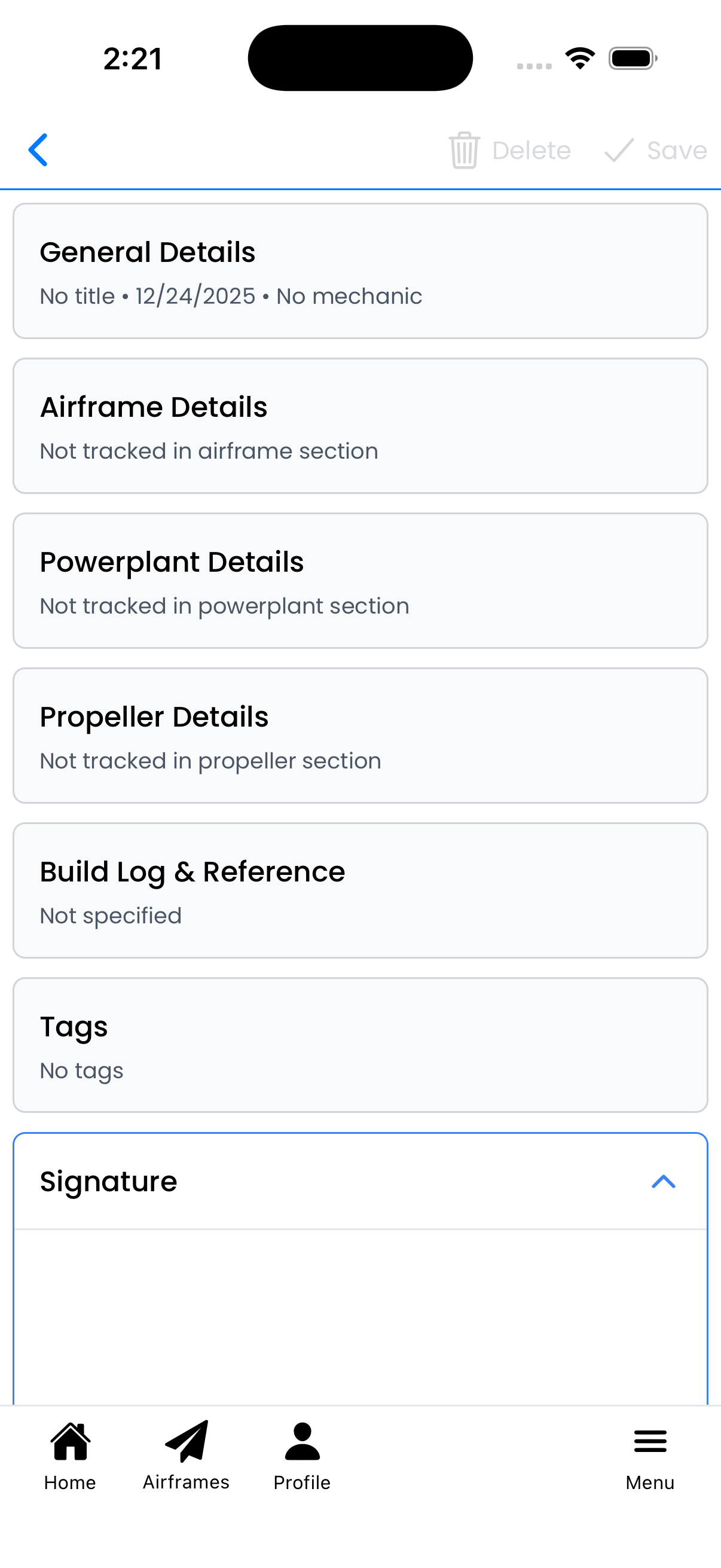
A maintenance entry with expandable sections for all information
Entry Sections
General Information
The core details of the maintenance entry:
- Date - When the work was performed
- Title/Summary - Brief description for list display
- Description - Detailed work performed (supports Markdown formatting)
- Entry Type - Maintenance, Inspection, AD Compliance, etc.
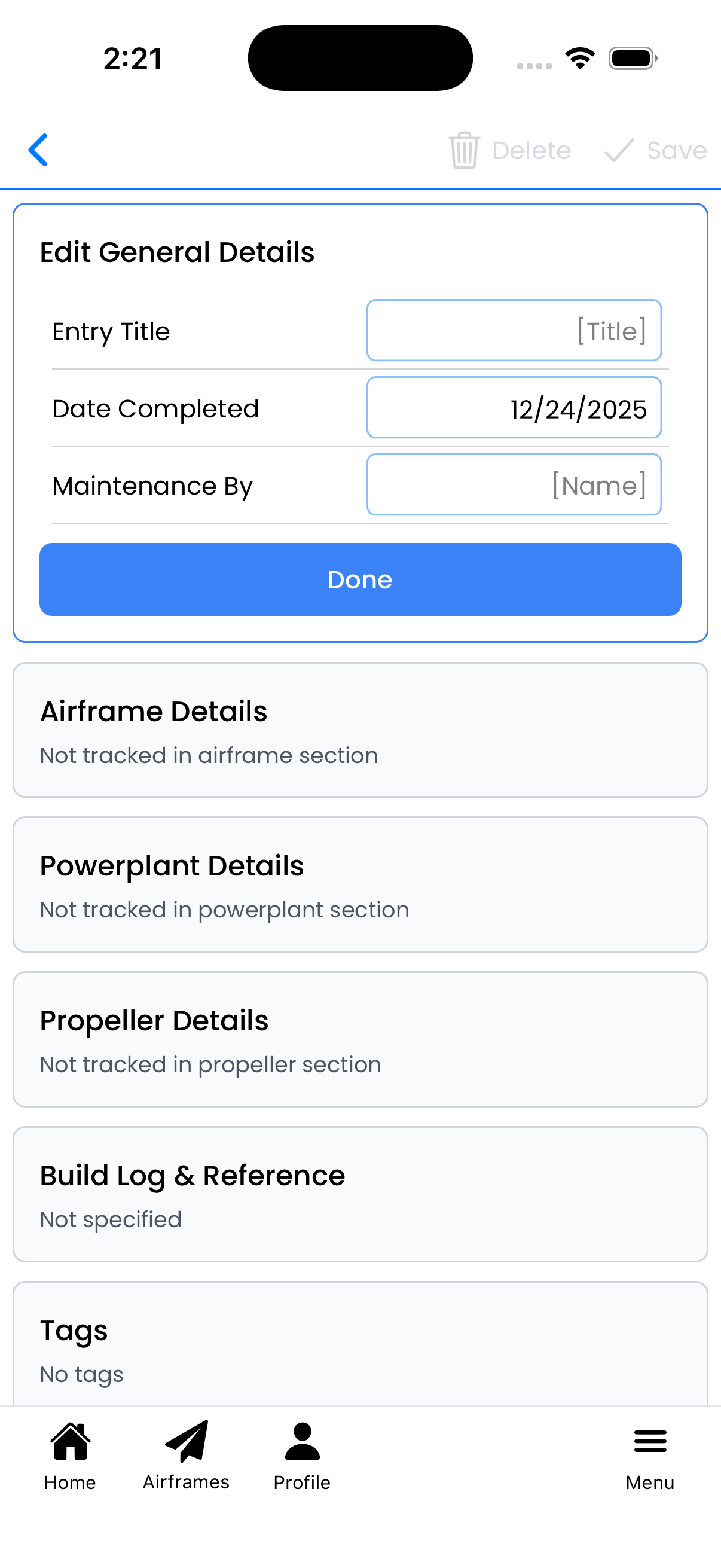
General information section with date, title, and description
Time Tracking
Record component times at the time of maintenance:
- Airframe Time - Total time on airframe
- Powerplant Time - Engine tach hours
- Propeller Time - Propeller tach hours
For multi-engine aircraft, you'll see fields for each powerplant and propeller.
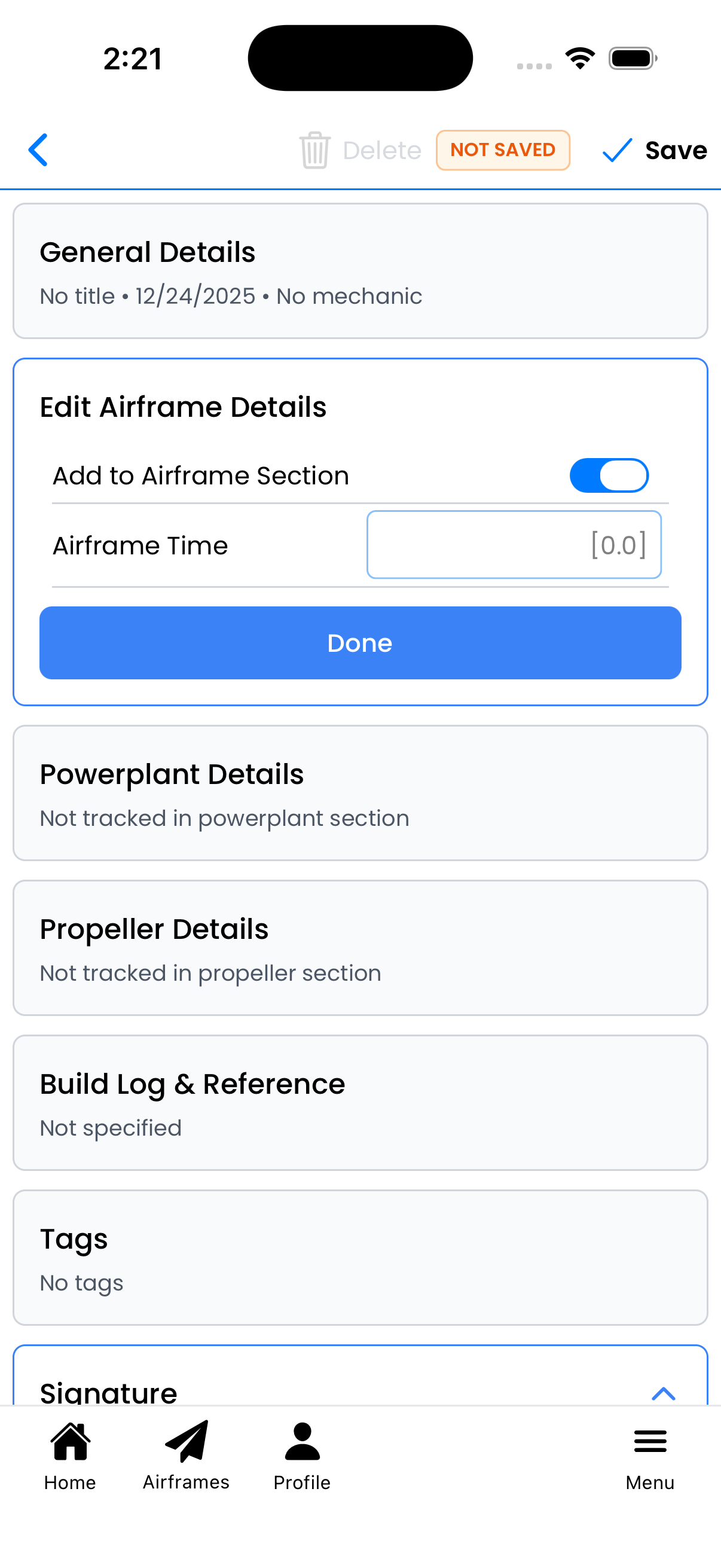
Record component times when the maintenance was performed
Tracking (Inspections & Maintenance Items)
Link this entry to tracked items for automatic compliance updates:
- Log Inspections - Mark inspections as completed (Annual, 100-hour, etc.)
- Log Maintenance - Record recurring maintenance (Oil Change, etc.)
- Log AD Compliance - Document Airworthiness Directive compliance
When you log an inspection or maintenance item, the system automatically calculates the next due date/time.
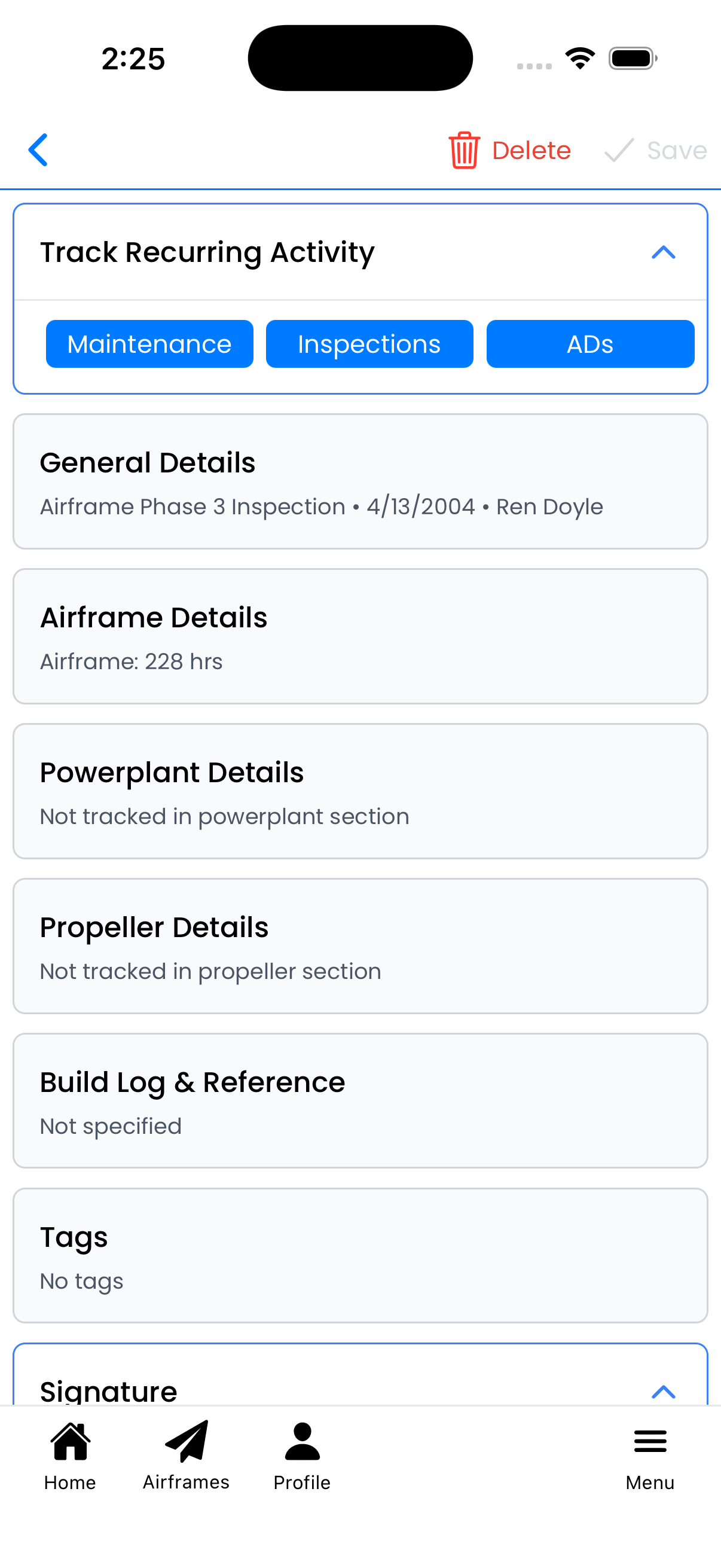
Link entries to tracked inspections and maintenance items
Attachments
Add supporting documentation:
- Photos - Before/after pictures, discrepancies found
- Documents - Work orders, parts receipts, data sheets
- Scanned Pages - Original logbook pages (via OCR import)
See Attach Photos for details on adding images.
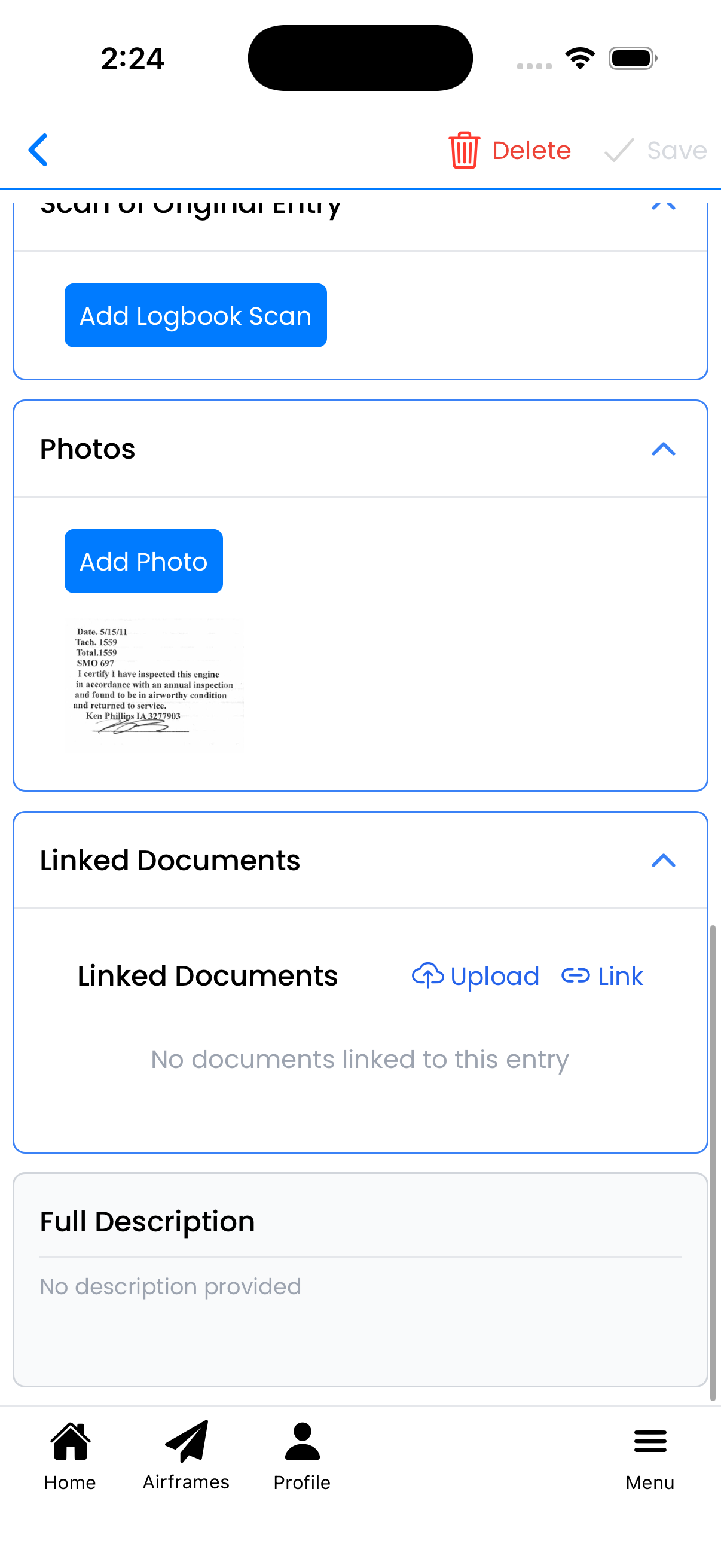
Attach photos and documents to your entry
Signature
For entries requiring mechanic approval:
- Expand the Signature section
- Tap Sign Entry
- Draw your signature on the signature pad
- Enter your certificate number (IA or A&P number)
- Tap Apply Signature
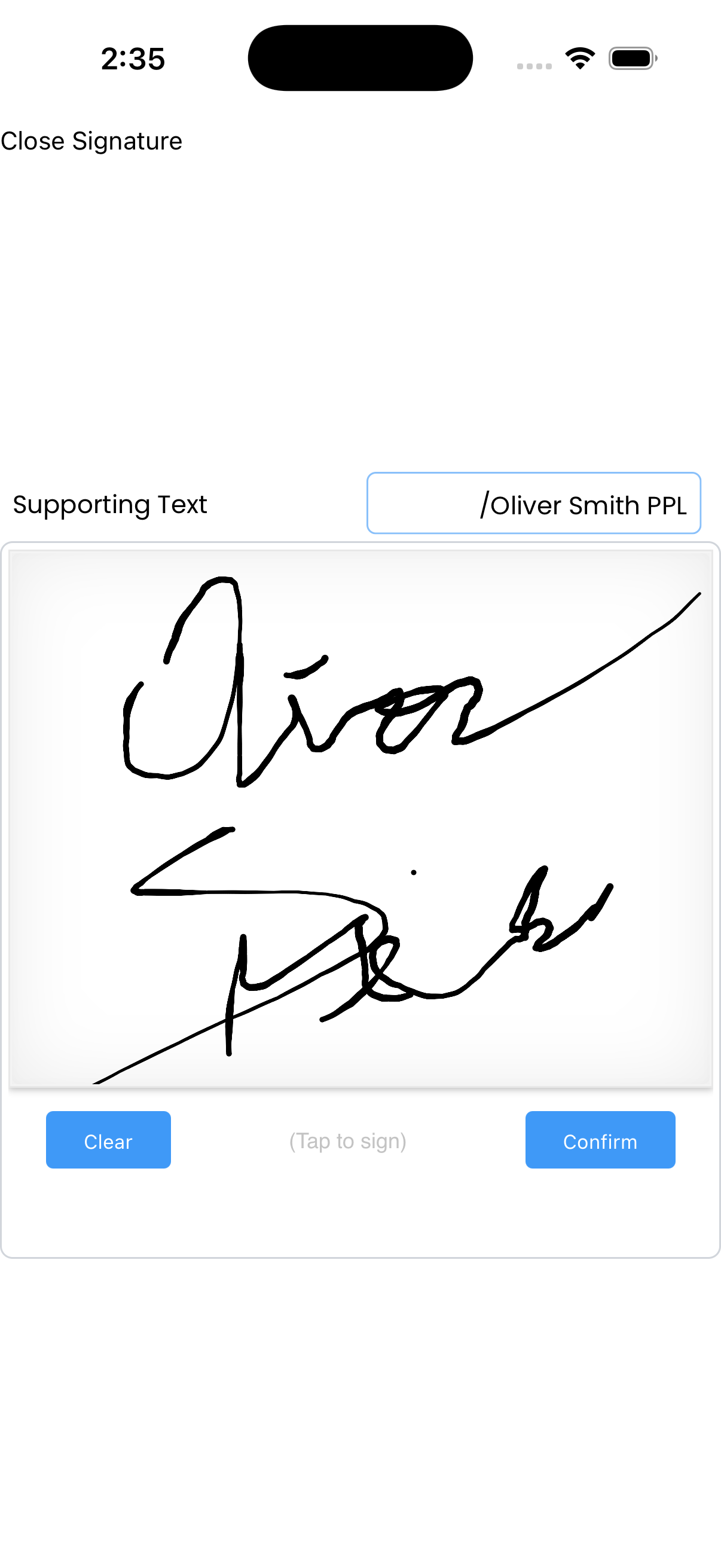
Draw your signature and enter certificate information
Required vs Optional Fields
The minimum required for a valid entry:
- Date - When work was performed
- Description - What was done
- Airframe Time - Hours at time of maintenance
Everything else is optional but recommended for complete records.
Best Practices
Write Clear Descriptions
- State what was done, not just what was inspected
- Include part numbers for replaced items
- Reference service bulletins, ADs, or maintenance manual sections
- Note any discrepancies found and how they were resolved
Always Record Times
- Accurate times are critical for tracking maintenance intervals
- If unsure, check the aircraft's Hobbs or tachometer
- Times entered here update the aircraft's current times
Link to Tracked Items
- Always link Annual Inspections to the Annual inspection type
- Link oil changes to the Oil Change maintenance type
- This keeps compliance tracking accurate and automated
Attach Supporting Documents
- Photos of work performed
- Parts receipts (establishes traceability)
- 337 forms for major alterations
- Work orders from maintenance shops
Editing an Entry
To edit an unsigned entry:
- Go to the Maintenance logbook
- Tap on the entry to open it
- Make your changes
- Tap Save
Deleting an Entry
To delete an unsigned entry:
- Open the entry
- Scroll to the bottom
- Tap Delete Entry
- Confirm deletion
Signed entries cannot be deleted—this maintains the integrity of the aircraft's maintenance record.