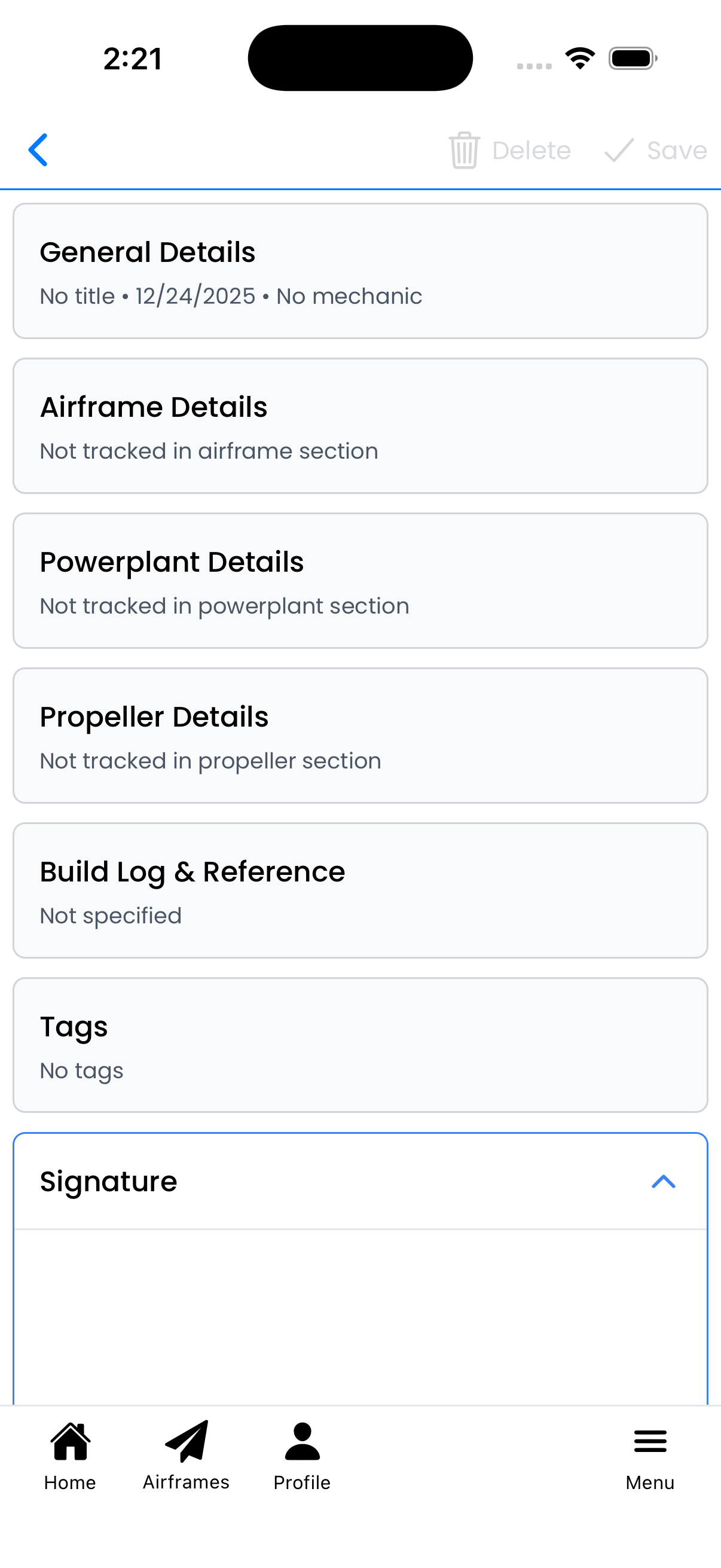
Maintenance Entry
Create and edit maintenance logbook entries. Record work performed, track component times, attach photos and documents, link to inspections or ADs, and collect digital signatures.
General Details
Tap General Details to edit the basic entry information:
- Entry Title - Brief description of the work (e.g., "Annual Inspection", "Oil Change")
- Date Completed - When the maintenance was performed
- Maintenance By - Name of the mechanic who performed the work
Tap Done to save your changes and collapse the section.
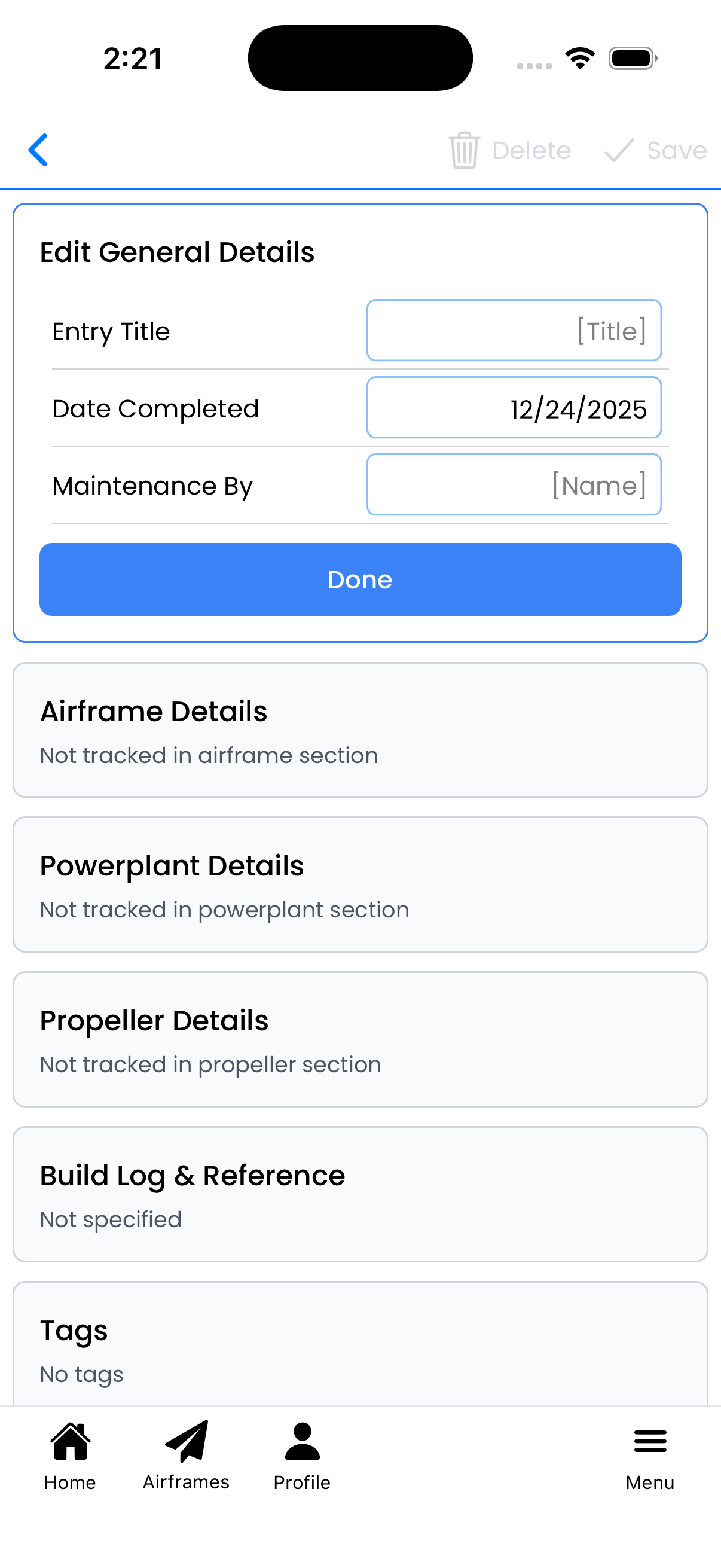
Entry title, date, and mechanic fields
Component Time Tracking
Track component hours at the time of service. Each component section works the same way:
Airframe Details
- Add to Airframe Section toggle - Include this entry in the airframe logbook section
- Airframe Time - Total airframe hours when work was completed
Powerplant Details
- Add to Powerplant Section toggle - Include this entry in the engine logbook section
- Powerplant Time - Engine tachometer hours when work was completed
Propeller Details
- Add to Propeller Section toggle - Include this entry in the propeller logbook section
- Propeller Time - Propeller hours when work was completed
Tip: For multi-engine aircraft, you'll see separate sections for each engine and propeller.
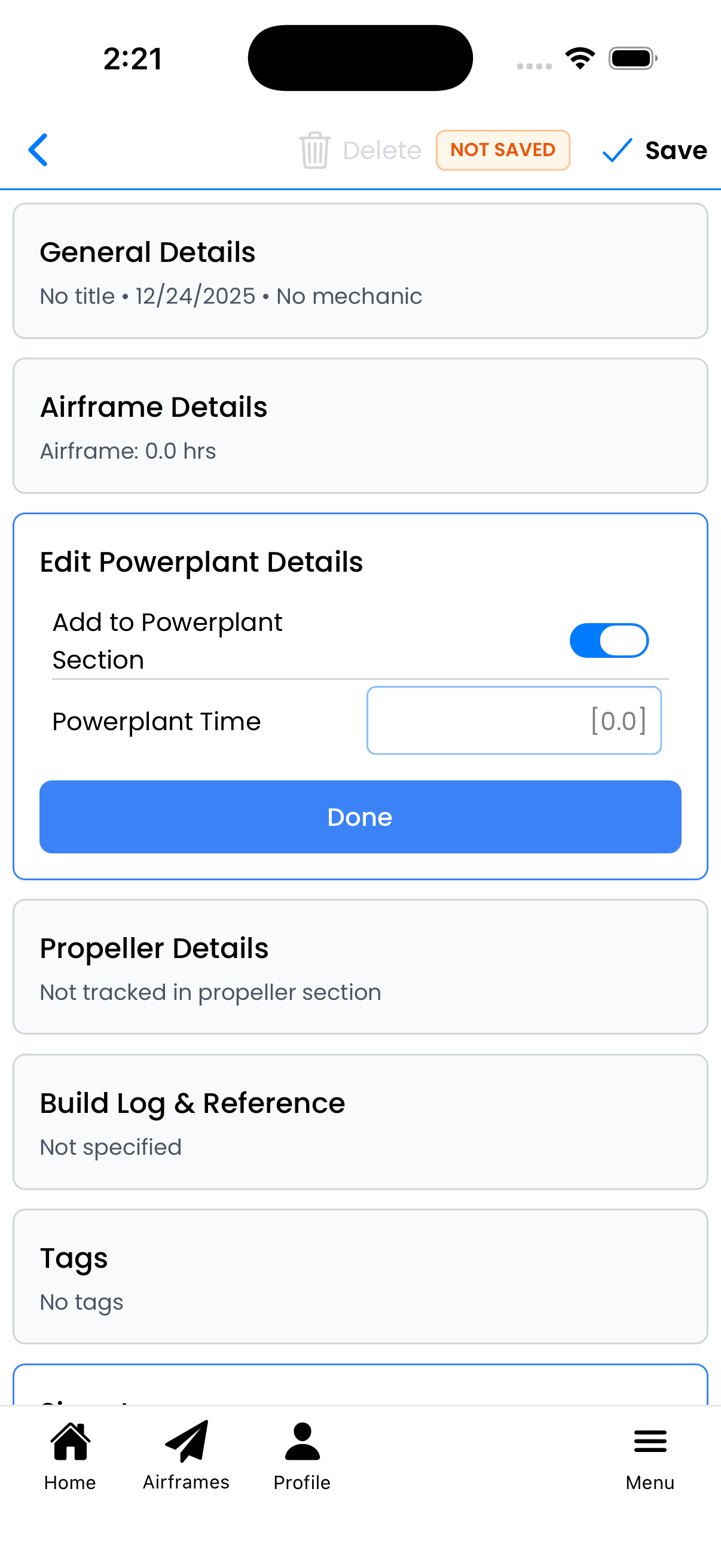
Powerplant time tracking
Build Log & Reference
Tap Build Log & Reference to access additional tracking options:
- Is Build Log toggle - Mark this entry as part of aircraft construction or restoration documentation
- Time Spent (hours) - Track labor hours for the work performed
- Manual Reference - Reference to service manual section (e.g., "Section 12-34-56")
Build log entries are useful for experimental aircraft builders tracking construction progress.
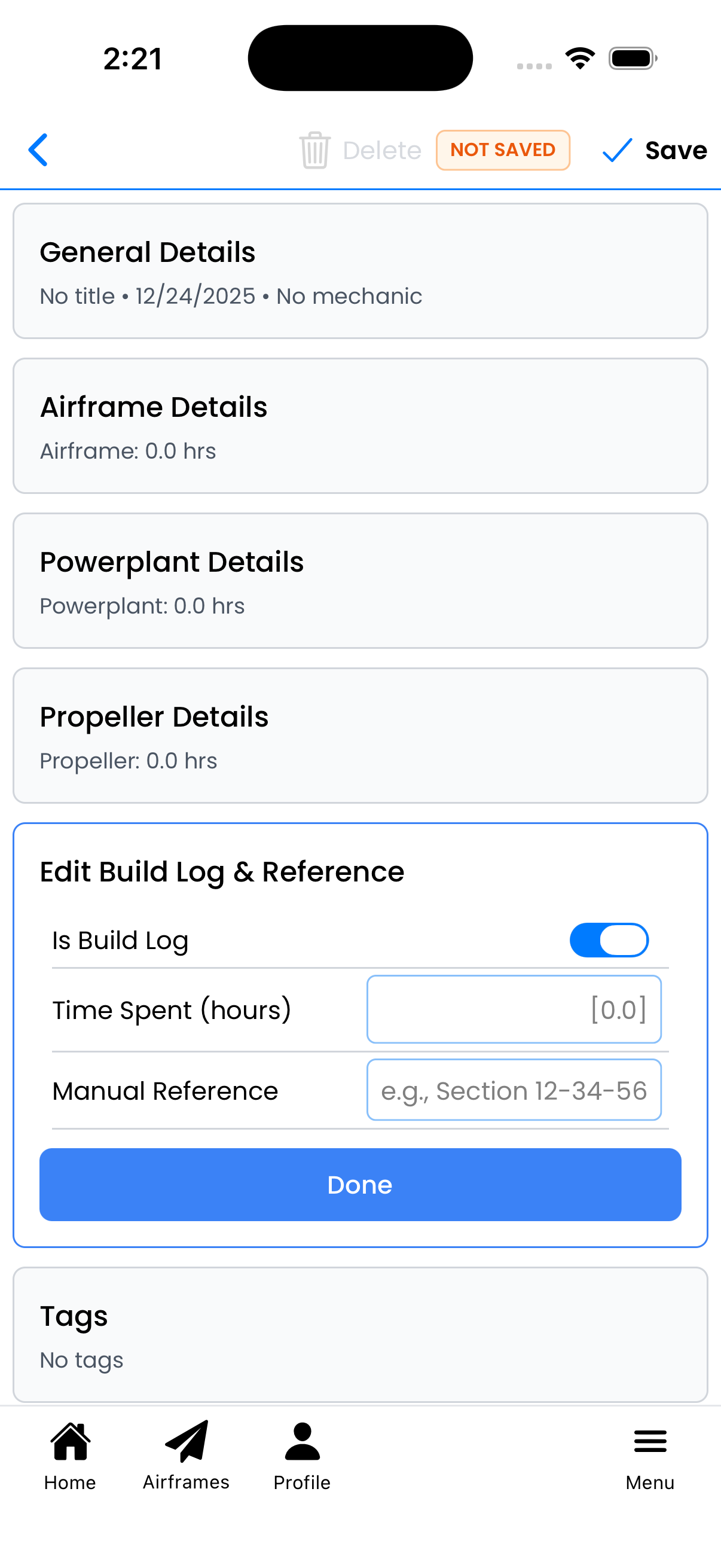
Build log toggle and manual reference
Tags
Tap Tags to categorize your entry:
- Existing tags - Shown as chips with an X to remove
- + Tap to add tag - Add new tags for categorization
Tags help you filter and search maintenance entries later. Common tags include: Annual, 100-Hour, Oil Change, Squawk, etc.
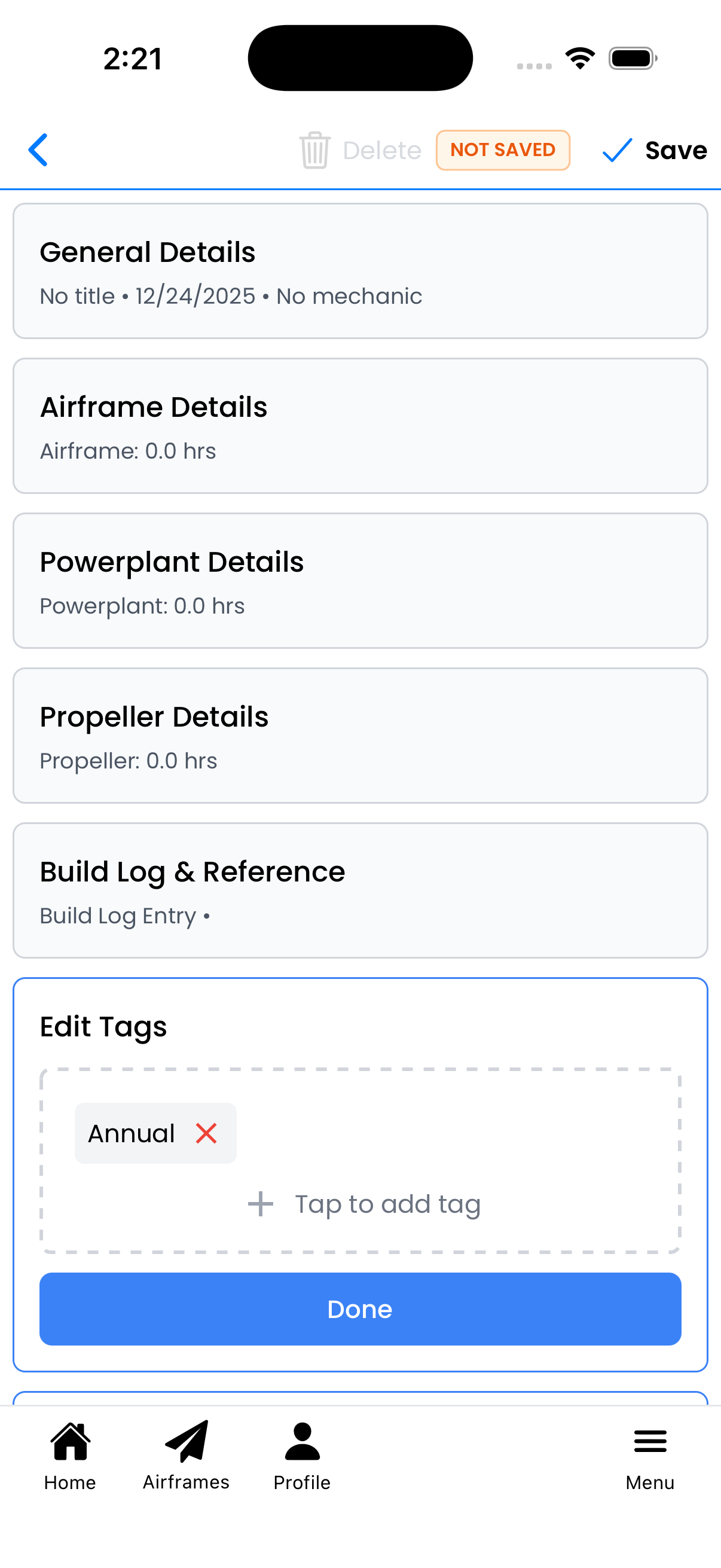
Add and remove tags
Signature
The Signature section allows mechanics to digitally sign the entry:
Adding a Signature:
- Tap the signature area to open the signature pad
- Supporting Text - Enter your name and certificate (e.g., "/Oliver Smith PPL 987654/")
- Draw your signature in the signing area
- Clear - Start over if needed
- Confirm - Save the signature
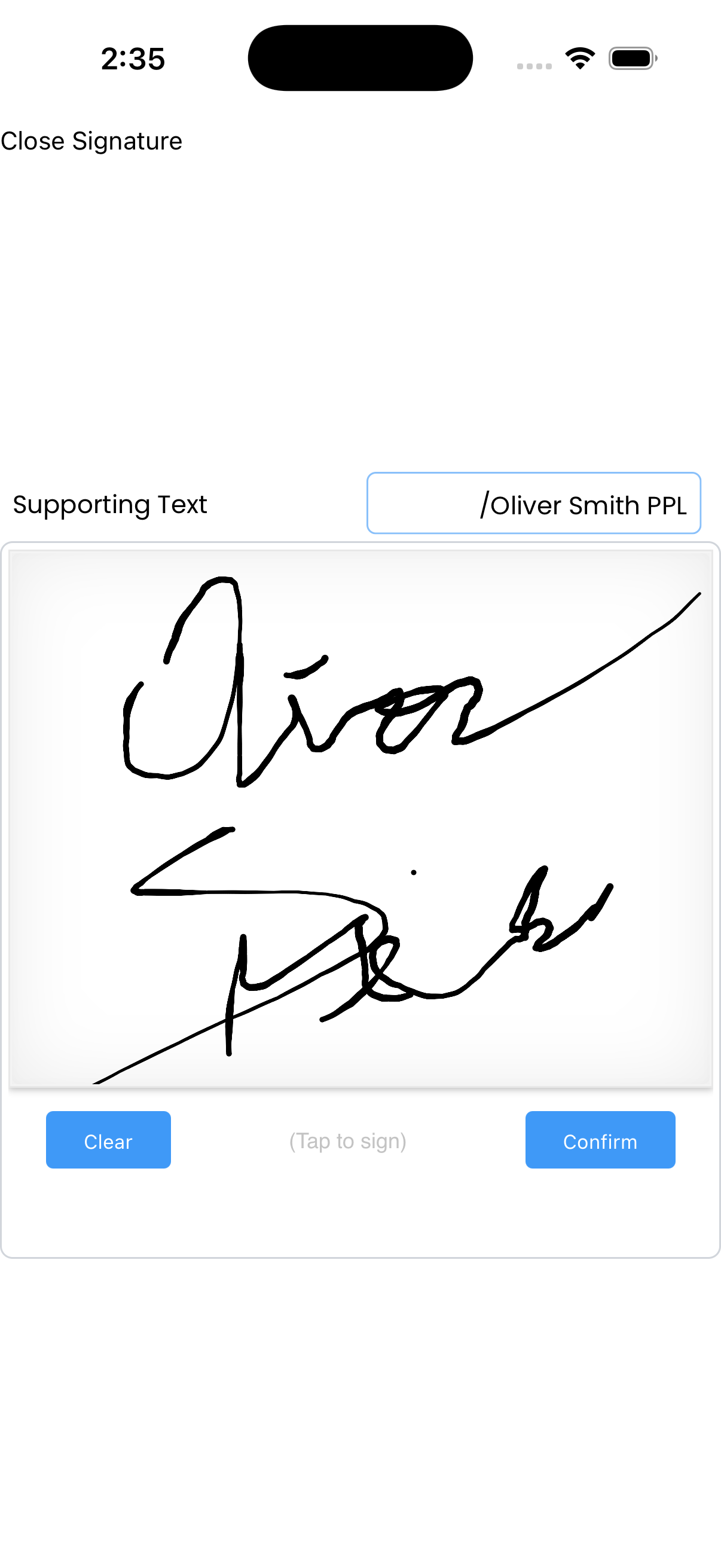
Draw your signature with supporting text
Signed Entry
After signing, the signature section displays:
- Signature image - Your drawn signature
- Supporting text - Name and certificate number (e.g., "/Oliver Smith PPL 987654/")
- Date - Timestamp when signed
- Delete Signature - Remove the signature (if you have permission)
- Verify Signature button - Validate the signature authenticity
Entry Signed and Locked:
Once signed, the entry becomes locked and shows "Entry Signed and Locked" at the top. This prevents accidental changes to signed maintenance records.
Note: You must have Maintainer permission or higher to add or delete signatures.
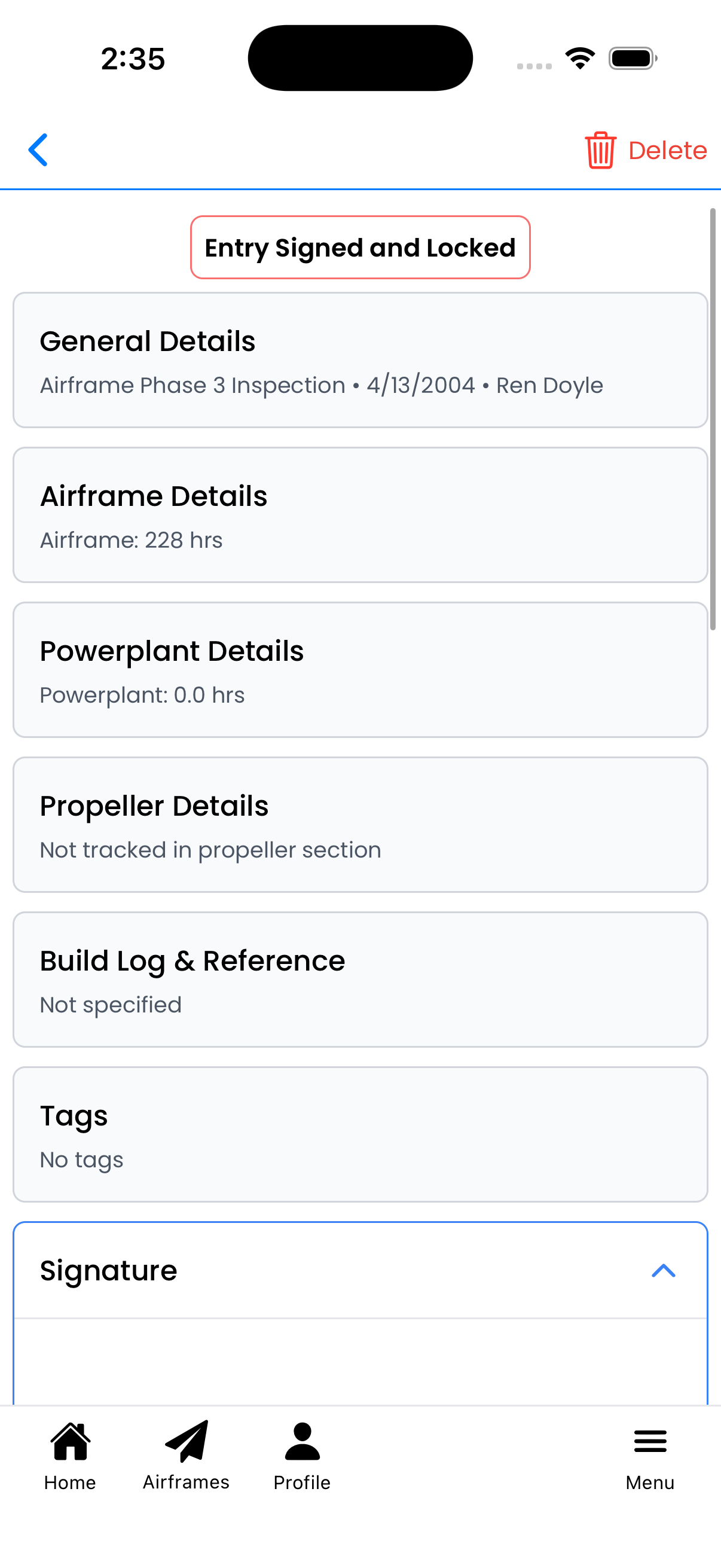
Signed entry is locked from further edits
Photos
Tap Photos to attach images of the work performed:
- Add Photo button - Opens camera or photo picker
- Photos appear as thumbnails in a grid
- Tap any photo to view full-screen
- Use the trash icon to delete a photo
Before/after photos help document the condition and work performed.
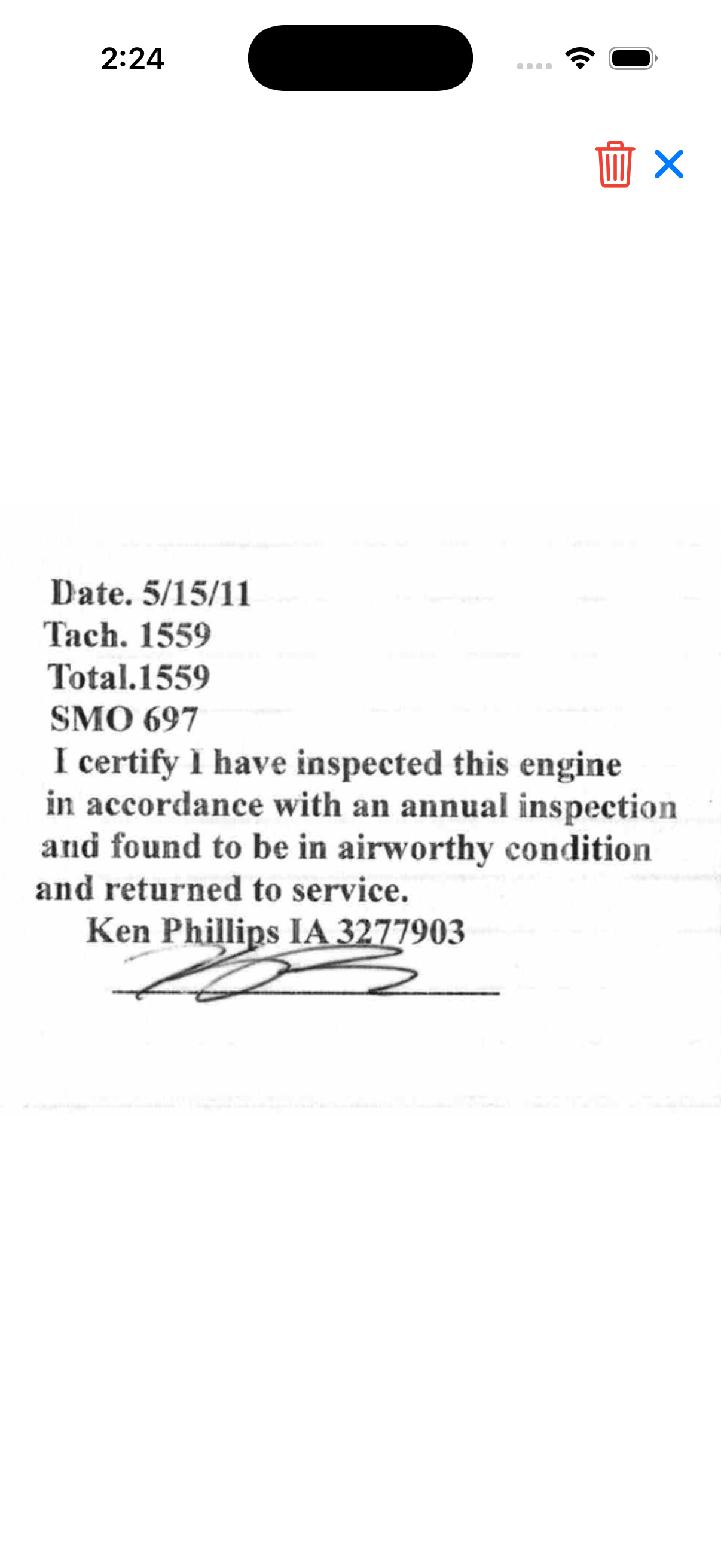
Full-screen photo with delete option
Linked Documents
The Linked Documents section connects this entry to aircraft documents:
- Upload - Upload a new document and link it to this entry
- Link - Connect an existing document from the aircraft's document library
- Linked documents show title, category, and action buttons
- Tap the download icon to view/download the document
- Tap the X icon to unlink (doesn't delete the document)
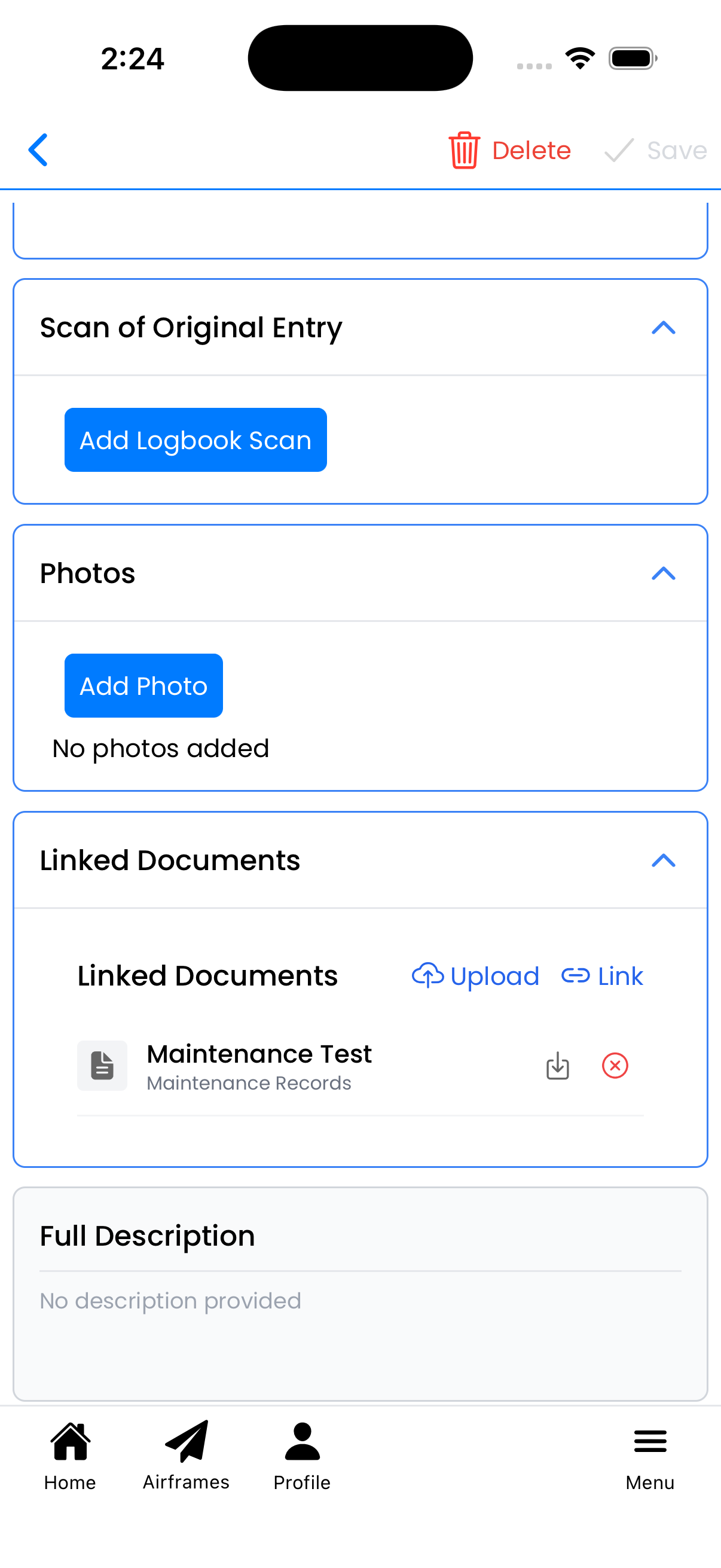
Document linked to maintenance entry
Linked Checklists
If a maintenance entry was created from a checklist, the Linked Checklists section appears:
- Checklist name - Shows the checklist title (e.g., "Phase 3 Checklist")
- Signed badge - Indicates the checklist has been signed
- Tap the row - View the full checklist with all completed items
- X button - Unlink the checklist from this entry
The Full Description will also show the checklist name and version (e.g., "Checklist: Phase 3 Checklist (v1.0.4)").
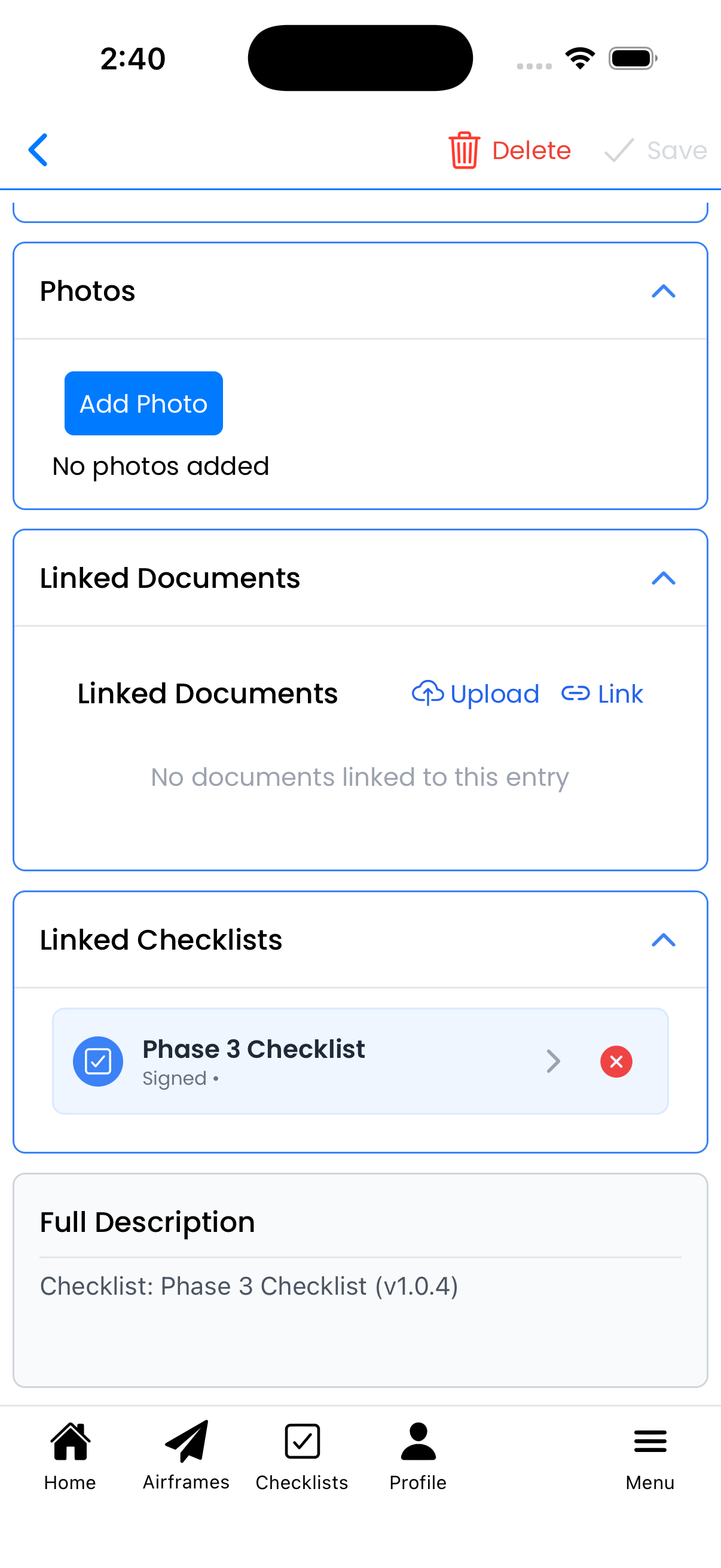
Maintenance entry linked to a signed checklist
Track Recurring Activity
The Track Recurring Activity section links this entry to compliance items. Tap any of the three buttons to open a selection list:
- Maintenance - Link to maintenance types (oil change, filter replacement, overhauls)
- Inspections - Link to inspection types (Annual, 100-Hour, Phase inspections, ELT, Pitot-Static)
- ADs - Link to Airworthiness Directives for compliance tracking
When linked, this entry updates the "Last Completed" date for the selected compliance item.
Note: This section only appears after you save the entry for the first time.
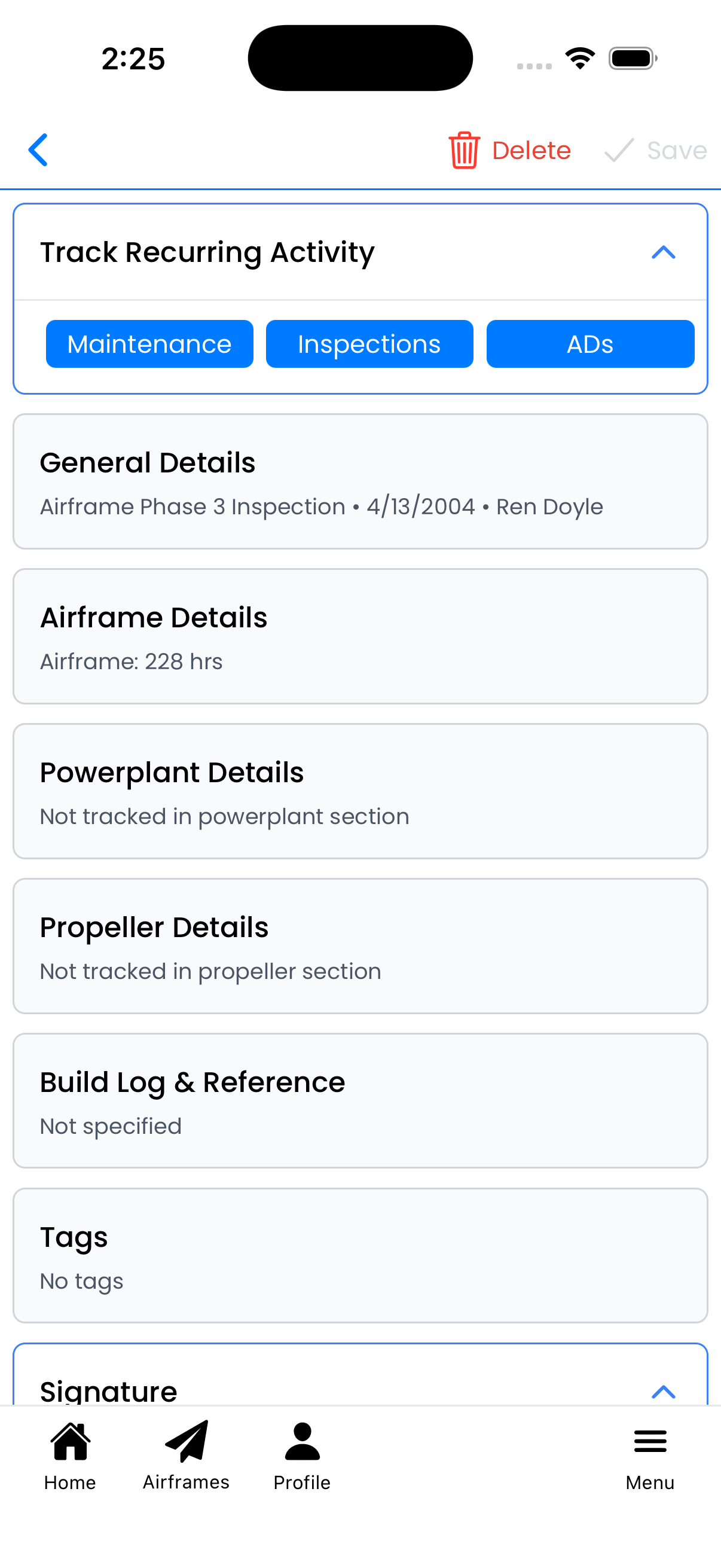
Maintenance, Inspections, and ADs buttons
Linking to Maintenance Types
Tap Maintenance to see a list of maintenance types configured for this aircraft:
- Toggle on any maintenance type to link it to this entry
- A modal appears asking for the Next Due value (hours or date)
- Enter the next due time based on the maintenance interval
- Tap Save to confirm the link
Once linked, the maintenance type shows "Next Due" information on the right side.
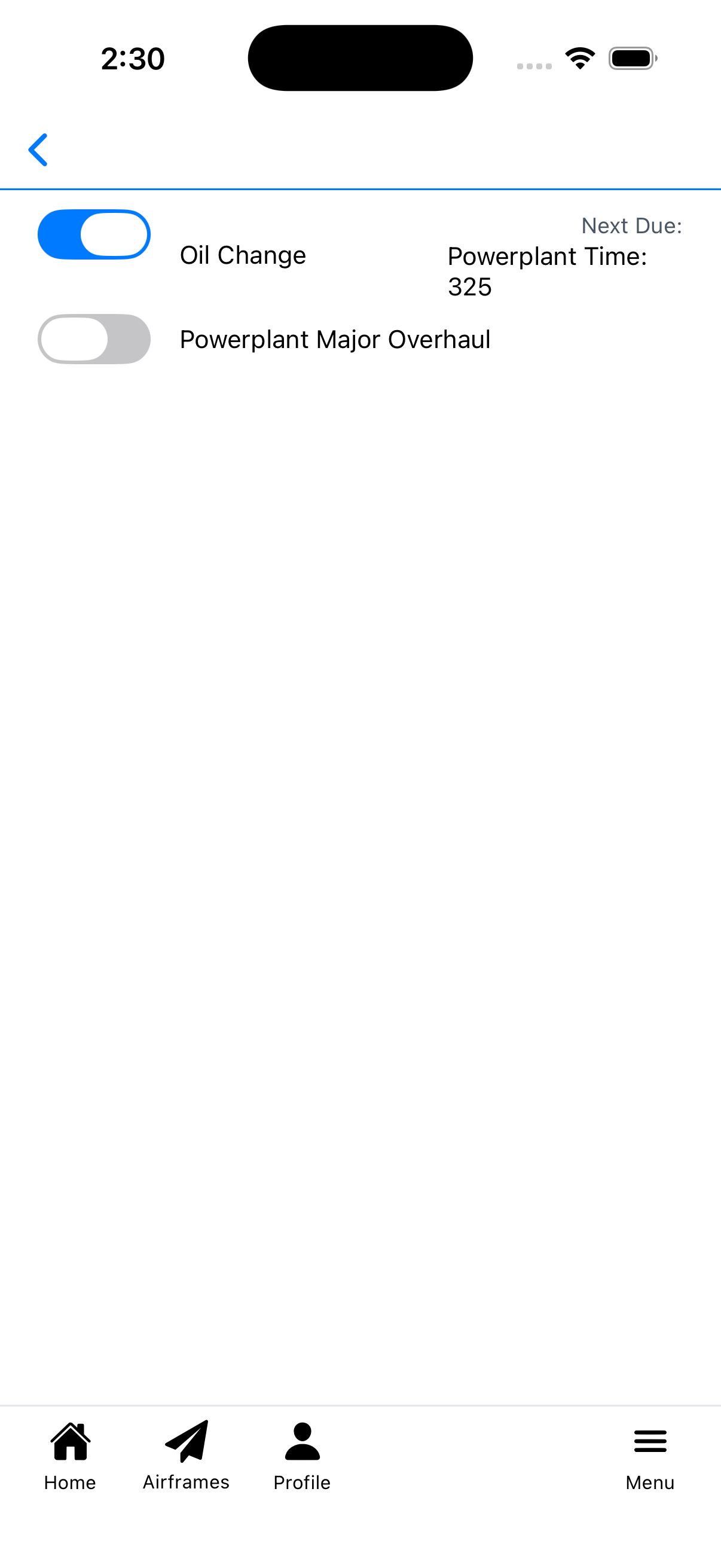
Oil Change linked with Next Due: Powerplant Time 325
Linking to Inspections
Tap Inspections to see all inspection types for this aircraft:
- Toggle on any inspection to link it to this entry
- A modal appears for Next Due based on the inspection's
tracking method:
- Calendar-based - Enter next due date (e.g., Annual: 4/30/2005)
- Hours-based - Enter next due airframe time (e.g., Phase 3: 428 hrs)
- Multiple inspections can be linked to the same entry
Example: An annual inspection entry might link to both "Annual" and "Altimeter 14 CFR 91.411" inspections.
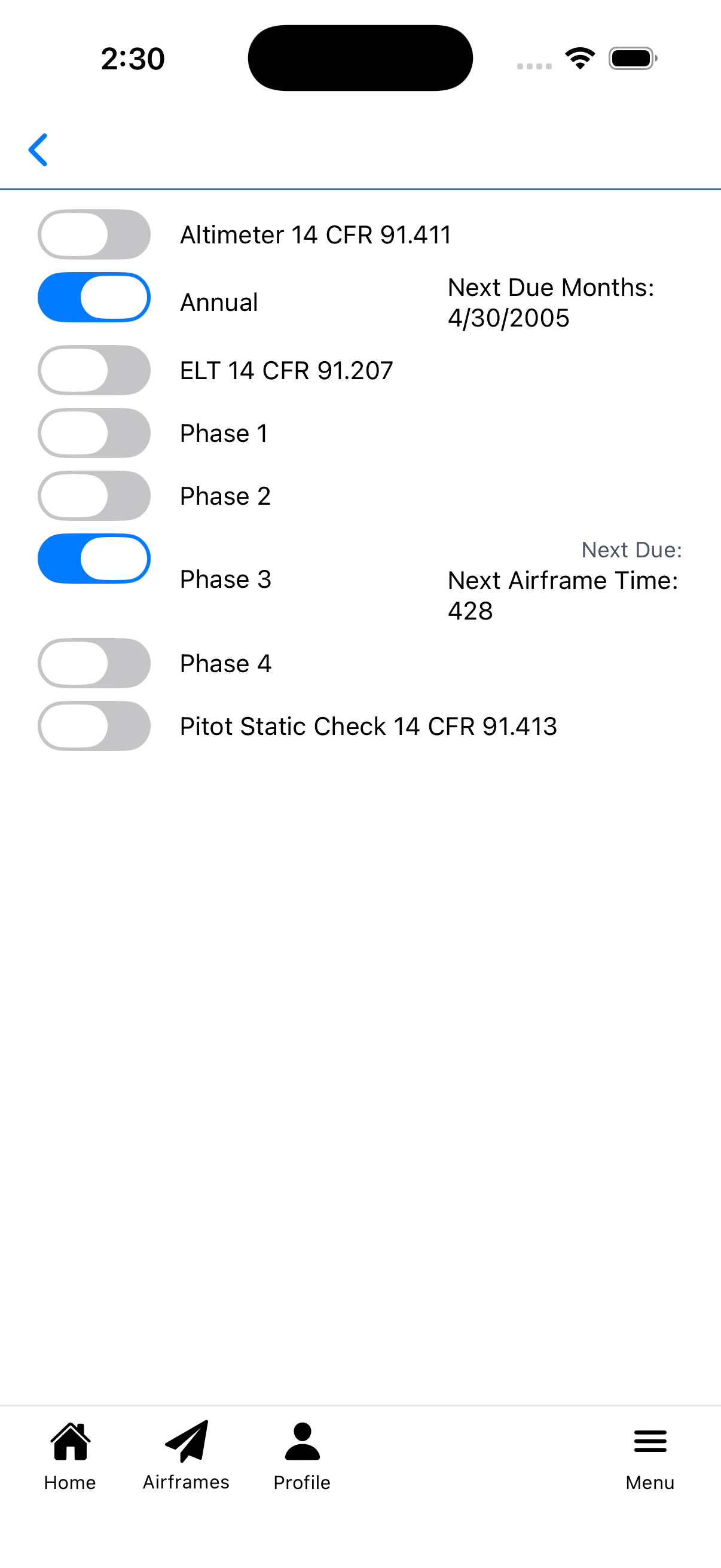
Multiple inspections with different tracking methods
Linking to ADs
Tap ADs to see Airworthiness Directives for this aircraft:
- Show Inactive ADs toggle - Include terminated or not-applicable ADs
- Toggle on any AD to link compliance to this entry
- A modal appears with:
- AD Status dropdown - Select:
- Compliant - AD requirements met
- Compliant & Continuing - Recurring AD, currently compliant
- Compliant & Complete - No further action required
- Not Compliant - AD requirements not yet met
- Not Applicable - AD doesn't apply to this aircraft
- Next Due field - For recurring ADs, enter next compliance due
- AD Status dropdown - Select:
This creates an official compliance record linking the AD to this maintenance entry.
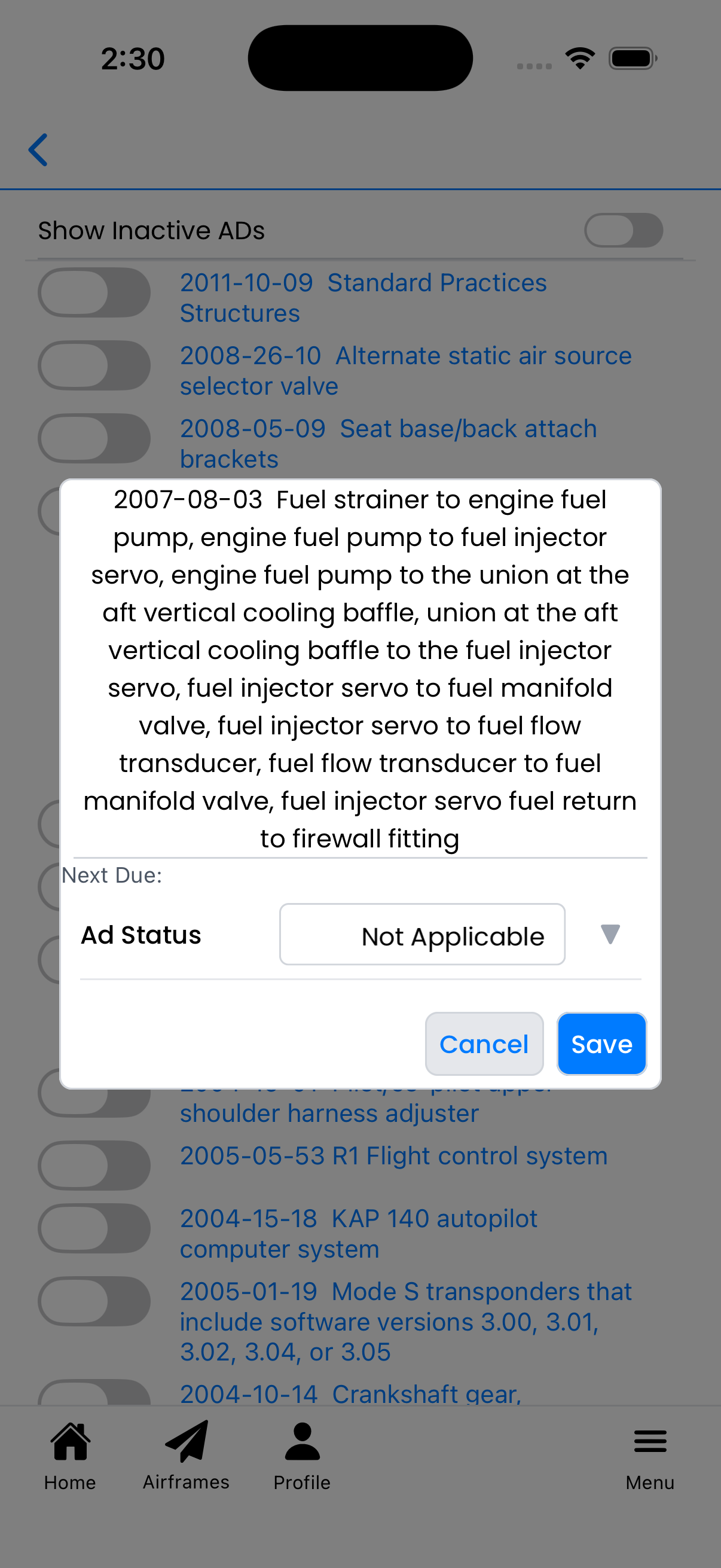
Setting AD status and next due
Header Actions
The header provides key actions:
- Back arrow - Return to previous screen (prompts to save if unsaved changes)
- Delete - Remove this entry (requires confirmation)
- NOT SAVED indicator - Shows when you have unsaved changes
- Save - Save all changes to this entry
Warning: Deleting an entry cannot be undone. The confirmation dialog reminds you of this.
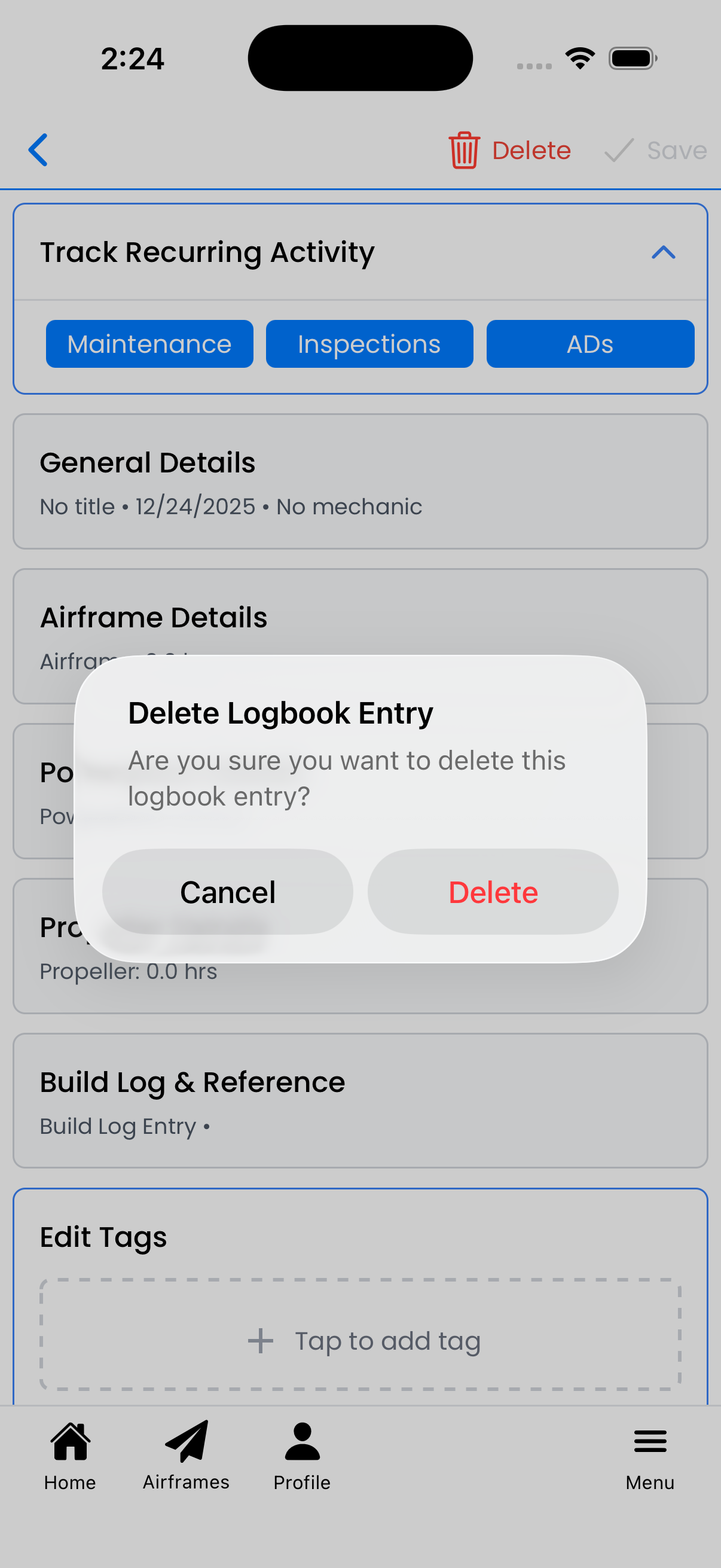
Confirm before deleting an entry