Maintenance History
Browse and search your complete maintenance logbook for an aircraft. Filter by logbook section (Airframe, Powerplant, Propeller), search by keywords, and export to PDF for official records or pre-buy inspections.
Entry List
Each maintenance entry shows:
- Entry title - Description of the work performed
- Date - When the maintenance was completed
- Status badge - One of the following:
- Unsigned (gray) - Entry has not been digitally signed
- Signed (green) - Entry has been signed by a mechanic
- Imported (blue) - Entry was imported from another source
Entries are listed in reverse chronological order (newest first). Tap any entry to view its full details.
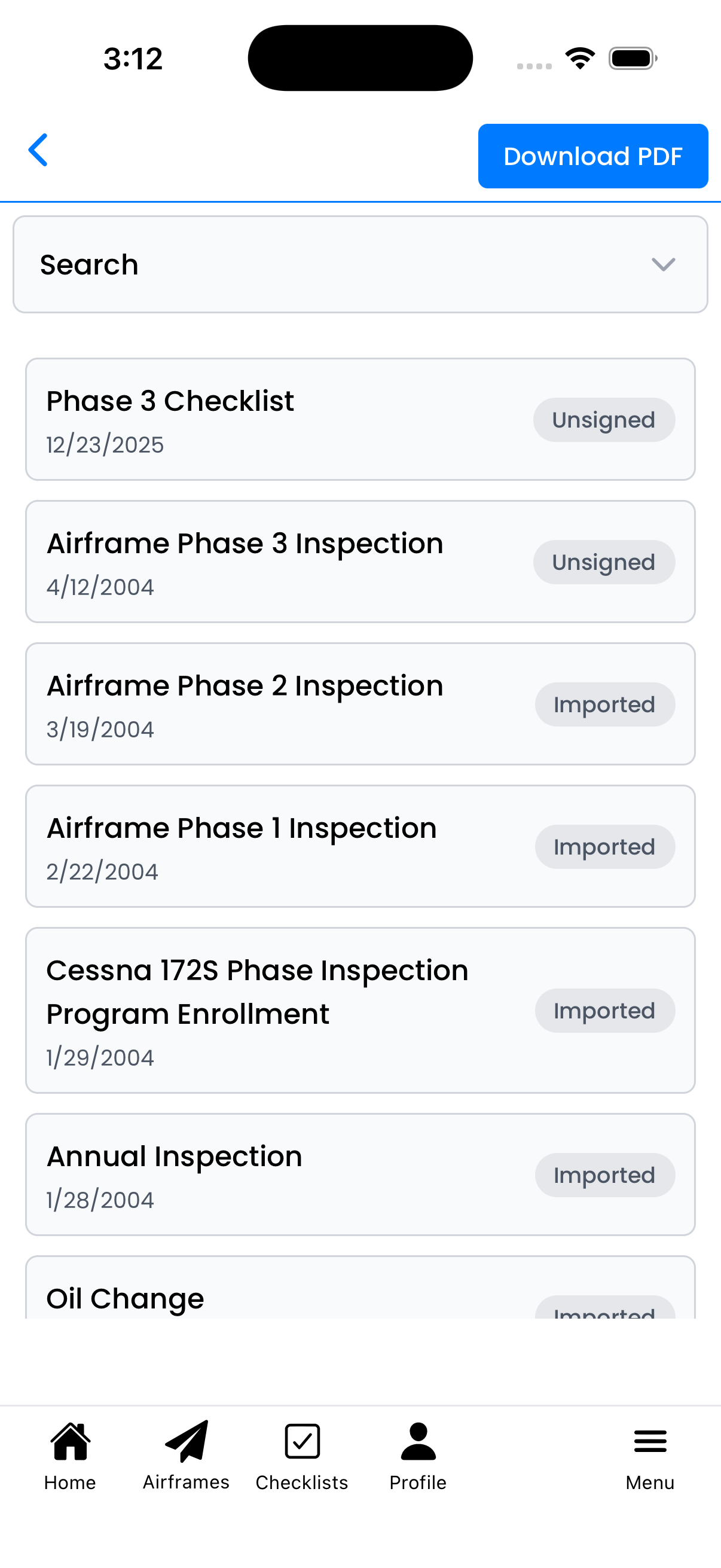
Entries with Unsigned, Signed, and Imported badges
Search & Filters
Tap Search to expand the filter panel:
- Search field - Search by title, tags, or manual reference
- Sections - Filter by logbook section:
- All - Show all entries
- Airframe - Entries in the airframe logbook
- Powerplant - Entries in the engine logbook
- Propeller - Entries in the propeller logbook
- Show Build Logs - Toggle to include entries marked as build log entries
Selected filters appear as highlighted buttons. The list updates immediately as you change filters.
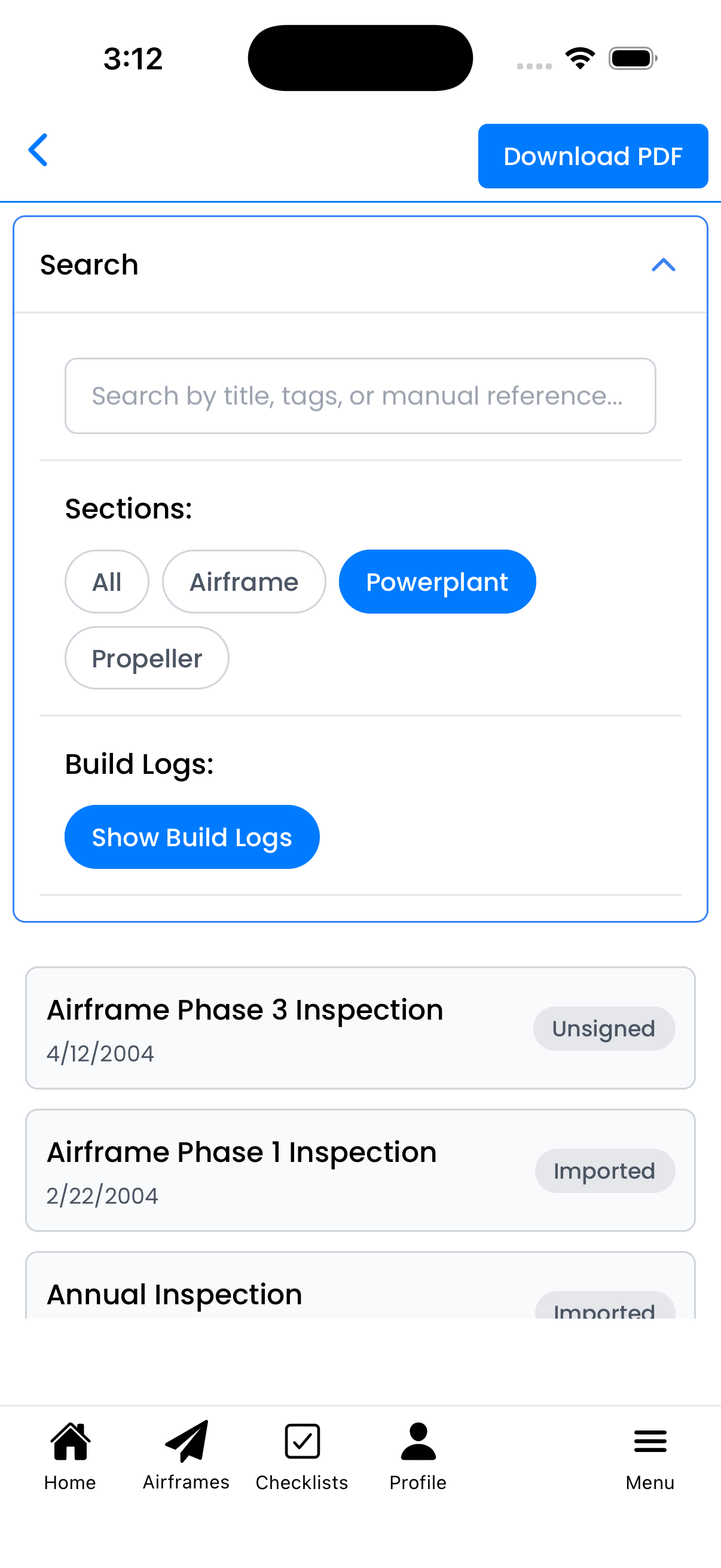
Filtering to show only Powerplant entries
Download PDF
Tap Download PDF to export your maintenance logbook:
- Select a template - Choose your preferred PDF format:
- Default Template - The best template for your account
- Aviation Blue Landscape - Wide landscape format with aviation-themed blue color scheme, perfect for detailed maintenance tables
- Tap Download - Start PDF generation
- Wait for generation - A progress banner shows "Generating PDF... Waiting in queue"
- Download when ready - A dialog appears when your PDF is ready to download
Note: PDF generation may take a few minutes for large logbooks.
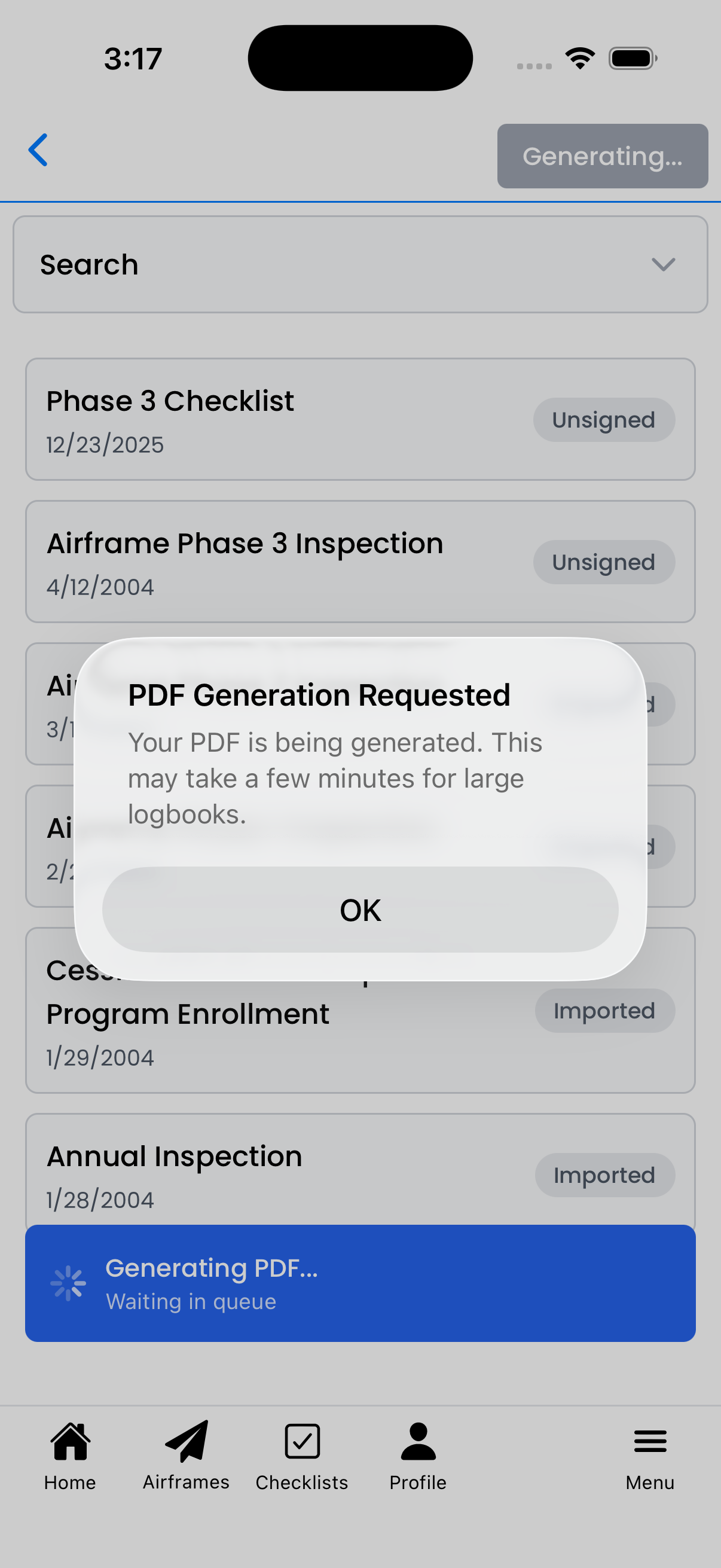
PDF generation requested with progress banner
PDF Download Ready
When your PDF is ready, a Download Ready dialog appears:
- Download - Save the PDF to your device
- Cancel - Dismiss the dialog without downloading
The generated PDF includes all filtered entries with professional formatting suitable for:
- Pre-buy inspections
- Insurance documentation
- FAA audits
- Maintenance facility records

PDF ready for download