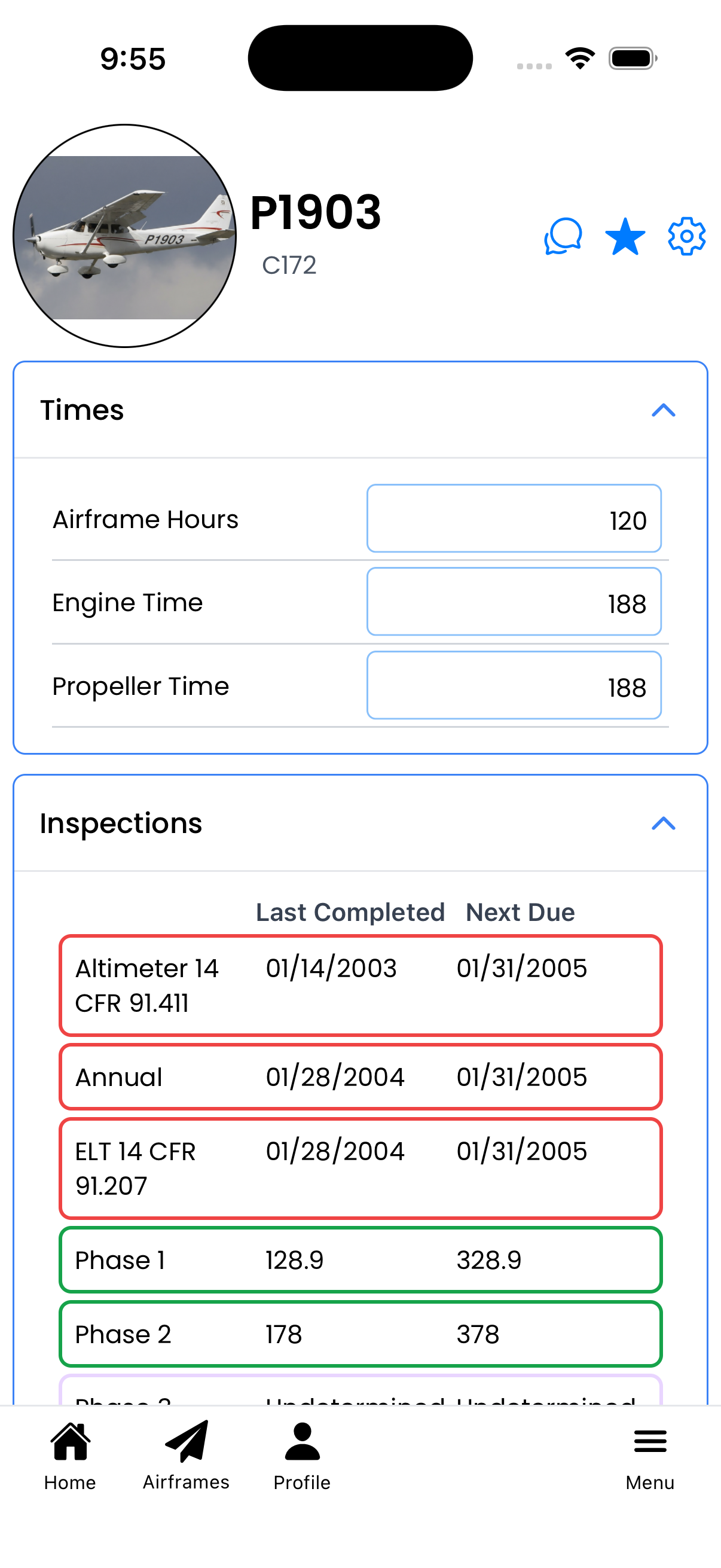
Aircraft Details
Your central hub for viewing and managing all aspects of a single aircraft, from times and compliance to logbook entries and documents.
What You Can Do Here
- Track Times - View and update airframe, engine, and propeller hours
- Monitor Inspections - See upcoming and overdue inspection requirements
- Track Maintenance - View maintenance items and their due status
- Manage ADs - Track Airworthiness Directive compliance
- Access Logbook - View recent entries and access the full maintenance logbook
- Log Flights - View recent flights and add new flight entries
- Store Documents - Access certificates, insurance, and other aircraft documents
- Conversations - Discuss maintenance items with mechanics and team members
- Pin to Favorites - Star this aircraft for quick access from the home screen
Times Section
The Times collapsible section displays current time readings for:
- Airframe Hours - Total flight time on the aircraft structure
- Engine Time - Tachometer hours on the powerplant (labeled by position for multi-engine aircraft)
- Propeller Time - Hours on the propeller (if tracked separately)
Tip: Tap on any time value to edit it directly. Changes save automatically when you tap away.
Understanding Inspections
The Inspections section shows all inspection types linked to this aircraft:
| Row Color |
Meaning |
| Green |
Compliant - inspection is current |
| Yellow |
Warning - due soon (within threshold) |
| Red |
Overdue - inspection has expired |
Each row shows the Last Completed date and Next Due date or hour reading.
Tap any inspection row to view the Inspection Type Details showing all maintenance log entries for that inspection type.
Maintenance Tracking
The Maintenance section displays recurring maintenance items like:
- Oil changes
- Filter replacements
- Major overhauls
- Other time-based service requirements
Each item shows when it was last completed and when it's next due. Color coding follows the same pattern as inspections.
Tap any maintenance row to view the Maintenance Type Details showing all maintenance log entries for that maintenance type.
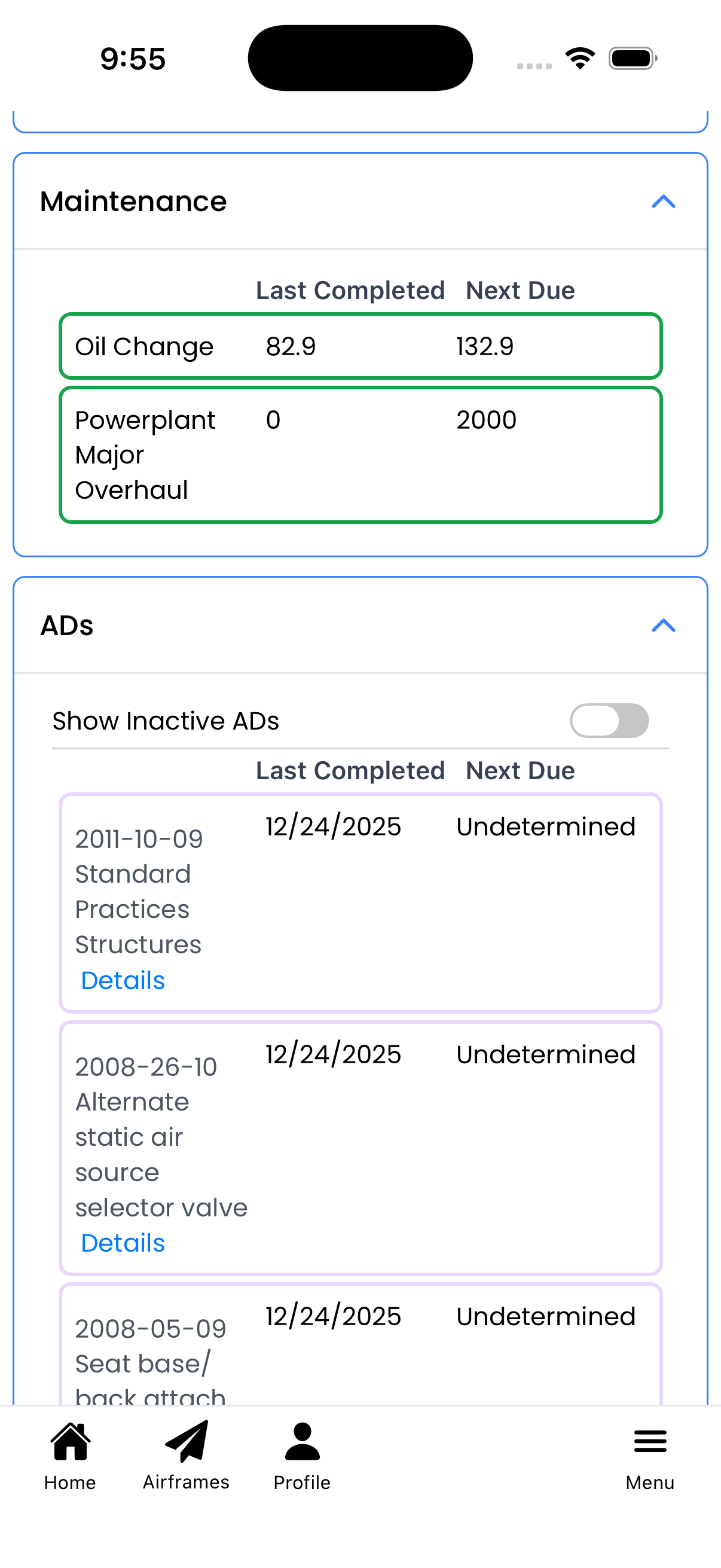
Maintenance items with status indicators
Airworthiness Directives (ADs)
The ADs section tracks compliance with FAA Airworthiness Directives:
- Show Inactive ADs toggle - Include terminated or not-applicable ADs in the list
- Each AD shows its document number, title, last compliance date, and next due status
- Details link - Tap to view the AD Details showing all maintenance log entries and compliance history for that Airworthiness Directive
Undetermined status means the AD has no recurring requirement after initial compliance, or the next due calculation couldn't be determined.
Maintenance Logbook
The Logbook section provides access to maintenance records:
- Full Logbook - Opens the complete maintenance history
- + button - Add a new maintenance entry (requires maintain permission)
- Recent Entries - Shows the 5 most recent logbook entries
Tap any entry to view or edit its details.
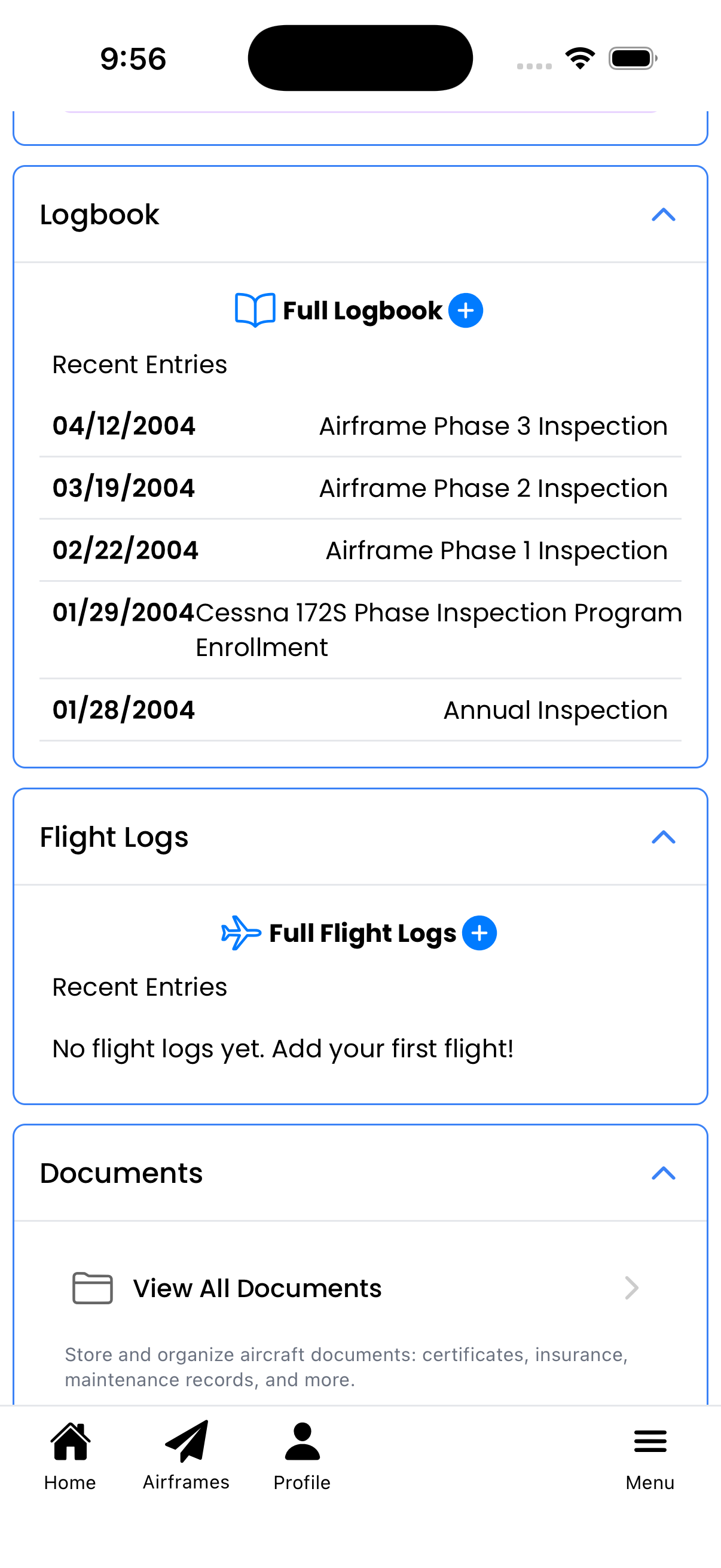
Recent logbook entries and flight logs
Flight Logs
The Flight Logs section tracks flights for this aircraft:
- Full Flight Logs - View complete flight history
- + button - Add a new flight entry
- Recent Entries - Shows recent flights with date, route, and times
Flight logs can automatically update aircraft times when logged.
Documents
The Documents section stores important aircraft paperwork:
- Airworthiness certificate
- Registration
- Insurance documents
- Weight and balance records
- Any other PDF or image files
Tap View All Documents to access the document management screen where you can upload, organize, and set expiration dates.
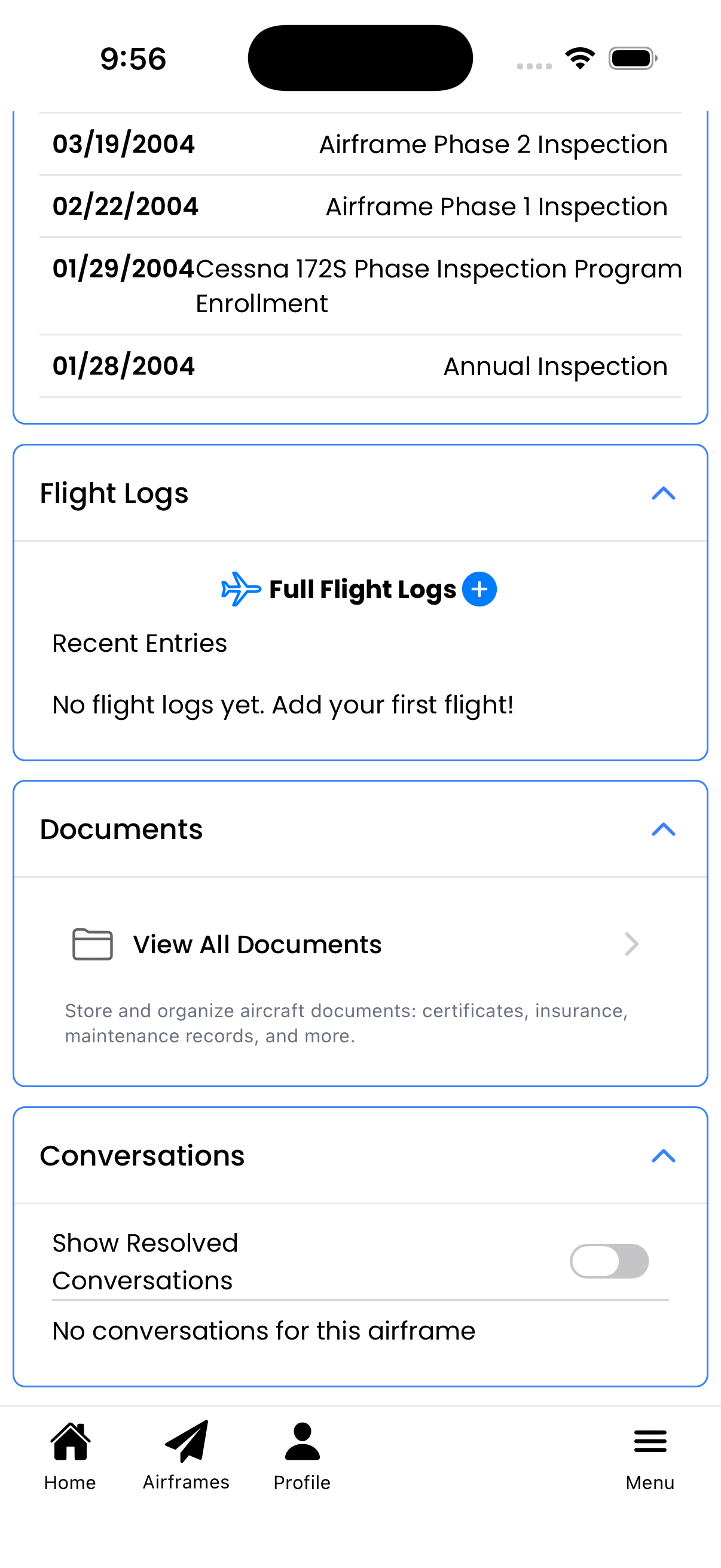
Documents and team conversations
Conversations
The Conversations section enables communication about this aircraft:
- Show Resolved Conversations toggle - Include completed discussions
- Each conversation shows the topic, participants, and last message
- Unresolved conversations appear by default
Use conversations to discuss squawks, coordinate maintenance, or communicate with your mechanic.
Header Actions
The header area at the top provides quick actions:
- Aircraft Photo - Tap to change the avatar image (requires maintain permission)
- Chat icon - Start a new conversation about this aircraft
- Star icon - Pin/unpin this aircraft to your home screen favorites
- Settings icon - Access aircraft setup to configure inspections, maintenance types, and ADs
Note: The settings icon only appears if you have maintain or higher permission on this aircraft.
Tips
- Collapse sections you don't need to focus on the information you care about
- Check status colors daily - Red items need immediate attention
- Use the star to pin frequently accessed aircraft to your home screen
- If setup is incomplete, a blue banner appears at the top linking to the setup wizard