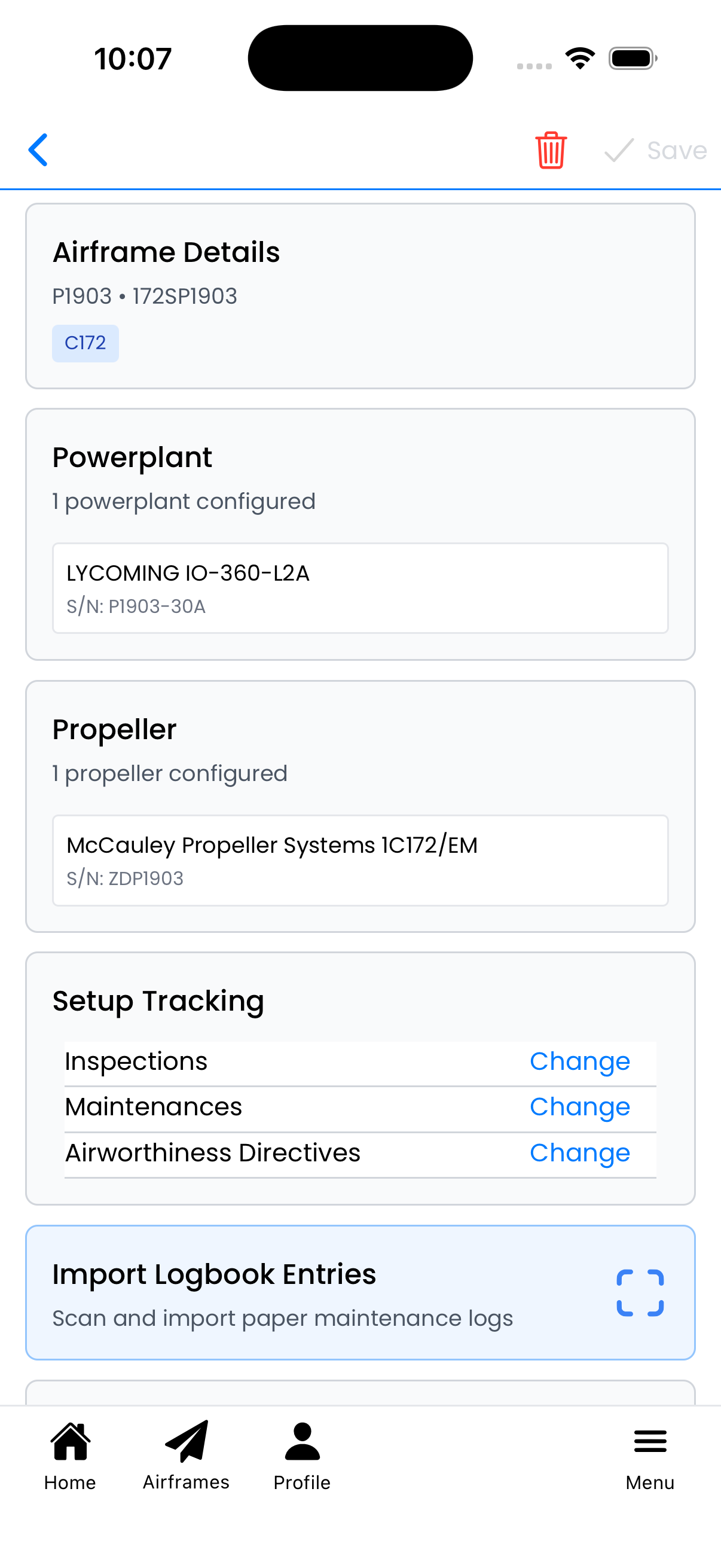
Aircraft Setup
Configure all aspects of your aircraft including details, powerplants, propellers, compliance tracking, group permissions, and documentation.
Airframe Details
Tap the Airframe Details card to edit basic aircraft information:
- Tail Number - Aircraft registration (e.g., N12345)
- Serial Number - Manufacturer's serial number
- Empty Weight - Aircraft empty weight in pounds
- Airframe Time Current - Total airframe hours
- Date Manufacture - When the aircraft was built
- Equipment Suffix Code - Navigation/communication equipment code
- Airframe Type - Link to a specific aircraft type (e.g., C172 Skyhawk)
Tap Done to collapse the card, then tap Save in the header to save changes.
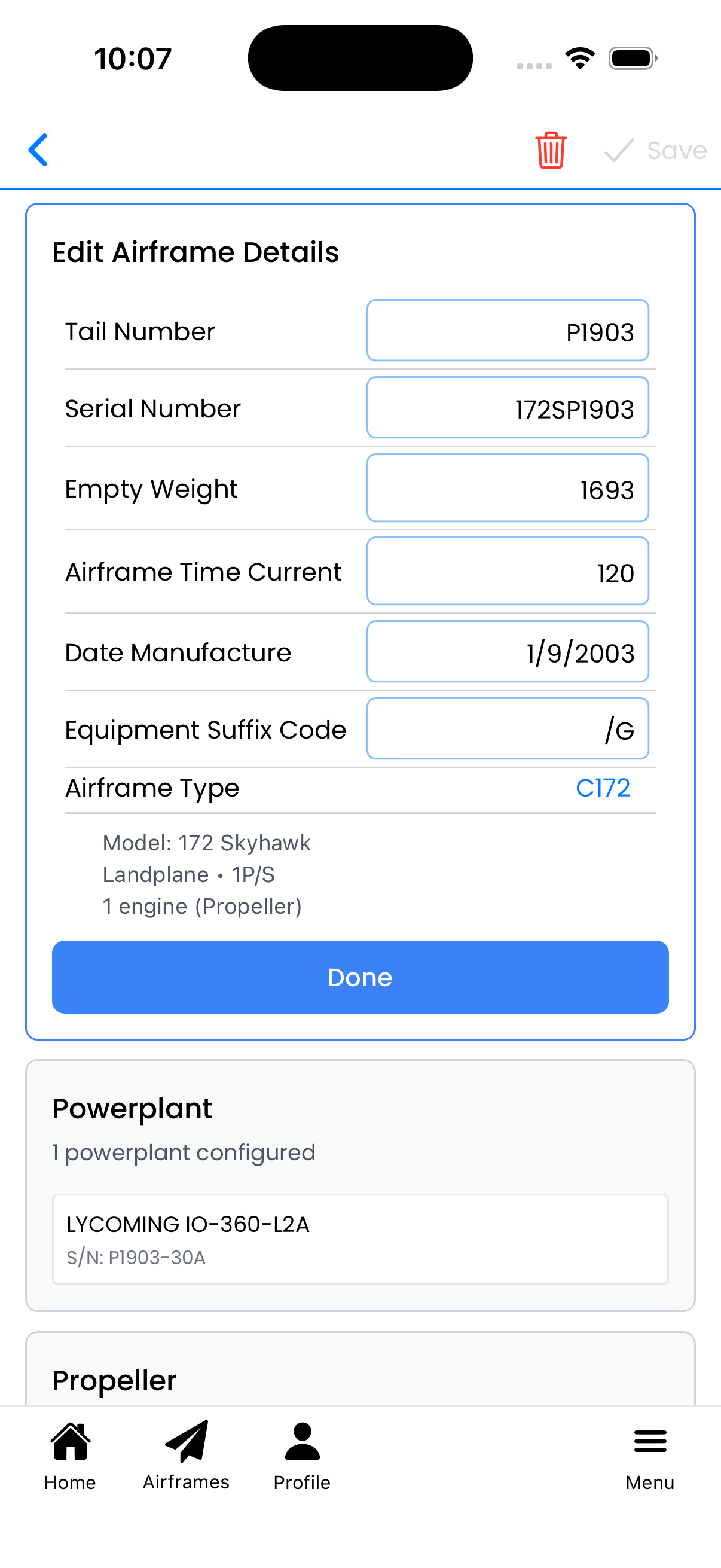
Edit airframe details including type selection
Airframe Type
Tap Airframe Type in the Airframe Details card to open the type picker:
- Search - Find types by ICAO designator (C172, PA28, BE36, etc.)
- Verified types - Blue "Verified" badge indicates types verified by Project 1903 administrators
- Type details - Shows model name, category, class, and engine count
- Create New Type - Add a custom type if yours isn't in the library
Selecting a type links your aircraft to standardized characteristics used for compliance tracking and AD matching.
See the Airframe Type Library for more details on creating and managing types.
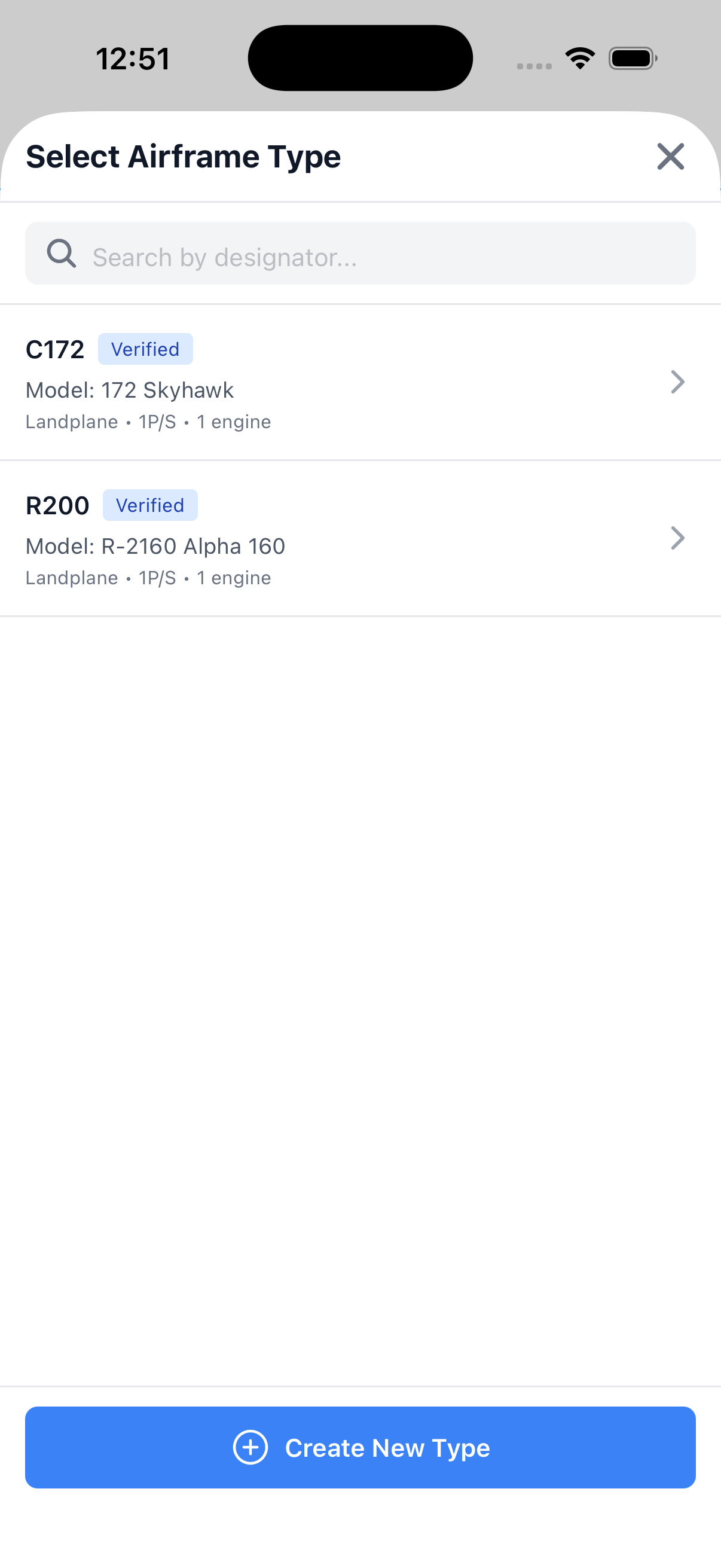
Choose from verified types or create a new one
Group Permissions
Control which groups can access this aircraft and what they can do:
- View - Can see aircraft data but not make changes
- User - Can log flights and view data
- Maintainer - Can perform maintenance operations and edits
- Admin - Full access except ownership transfer
- Owner - Complete control including deletion
Tap Edit to change a group's permission level, or Remove to revoke access.
Tap Add Group to grant access to additional groups.
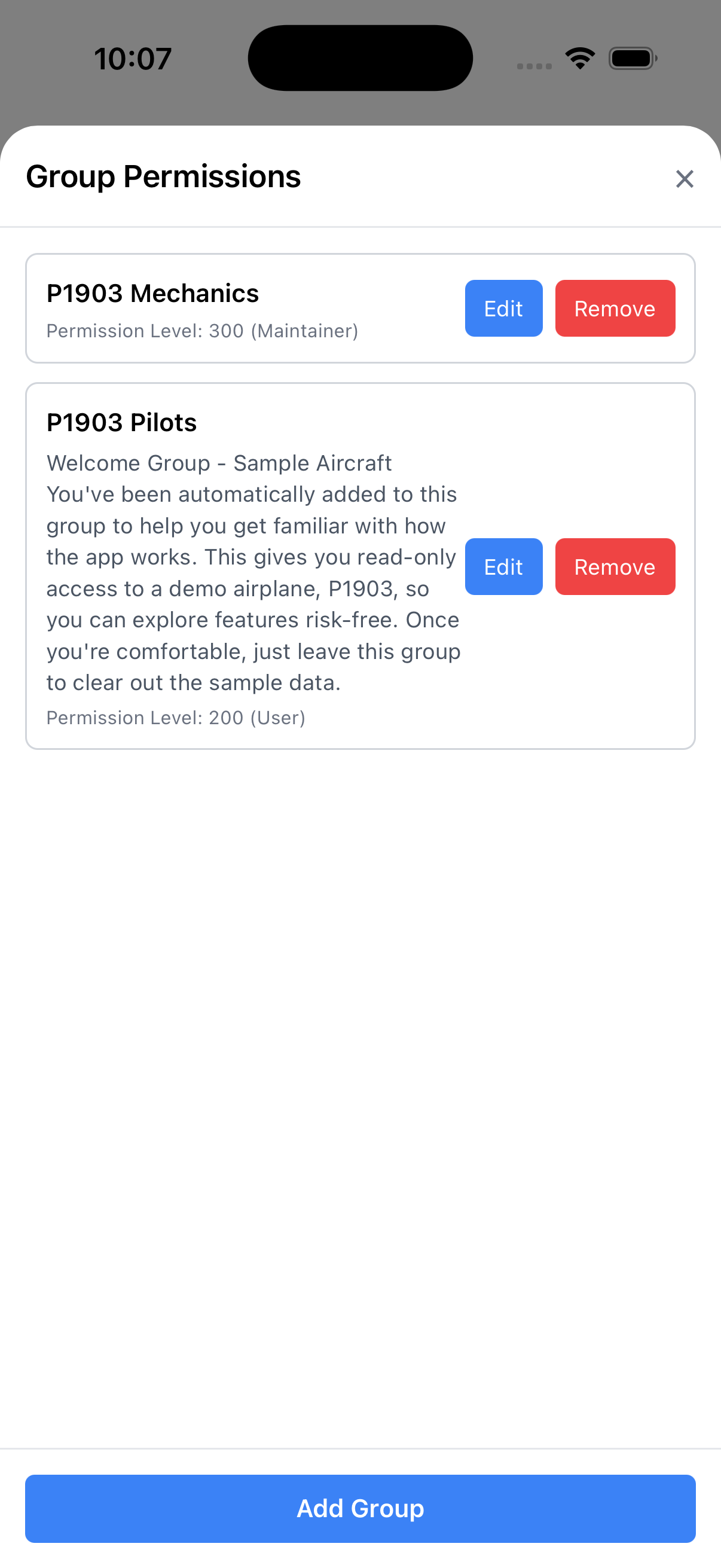
Manage which groups can access this aircraft
Documents
The Documents card lets you store important certificates:
- Registration Certificate - Your FAA registration document
- Airworthiness Certificate - Standard or special airworthiness certificate
Tap the card to expand it, then tap each upload area to take a photo or select an image from your device.
Note: For additional documents (insurance, W&B, POH), use the Documents section on the Aircraft Details screen.
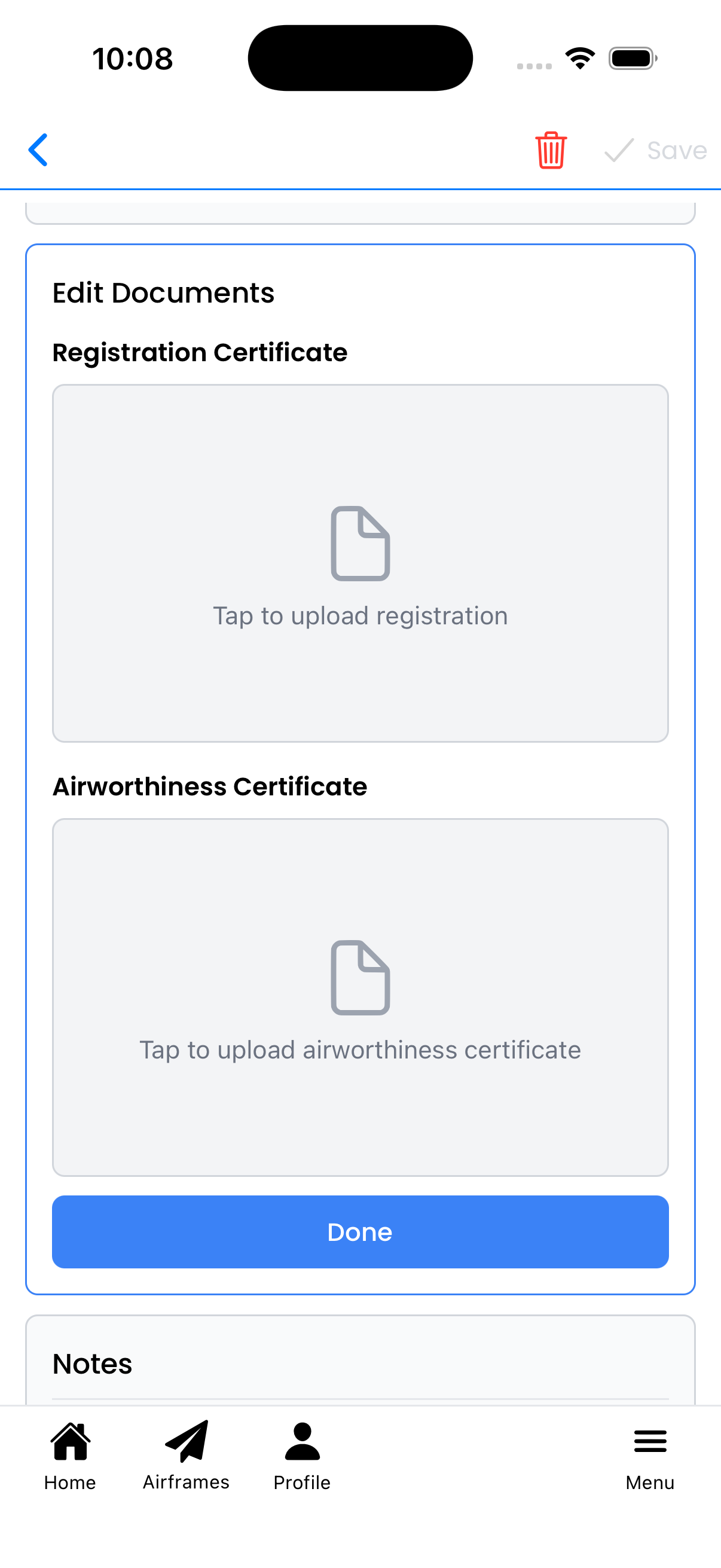
Upload registration and airworthiness certificates
Notes (Markdown Editor)
The Notes card supports rich text formatting using Markdown:
- Edit tab - Write or edit your markdown text
- Preview tab - See how your formatted text will appear
Markdown formatting examples:
**bold**for bold text*italic*for italic text# Heading 1,## Heading 2,### Heading 3- Bullet listor1. Numbered list[link text](https://example.com)for links`code`for inline code> Quotefor blockquotes---for horizontal lines
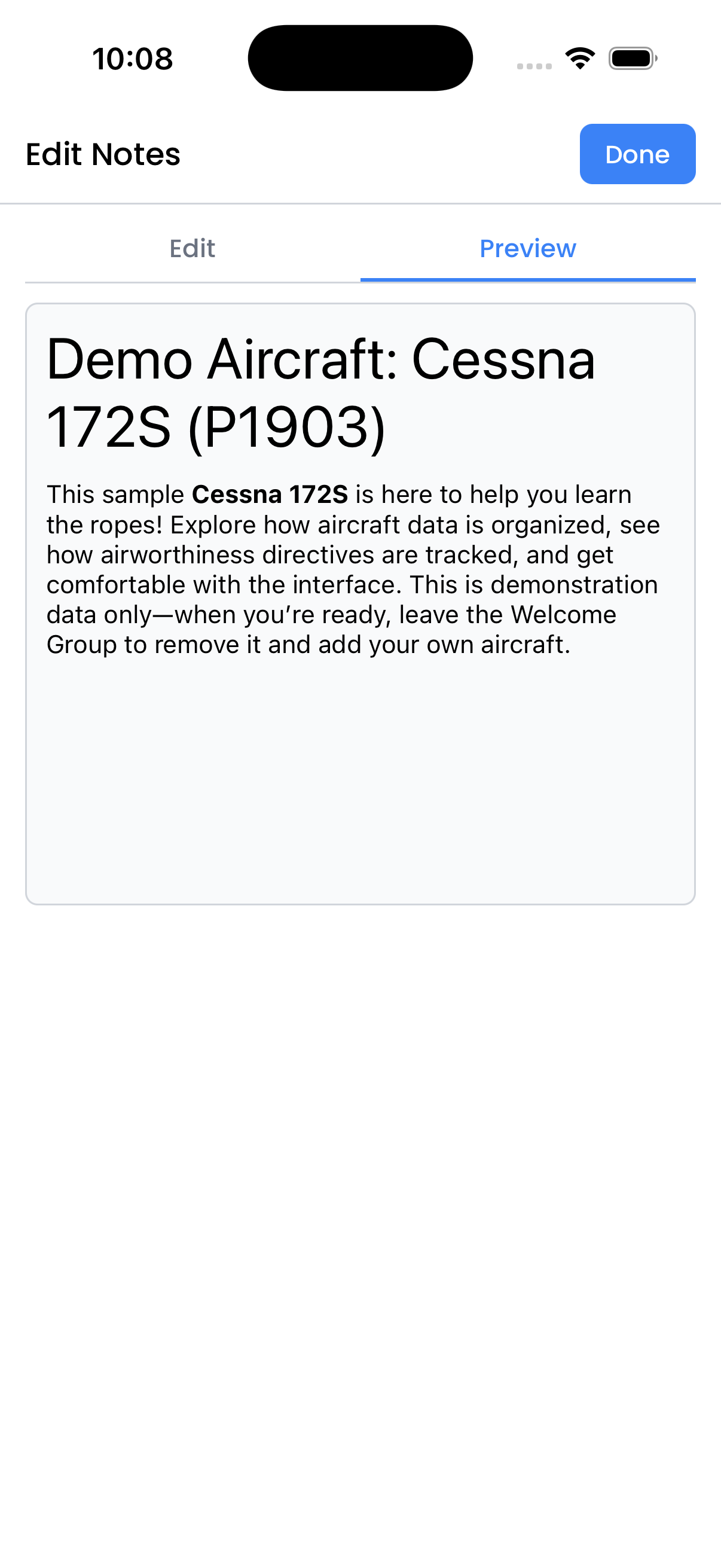
Preview tab shows formatted output