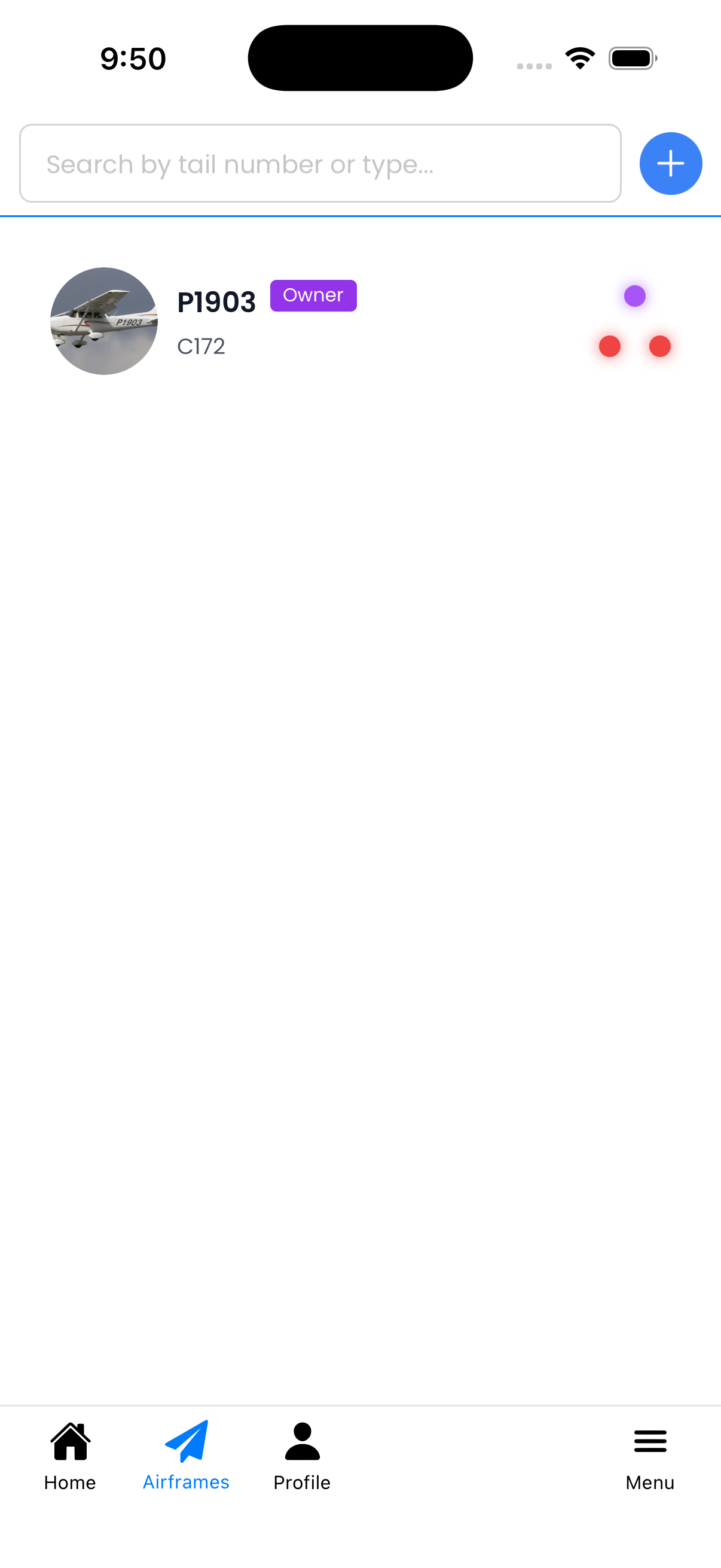
View and manage all your aircraft in one place. Search, add new aircraft, and see compliance status at a glance.
What You Can Do Here
View All Aircraft - See every aircraft you own or have access to
Search Aircraft - Filter by tail number or aircraft type (e.g., "C172")
Add New Aircraft - Tap the blue "+" button to add a new aircraft
Check Compliance Status - Each aircraft card shows three status dots:
Top dot - Airworthiness Directives (ADs)
Bottom-left dot - Inspections
Bottom-right dot - Maintenance
See Your Role - Permission badges show your access level (Owner, Admin, etc.)
How to Use
View Details: Tap any aircraft card to open its details page where you can see flights, maintenance, and compliance information.
Search: Type in the search bar to filter aircraft by tail number or type designator (e.g., "C172", "PA28").
Add Aircraft: Tap the blue "+" button in the top-right to start the aircraft setup wizard.
Check Status: Glance at the status dots to quickly identify aircraft needing attention.
Using Search
The search bar filters your aircraft list in real-time:
By Tail Number - Type any part of the tail number (e.g., "216" to find N216RK)
By Aircraft Type - Type the designator (e.g., "C172", "PA28", "R200")
Case Insensitive - Search works regardless of capitalization
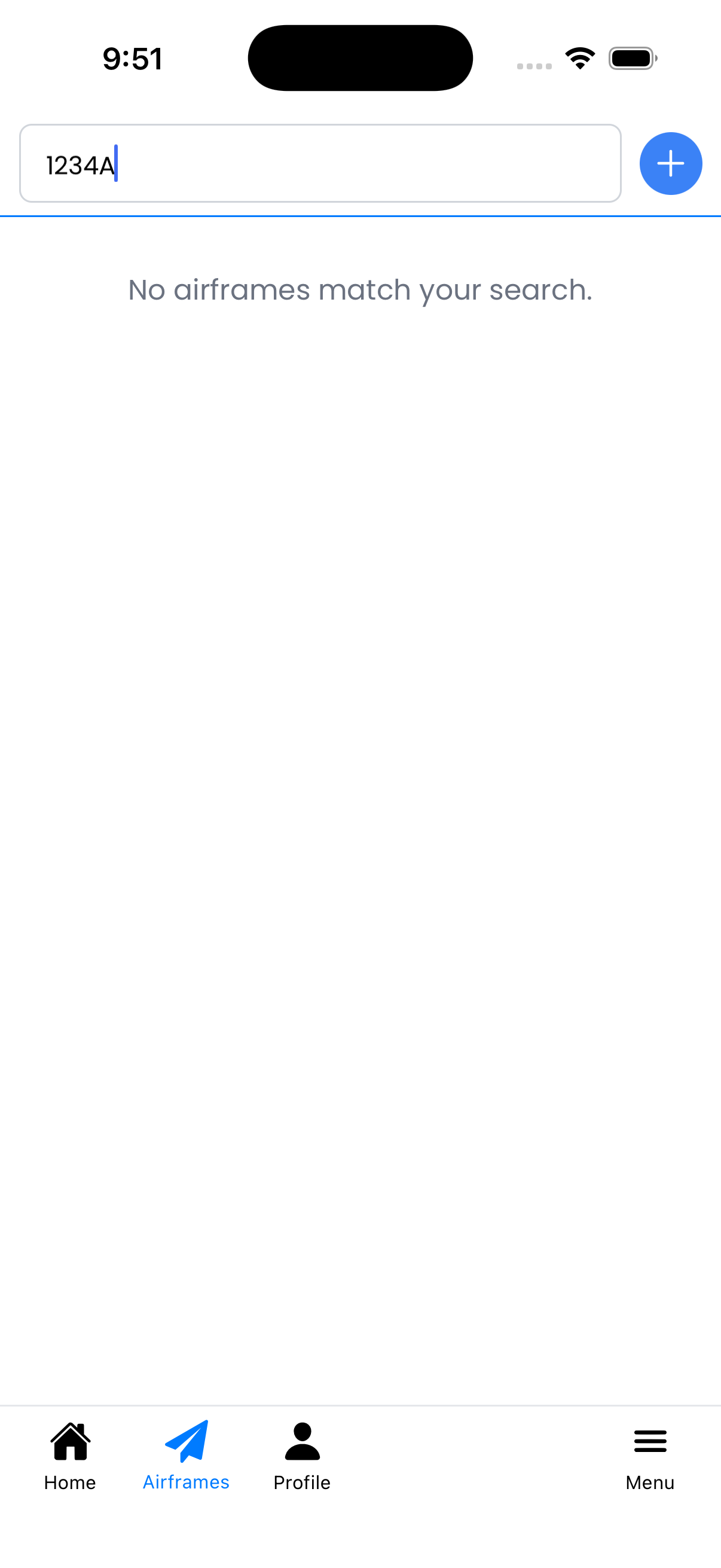
If no aircraft match your search, you'll see "No airframes match your search." Clear the search to see all aircraft again.
No results when search doesn't match any aircraft
Understanding Status Colors
The status dots use colors to indicate compliance status:
Green - All requirements met, everything is current
Yellow - Warning: an item is coming due soon
Red - Overdue: immediate attention required
Purple - Undetermined: status not yet known (tracking not configured)
Archived Aircraft
Aircraft that have been archived (due to subscription limits or manual archiving) appear with:
An "Archived" badge
Grayed-out appearance
To reactivate an archived aircraft, tap on it. If you have available slots in your subscription, you'll be prompted to reactivate it. If not, you'll need to upgrade your subscription first.
Tips
Red dots indicate overdue items - address these first
Use the search to quickly find aircraft when you have many
The "+" button will warn you if you've reached your subscription's aircraft limit
Tap the status dots on any aircraft to see detailed compliance information