Aircraft Setup Wizard
Add a new aircraft to your logbook. Step 1 searches the FAA registry by tail number and captures basic aircraft information.
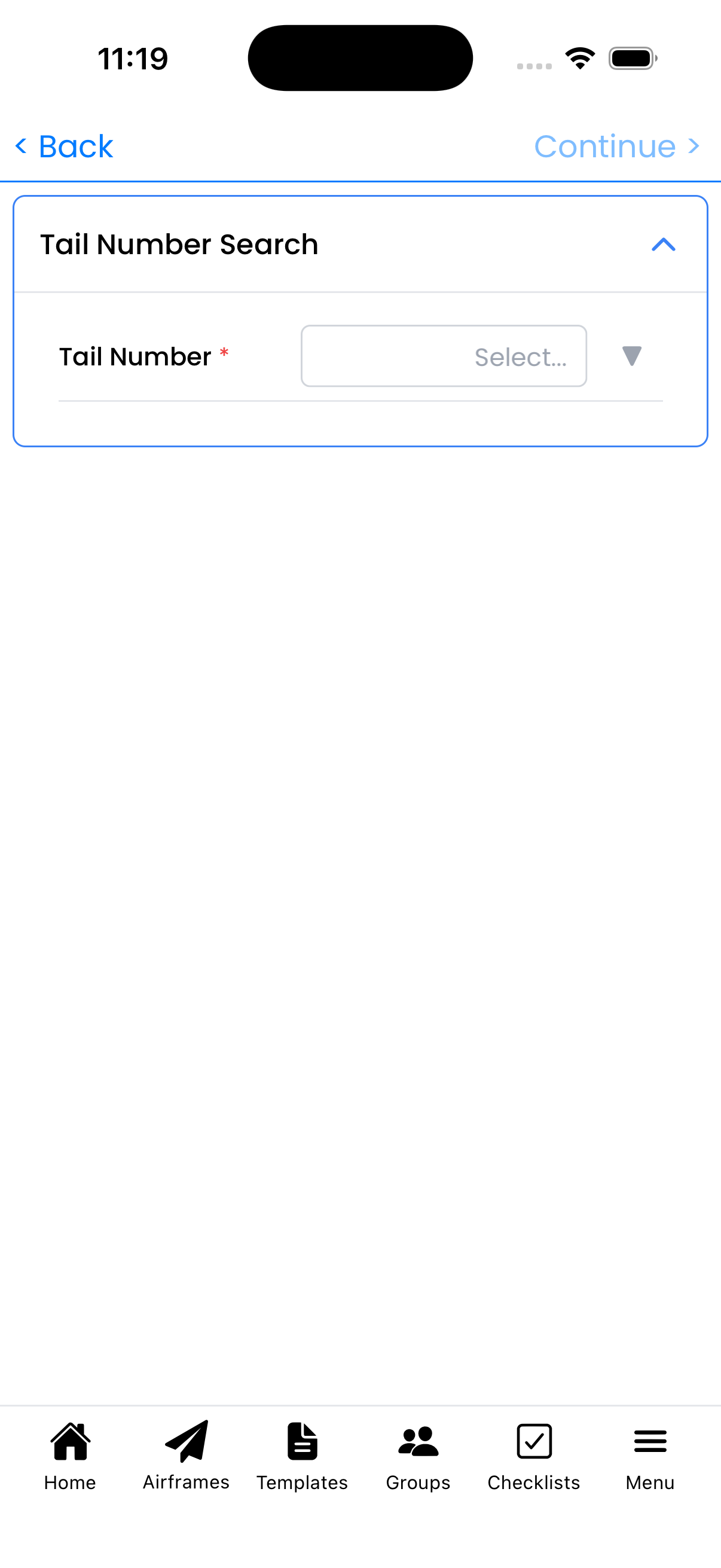
Tail Number Search
Search for your aircraft by N-number to auto-populate information from FAA records:
- Tail Number Field - Tap "Select..." to search for your N-number
- FAA Lookup - As you type, matching aircraft appear from the registry
- Auto-Fill - Selecting a result populates make, model, serial number, and engine info
Aircraft Information
Review and modify the aircraft details:
- Manufacturer - Aircraft maker (e.g., "CESSNA")
- Model - Aircraft model designation (e.g., "172M")
- Serial Number - From aircraft data plate
- Current Airframe Time - Total hours on airframe
- Number of Powerplants - How many engines
- Has Propeller - Toggle on for propeller-equipped aircraft
How to Access
The wizard starts automatically when you:
- Tap the + button on the Aircraft List screen
- Add your first aircraft after signing up
Wizard Steps Overview
The complete wizard consists of 5 steps:
- Tail Number & Aircraft Info (current) - Find and configure your aircraft
- Powerplant Info - Enter engine details
- Propeller Info - Enter propeller details
- Inspection Types - Select inspections to track
- Maintenance Types - Select maintenance items to track
Manual Entry
If your aircraft isn't in the FAA database:
- Experimental or amateur-built aircraft
- Foreign-registered aircraft
- Recently registered aircraft not yet in the database
You can skip the search and enter all details manually.
Tips
- Have your aircraft's registration documents handy for reference
- The FAA database is updated regularly but may not have the latest changes
- You can always edit aircraft details later from the Aircraft Setup screen