Your central hub for quick access to your aircraft and logging flights.
What You Can Do Here
Quick Add Flight - Tap the "Add a Flight" button to quickly log a flight for any of your aircraft
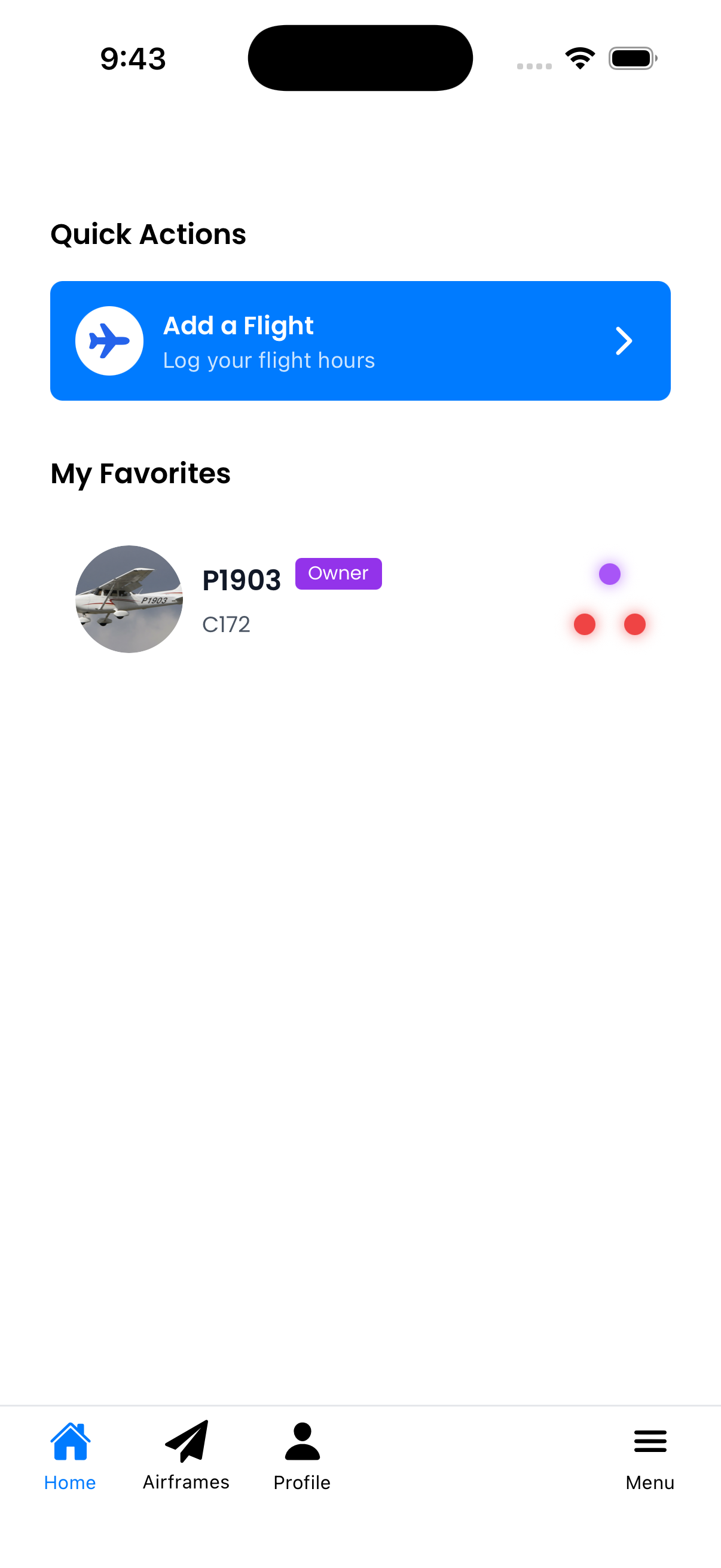
View Favorites - See your pinned/favorite aircraft with their current compliance status at a glance
Check Compliance Status - Each aircraft card shows three status dots indicating:
Top dot - Airworthiness Directives (ADs)
Bottom-left dot - Inspections
Bottom-right dot - Maintenance
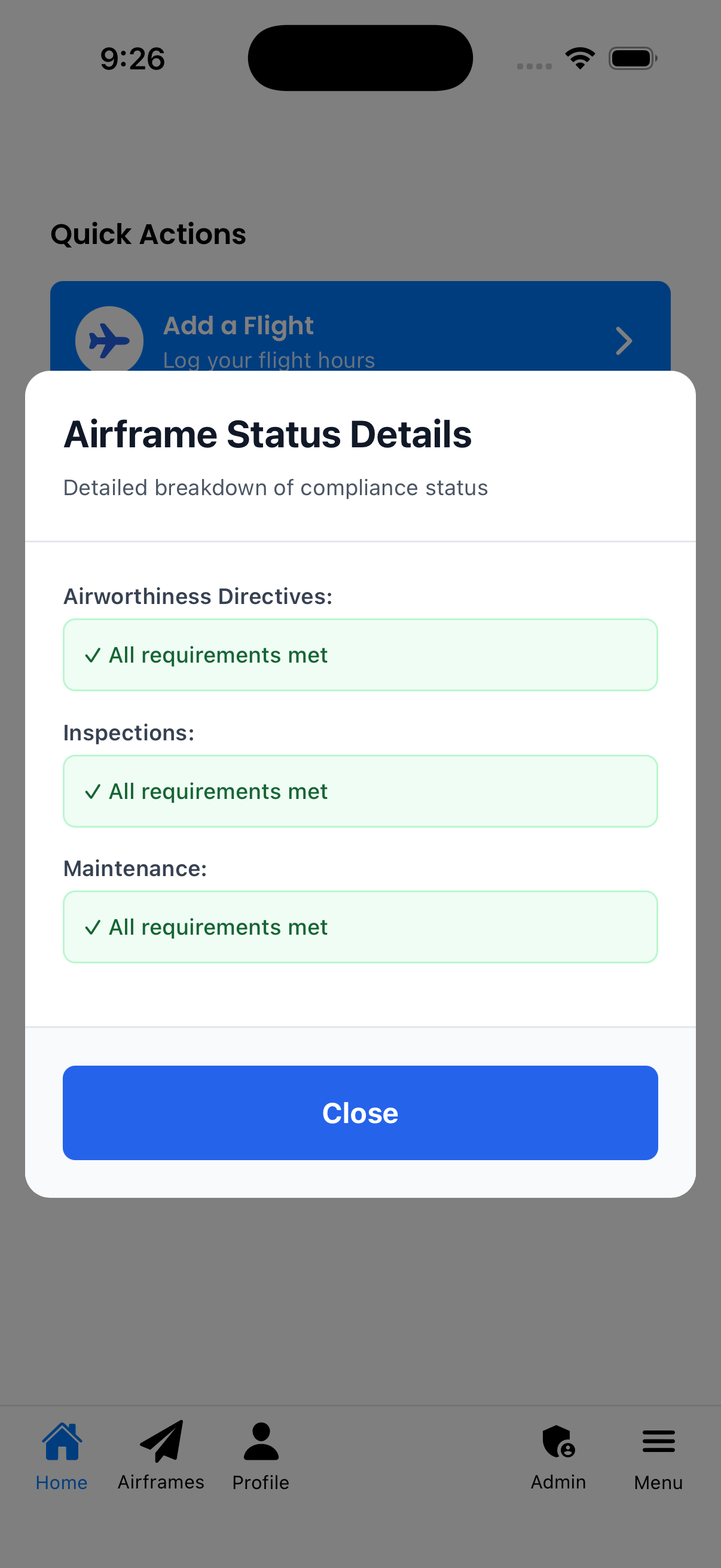
View Status Details - Tap the status dots to see detailed compliance information
How to Use
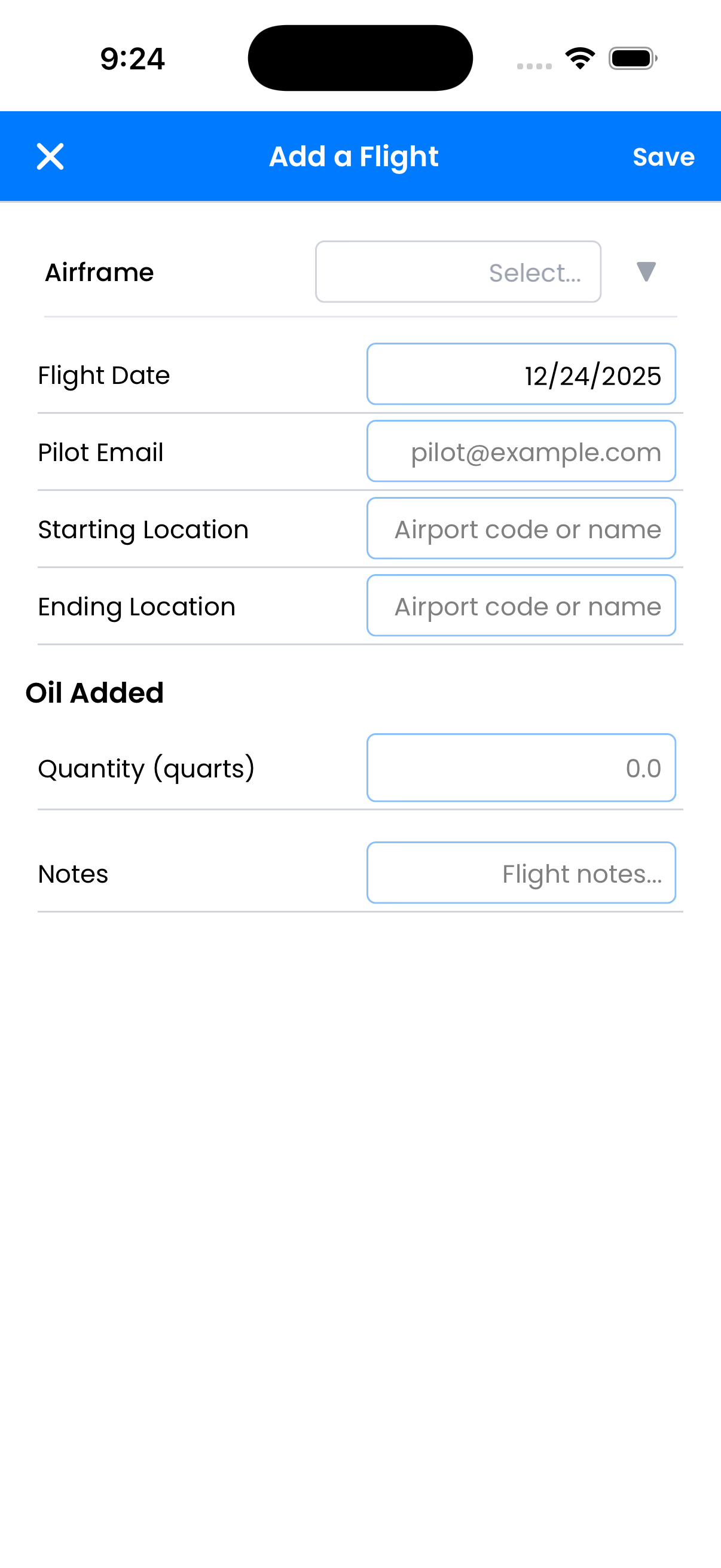
Log a Flight: Tap the blue "Add a Flight" button in the Quick Actions section. Select an aircraft, enter flight details (date, pilot, locations, oil added, notes), and save.
View Aircraft: Tap any aircraft card in "My Favorites" to go directly to that aircraft's details page.
Check Status: Tap the three status dots on an aircraft card to see a detailed breakdown of compliance for ADs, Inspections, and Maintenance.
Pin Favorites: To add aircraft to this screen, go to the Aircraft List and tap the pin icon on any aircraft you want to see here.
The Add Flight form lets you quickly log flight details
Email Verification
When you first log in, you'll be prompted to verify your email address:
Tap Send Verification Code to receive a 6-digit code at your email
Check your inbox (and spam folder) for the code
Enter the code when prompted to complete verification
Email verification is required before you can access your aircraft and use the app.
Terms & Privacy Policy
You'll also need to accept the Terms of Use and Privacy Policy:
Scroll to the bottom of each document to read it
Tap I Accept to agree and continue
These documents explain how your data is handled and your responsibilities as a user. After accepting, you'll see the main dashboard.
Understanding Status Colors
The status dots use colors to indicate compliance status:
Green - All requirements met, everything is current
Yellow - Warning: an item is coming due soon
Red - Overdue: immediate attention required
Purple - Undetermined: status not yet known (tracking not configured)
Tap the status dots to see this detailed breakdown
Tips
Pin your most-used aircraft to see them on this screen for quick access
The "Add a Flight" button is the fastest way to log flights
Keep an eye on the status dots - yellow means something is coming due soon
Pull down to refresh the screen and get the latest data