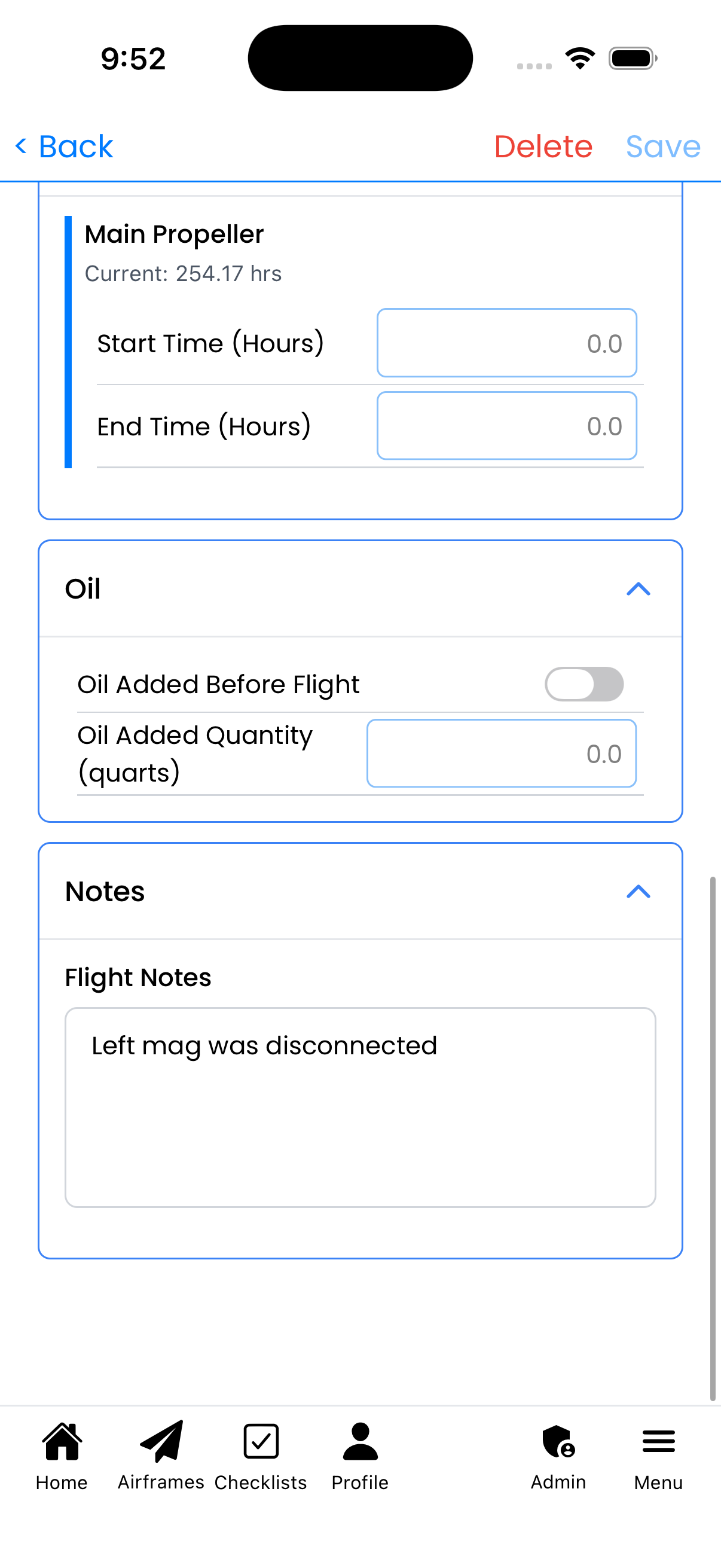
Flight Entry

Log a new flight or edit an existing flight entry. Record flight details, track component hours for the airframe, powerplant, and propeller, log oil consumption, and add notes.

What You Can Do Here
  • Log flight details - Date, pilot, departure/arrival airports
  • Track airframe hours - Record start and end tach/hobbs time
  • Track engine hours - Record powerplant time for each engine
  • Track propeller hours - Record propeller time for each prop
  • Log oil consumption - Track oil added before flight
  • Add notes - Record any observations about the flight
General Details

The General Details section captures basic flight information:

  • Airplane - The aircraft (pre-selected based on context)
  • Flight Date - Date the flight occurred
  • Pilot Email - Email of the pilot in command
  • Starting Location - Departure airport (e.g., KORD)
  • Ending Location - Arrival airport (e.g., KMDW)

Airport codes use standard ICAO identifiers (4-letter codes starting with K for US airports).
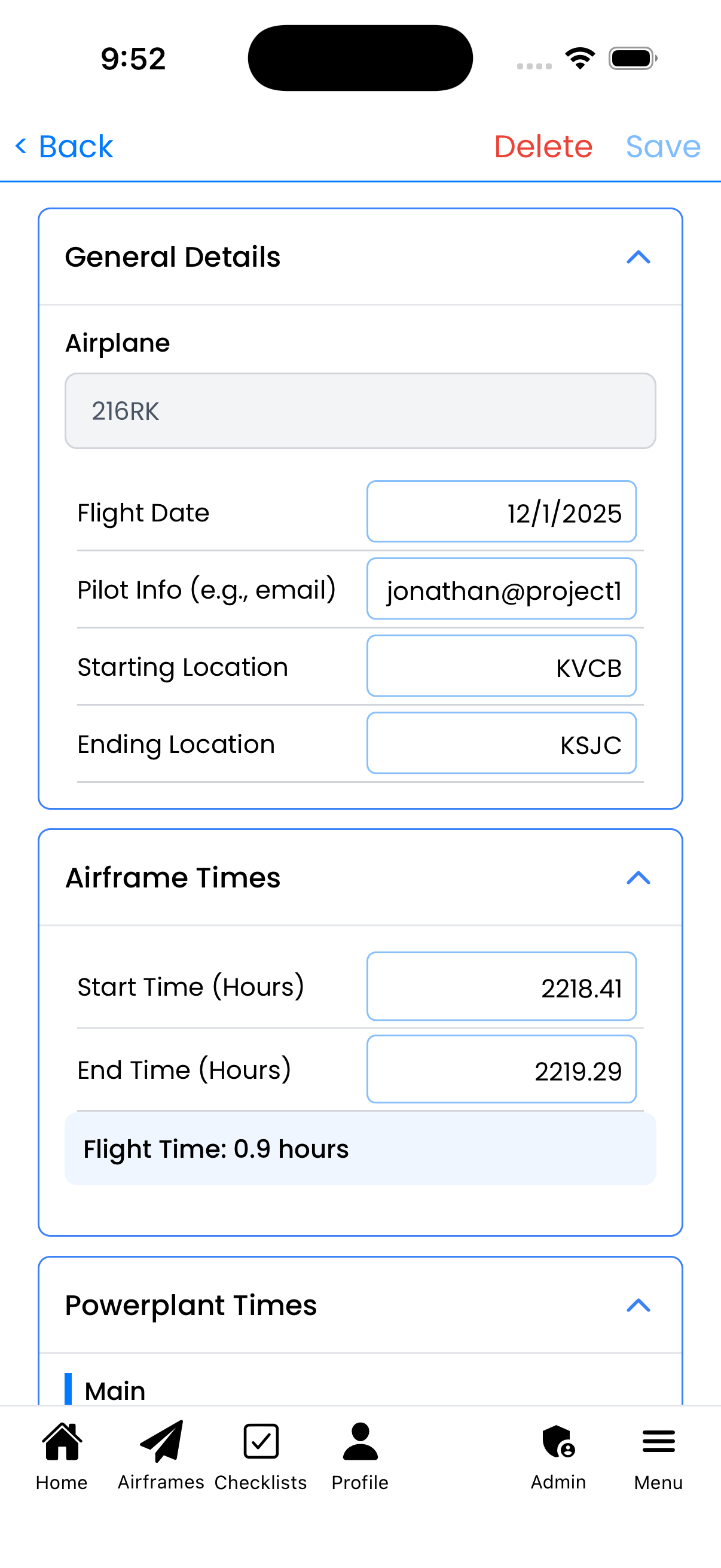
General Details form

Flight details with airport codes

Airframe Times

The Airframe Times section tracks total airframe hours:

  • Start Time (Hours) - Airframe hours at start of flight
  • End Time (Hours) - Airframe hours at end of flight

The difference between end and start time calculates the flight duration and updates the airframe's total time.

Powerplant Times

The Powerplant Times section tracks hours for each engine:

  • Engine name - Shows the powerplant name with current total hours
  • Start Time (Hours) - Engine hours at start of flight
  • End Time (Hours) - Engine hours at end of flight

For multi-engine aircraft, each engine is listed separately so you can track them independently.
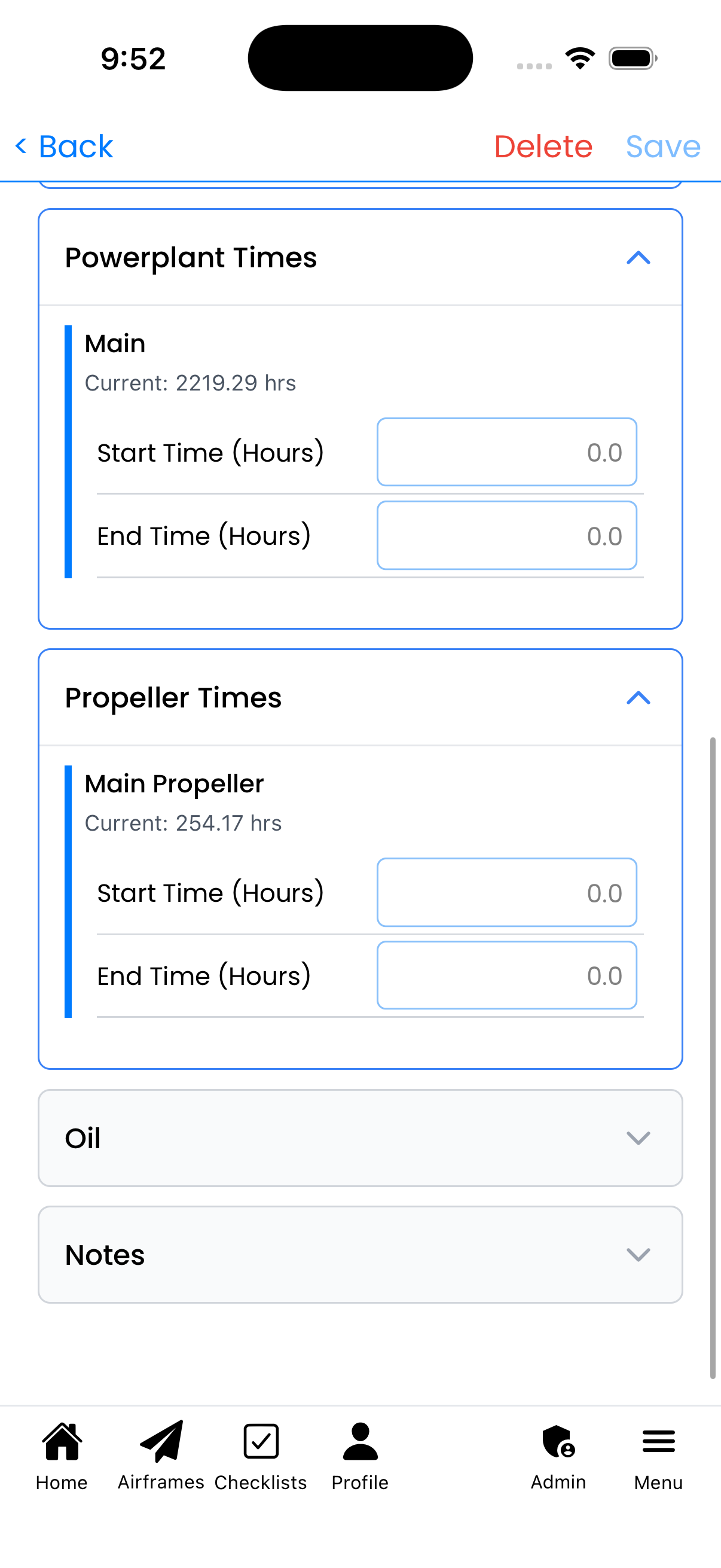
Powerplant Times section

Engine hours tracking with current totals

Propeller Times

The Propeller Times section tracks hours for each propeller:

  • Propeller name - Shows the propeller name with current total hours
  • Start Time (Hours) - Propeller hours at start of flight
  • End Time (Hours) - Propeller hours at end of flight

Propeller time is tracked separately from engine time since props may be replaced or overhauled on different schedules.

Oil Tracking

The Oil section tracks oil consumption:

  • Oil Added Before Flight toggle - Turn on if oil was added
  • Oil Added Quantity (quarts) - Amount of oil added

Tracking oil consumption helps monitor engine health. Unusual oil consumption patterns can indicate potential engine issues.
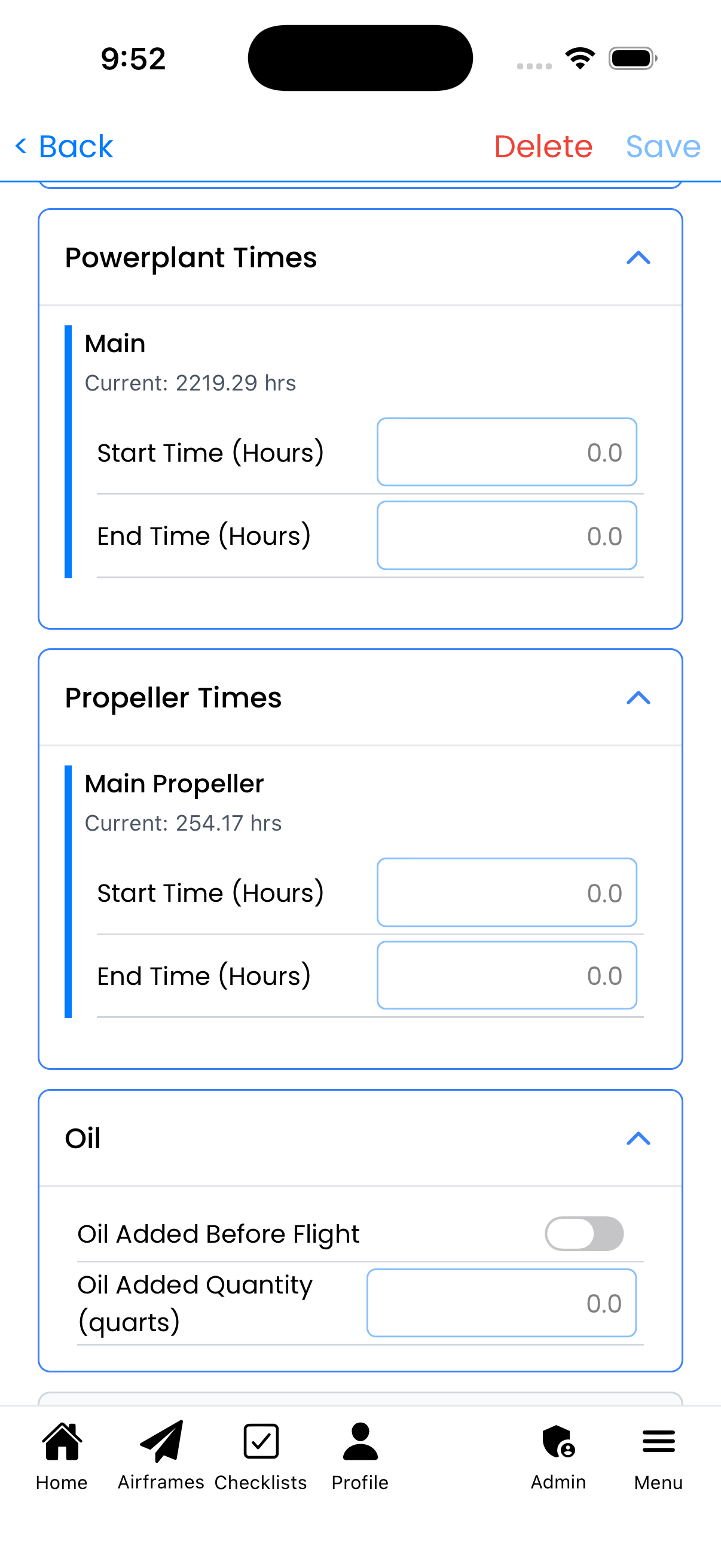
Oil tracking section

Oil consumption tracking

Notes

The Notes section provides a free-form text area:

  • Flight Notes - Enter any notes about this flight

Use notes to record:

  • Weather conditions
  • Unusual observations
  • Passenger information
  • Training notes
  • Squawks to address later
Notes section

Flight notes text field

Saving the Entry

To save your flight entry:

  • Tap Save in the top-right corner
  • The entry will be added to your flight history
  • Component times (airframe, powerplant, propeller) will be updated

Tap Back to cancel without saving.

Deleting an Entry

To delete a flight entry:

  1. Tap Delete (red text) in the top-right corner
  2. A confirmation dialog will appear asking "Are you sure you want to delete this flight log entry?"
  3. Tap Delete to confirm, or Cancel to keep the entry

Warning: Deleting a flight entry will also reverse any component hour updates that were recorded with that flight. This action cannot be undone.
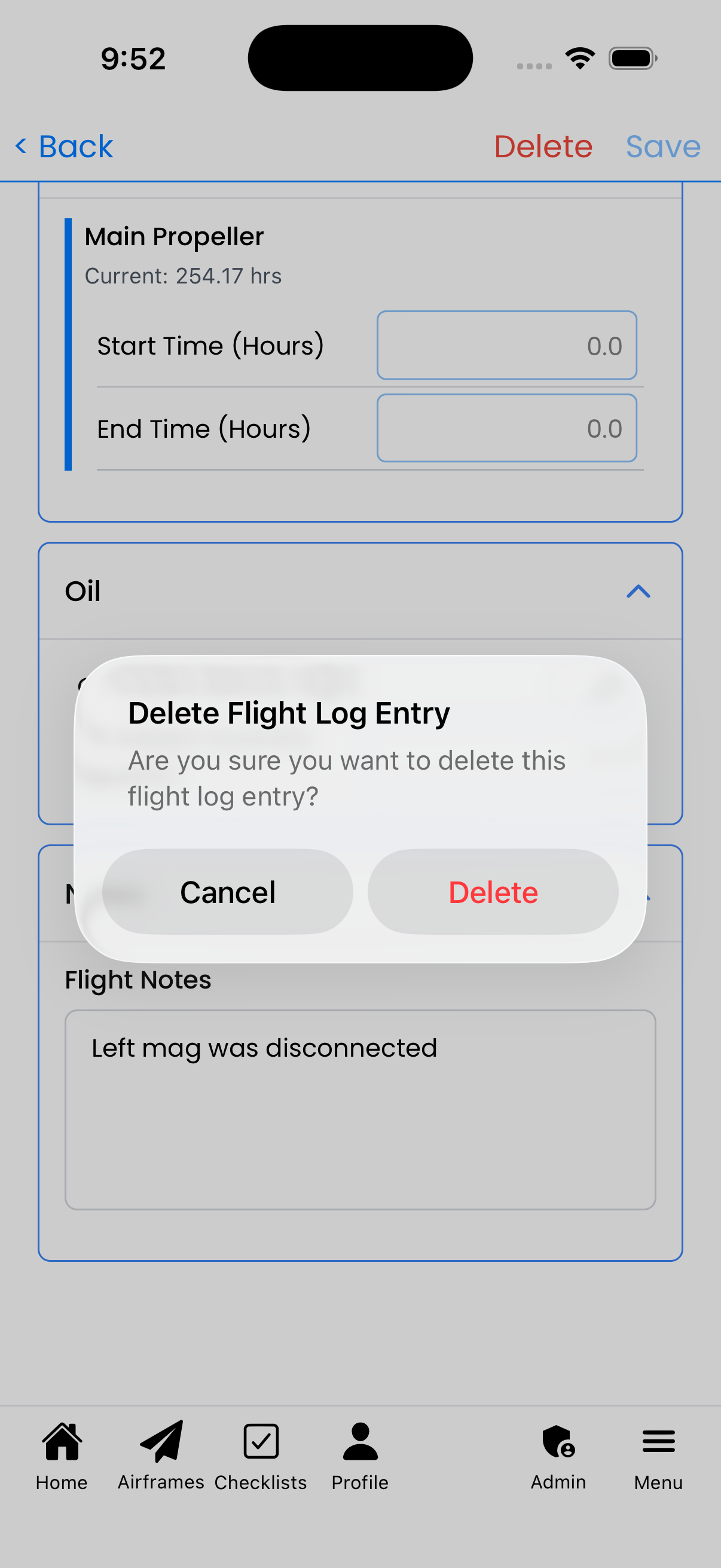
Delete confirmation dialog

Delete confirmation with Cancel and Delete options

How to Access This Screen

You can reach this screen from:

  1. Home screen - Tap "Add Flight" in Quick Actions
  2. Aircraft Details - Tap "Add Flight" button
  3. Flight History - Tap any existing flight to edit it
Tips
  • Pre-fill times - Start times are pre-filled with current component hours
  • Calculate flight time - Enter only the end time and the system calculates duration
  • Oil trends - Consistently log oil to spot consumption trends over time
  • Multi-engine - Each engine/prop tracks independently for accurate maintenance scheduling
  • Quick entry - Only fill required fields for a quick log; add details later
Flight Entry screenshot

Flight Entry form showing General Details and Airframe Times