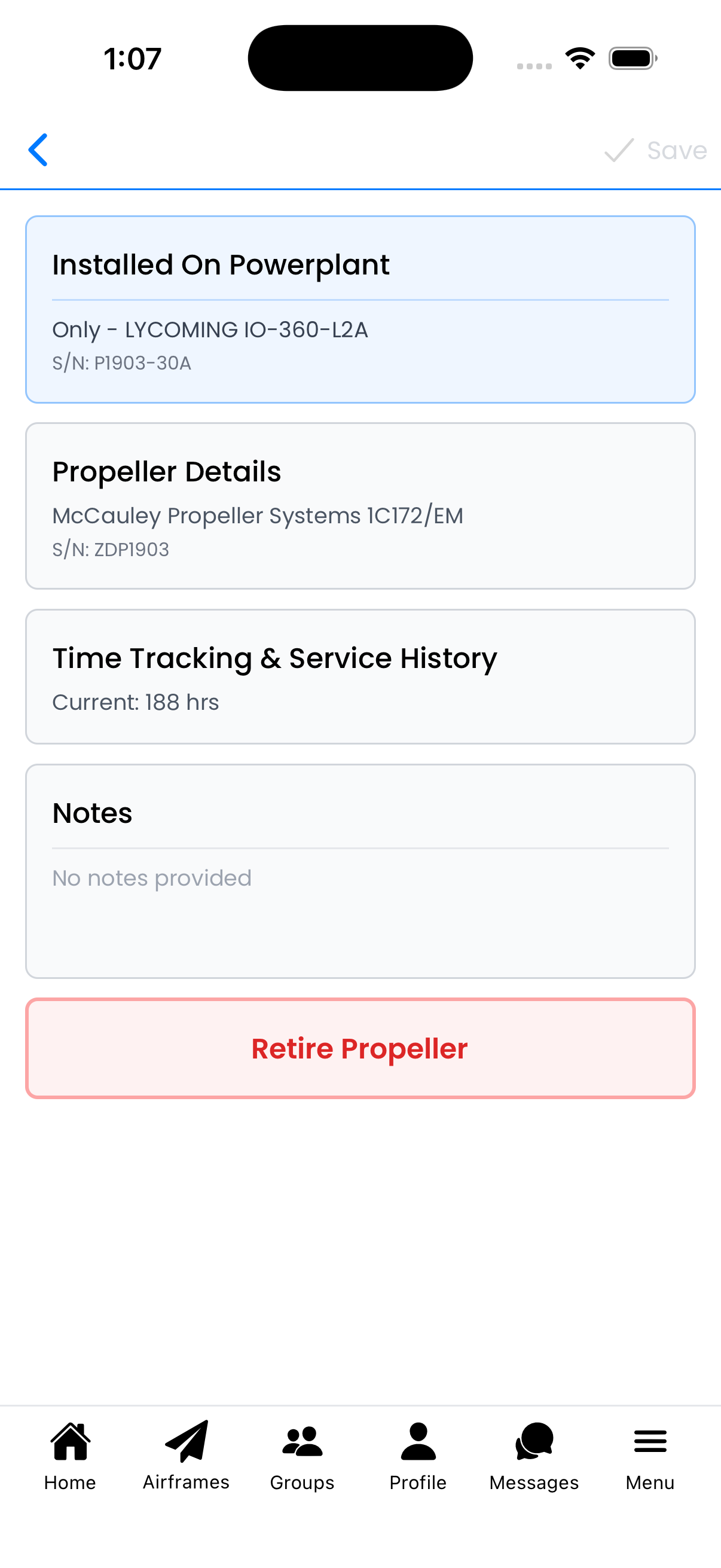
Propeller Editor
View and edit propeller details including manufacturer information, time tracking, service history, and notes. Propellers are linked to their associated powerplant.
Propeller Details
Tap the Propeller Details section to edit specifications:
- Manufacturer - Propeller manufacturer (e.g., McCauley, Hartzell, Sensenich)
- Propeller Model - Specific model designation (e.g., 1C172/EM)
- Serial Number - Unique propeller serial number
- Date of Manufacture - When the propeller was built
- Specification - Additional specification details
Tap Done to save changes to this section.
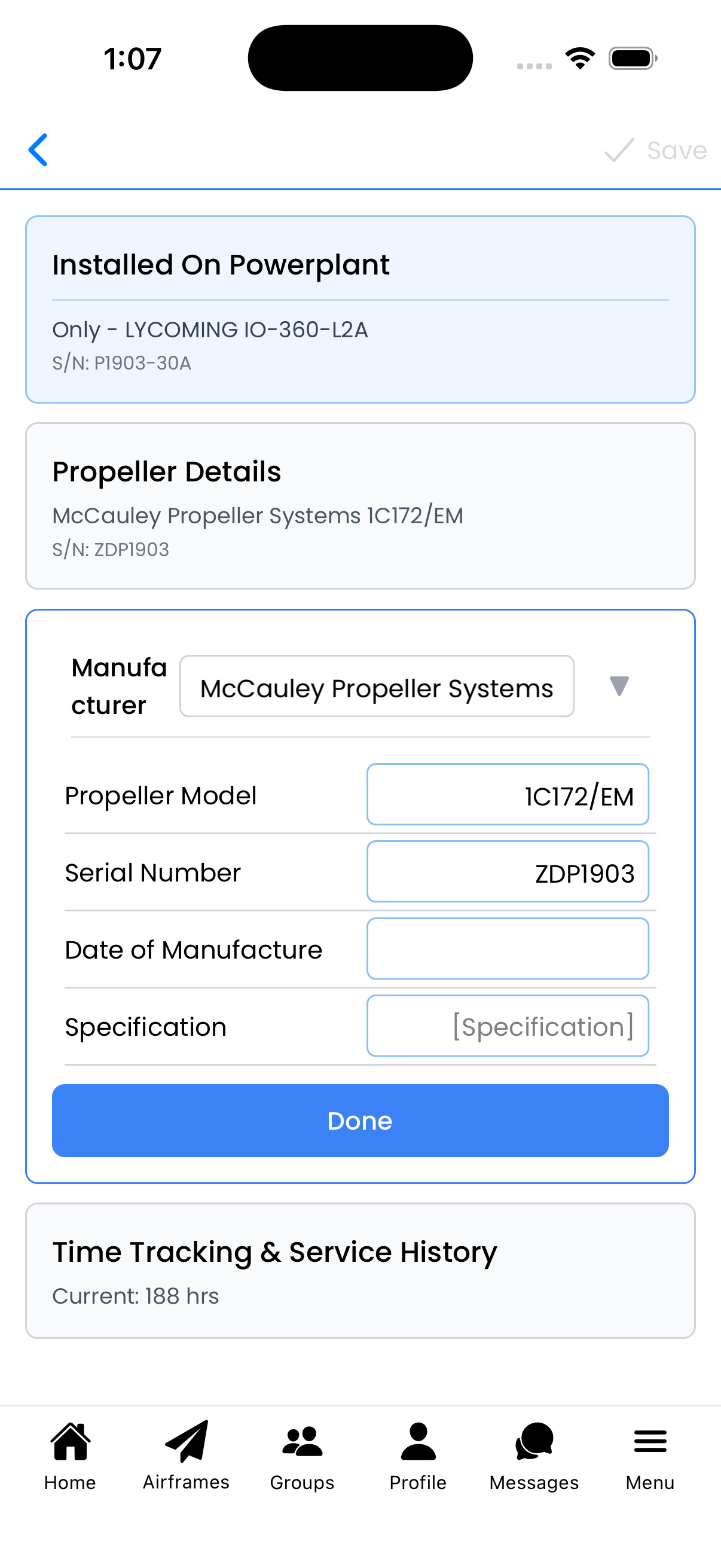
Propeller Details form
Time Tracking & Service History
Track propeller hours and maintenance history:
Time Tracking
- Current Prop Time - Total hours on the propeller
Installation Details
- Date of Installation - When this propeller was installed
- Tach Time at Installation - Engine hours when propeller was installed
Overhaul History
- Prop Time at Major Overhaul - Propeller hours when last major overhaul was performed
- Date of Major Overhaul - When major overhaul occurred
- Prop Time at Minor Overhaul - Propeller hours at last minor overhaul
- Date of Minor Overhaul - When minor overhaul occurred
This information helps track time since overhaul for AD compliance and resale value.
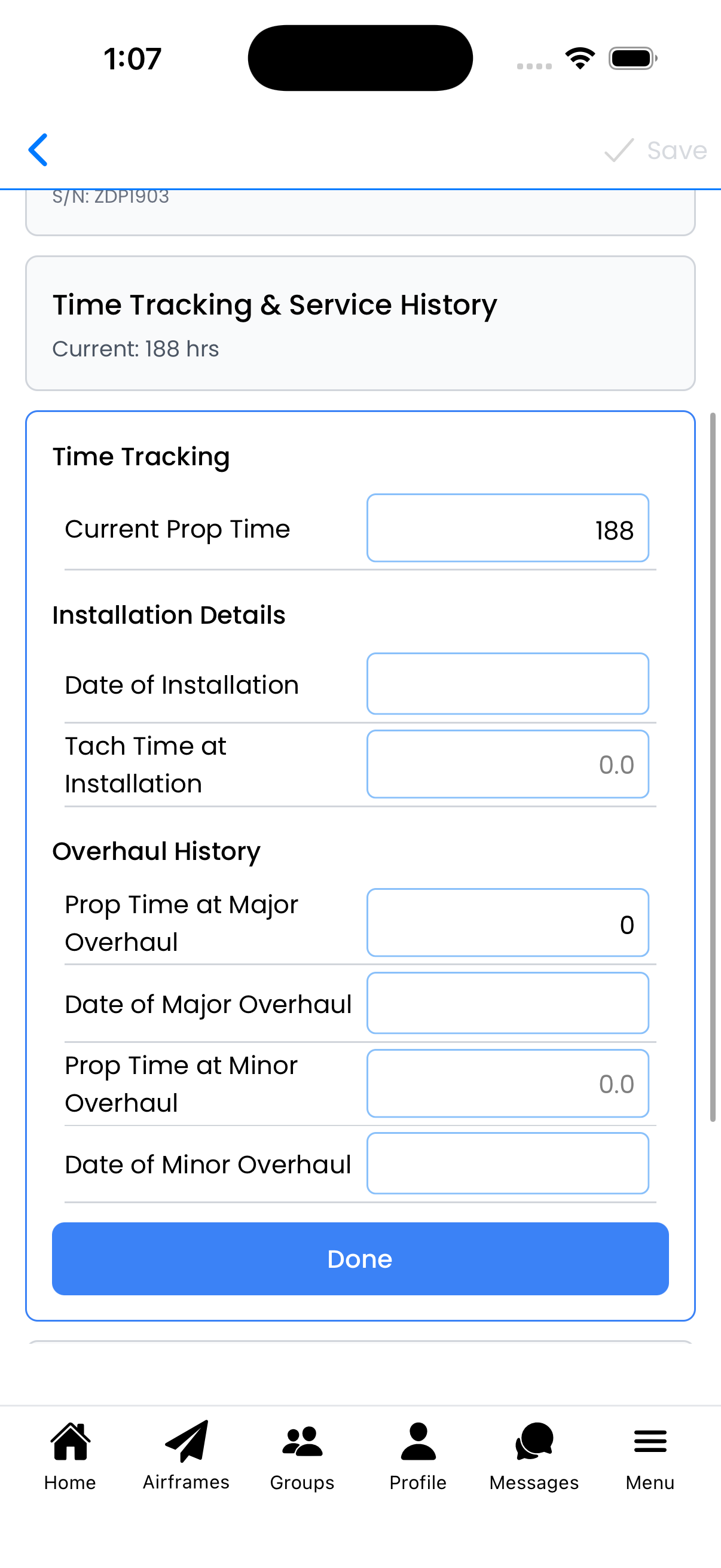
Time Tracking & Service History
Notes
Add free-form notes about this propeller:
- Tap the Notes section to expand it
- Tap Edit to modify the notes
- Enter any relevant information (previous owners, repairs, blade damage history, etc.)
- Tap Done to save
When you have unsaved changes, a NOT SAVED indicator appears at the top. Tap Save to save all changes.
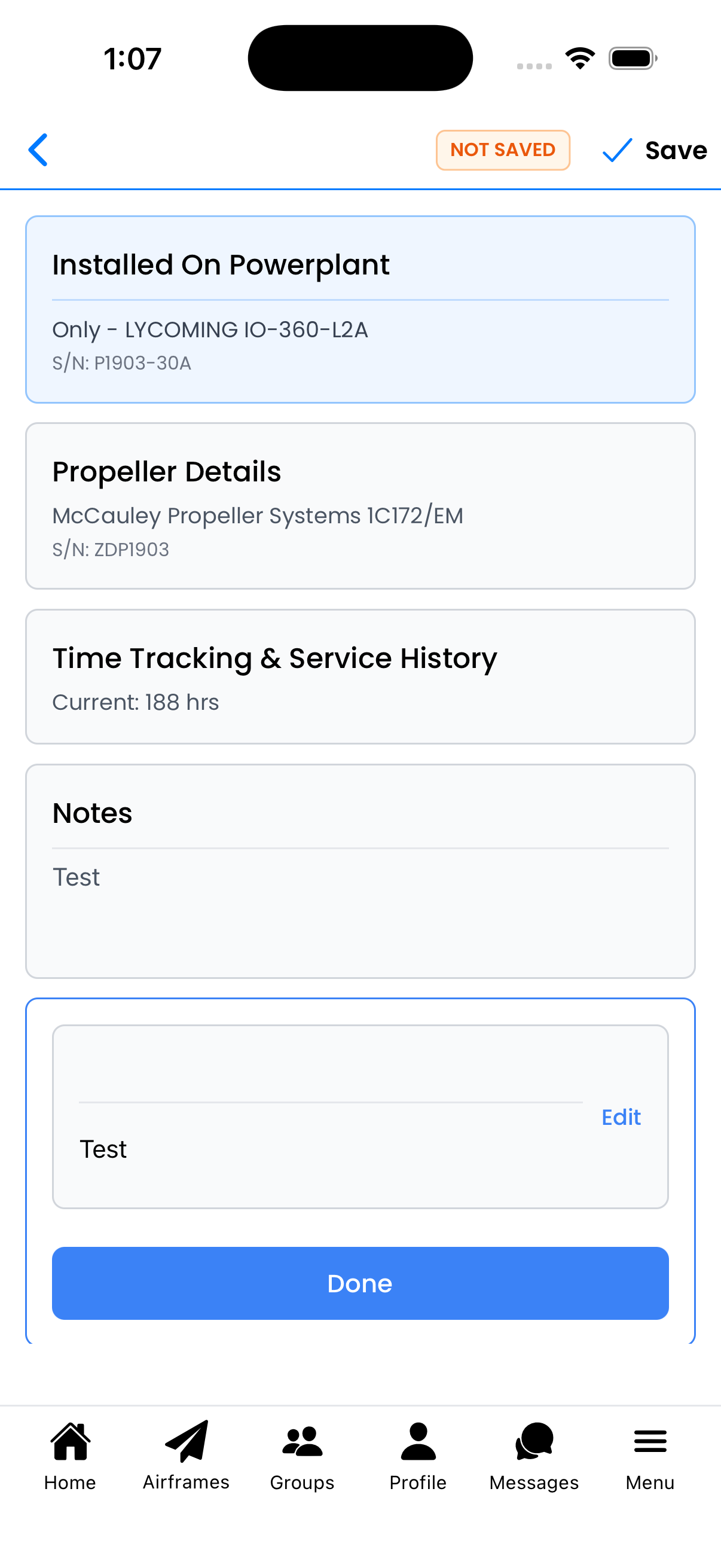
Editing notes
Retire Propeller
Use this option when a propeller is removed from service:
- Tap Retire Propeller (red button at bottom)
- Confirm by tapping Retire in the dialog
When to retire:
- Propeller is removed and sold
- Propeller is being replaced
- Propeller has reached end of life or is damaged beyond repair
Warning: This removes the propeller from your active propeller list. This action cannot be undone.
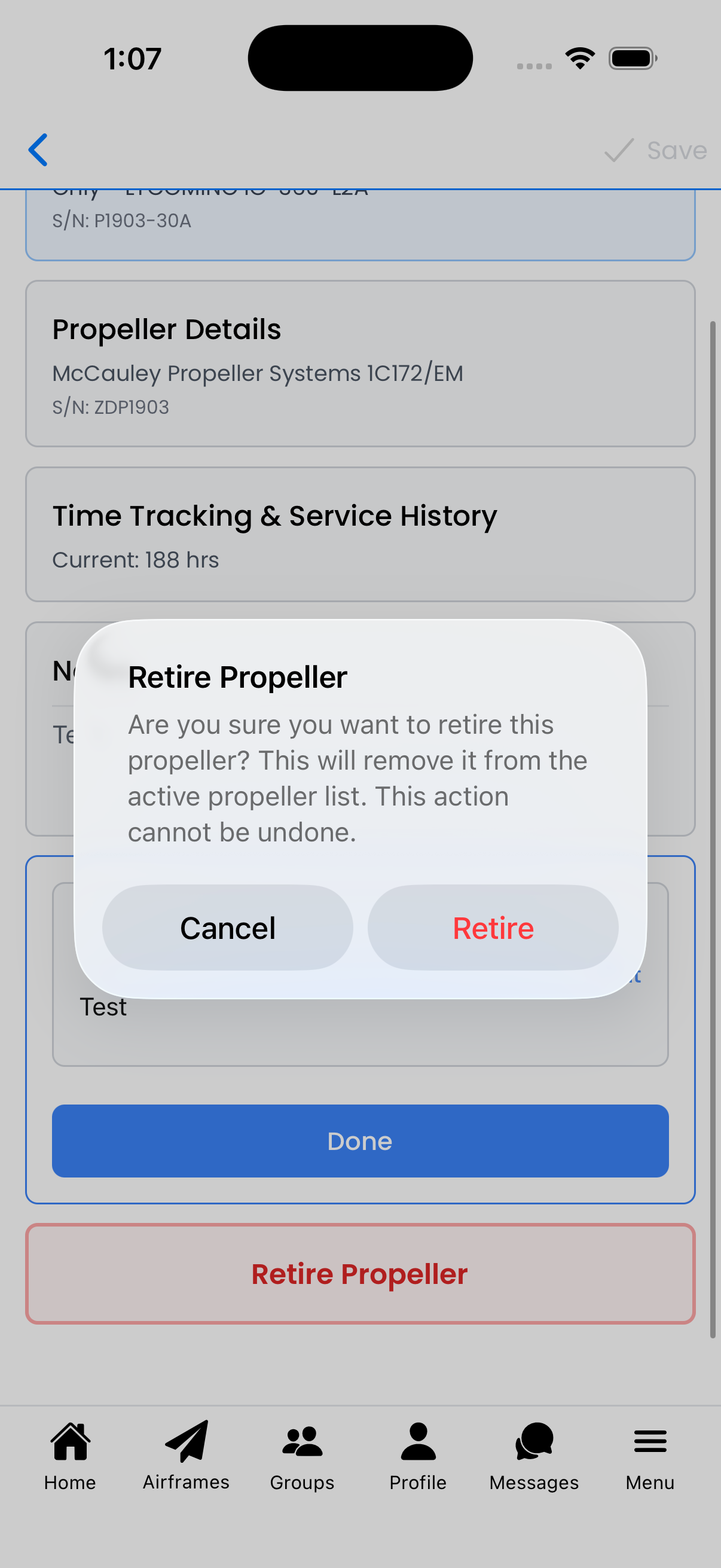
Retire confirmation dialog