Why Share Aircraft?
Sharing aircraft access enables collaboration:
- Co-Owners - Partners can view and log their own flights and maintenance
- Mechanics - A&Ps can log maintenance and sign off entries
- Flight Schools - Instructors and students can access shared fleet aircraft
- Management Companies - Oversee aircraft they manage for owners
- Family Members - Keep everyone informed about aircraft status
Understanding Groups
In Logbook, sharing is managed through Groups. Each group:
- Has members with different permission levels
- Can be linked to one or more aircraft
- Lets you control who can view, log flights, or log maintenance
Creating a Group
- Go to Groups in the navigation menu
- Tap Create Group
- Enter a Group Name (e.g., "N1903X Team", "Flying Club")
- Add an optional description
- Tap Create
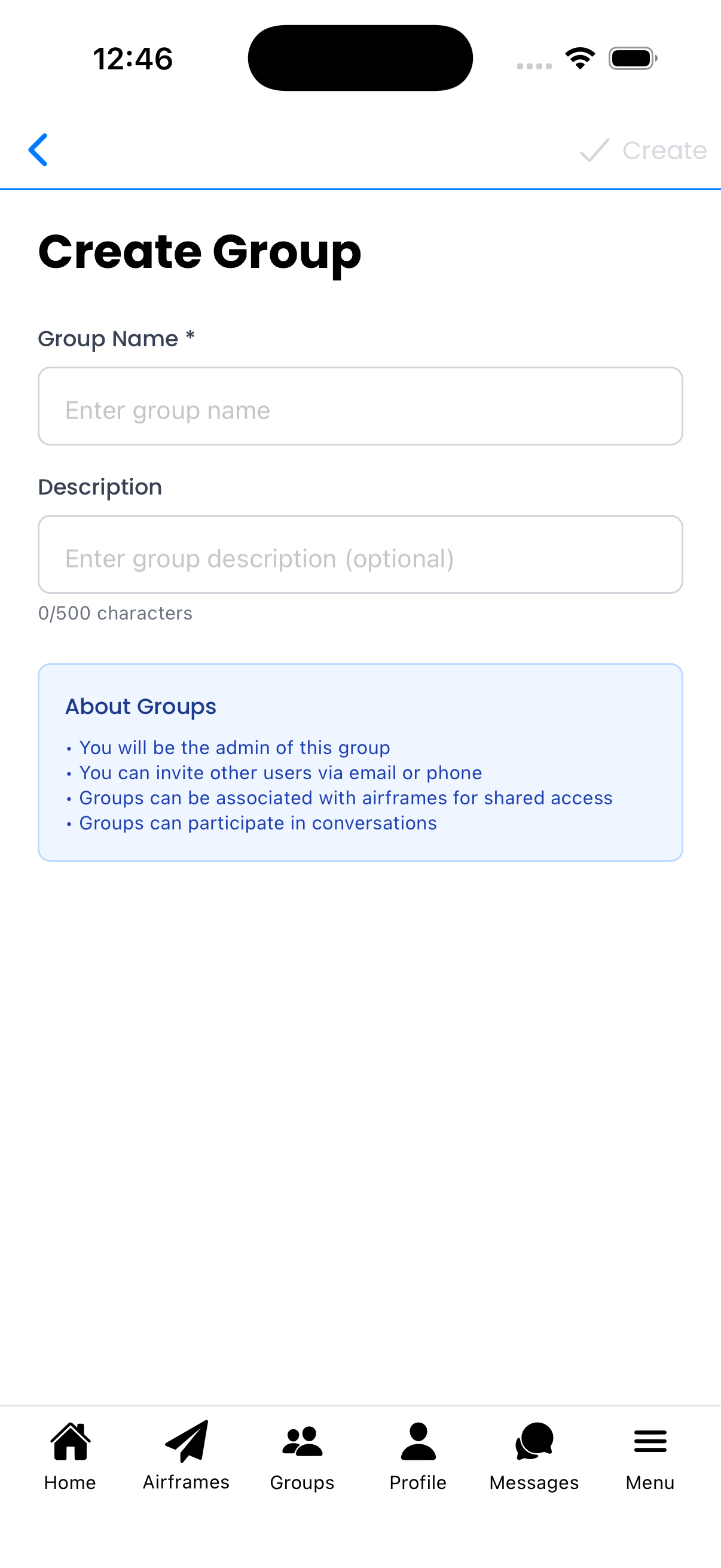
Create a new group for your team
Linking a Group to an Aircraft
After creating a group, link it to your aircraft:
- Go to Aircraft Setup for the aircraft you want to share
- Find the Groups section
- Tap Add Group
- Select the group from your list
- Set the permission level for this group (see below)
- Tap Save
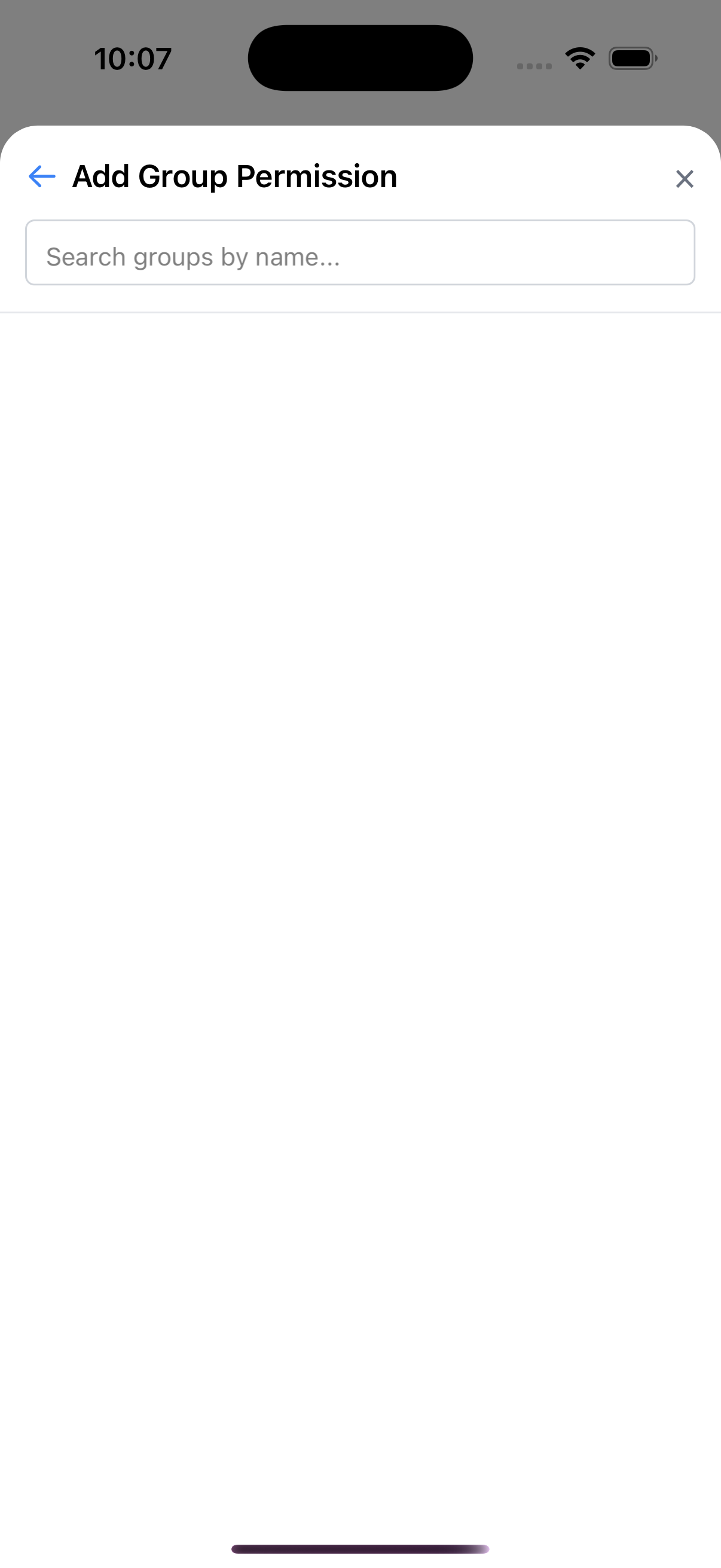
Link a group to your aircraft from Aircraft Setup
Permission Levels
When linking a group to an aircraft, choose a permission level:
Read-Only
- View aircraft details, flights, and maintenance history
- Cannot add or edit entries
- Good for: Stakeholders, family members, prospective buyers
Standard
- All Read-Only permissions, plus:
- Log flights
- Good for: Renters, co-owners, pilots who fly the aircraft
Maintain
- All Standard permissions, plus:
- Log maintenance entries
- Log inspections and AD compliance
- Good for: Mechanics, A&Ps, maintenance shops
Admin
- Full access to everything
- Manage groups and permissions
- Edit aircraft configuration
- Good for: Co-owners, managers with full responsibility
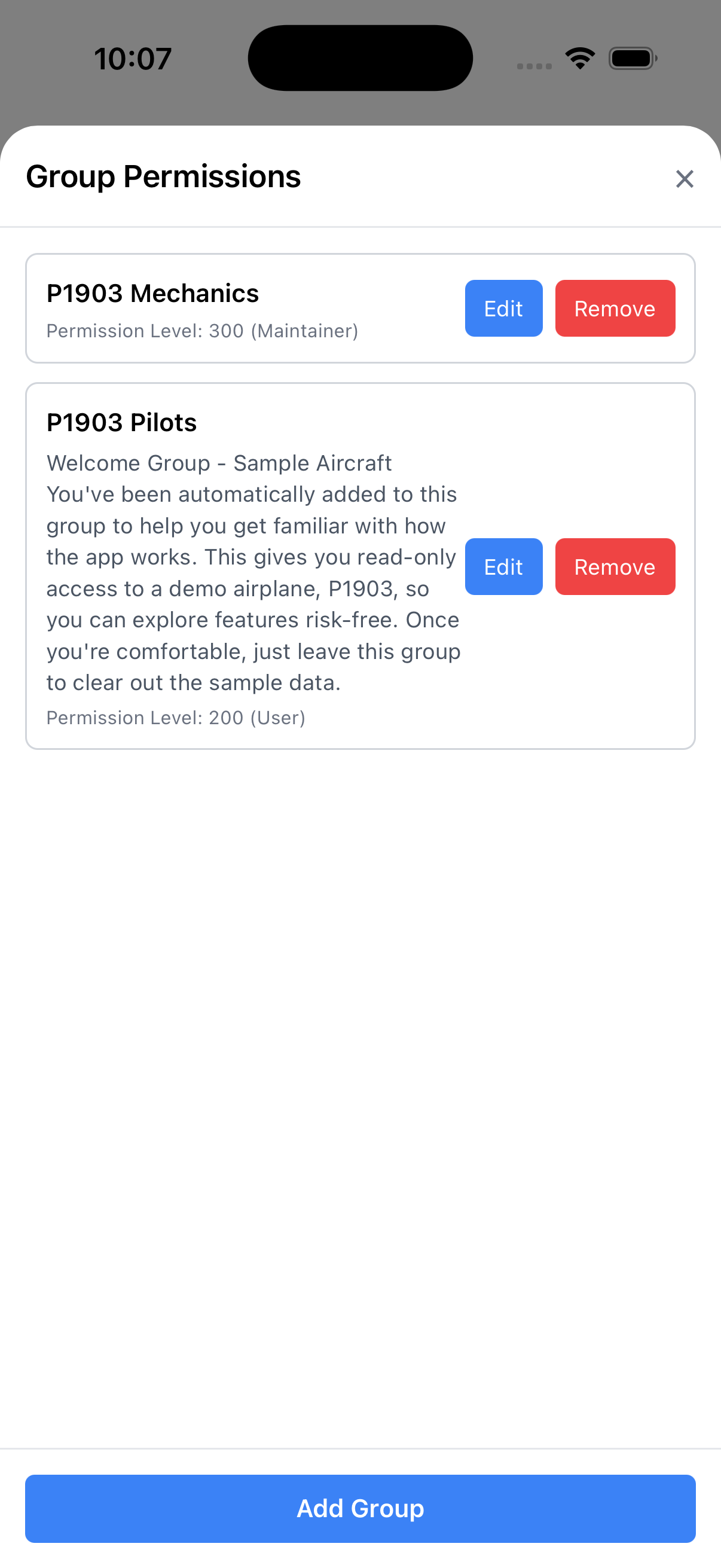
Set the permission level when linking a group
Inviting Members to a Group
Once you have a group, invite people to join:
Invite by Email or Phone
- Go to Groups and select your group
- Tap Invite Members
- Enter the person's email address or phone number
- Tap Send Invite
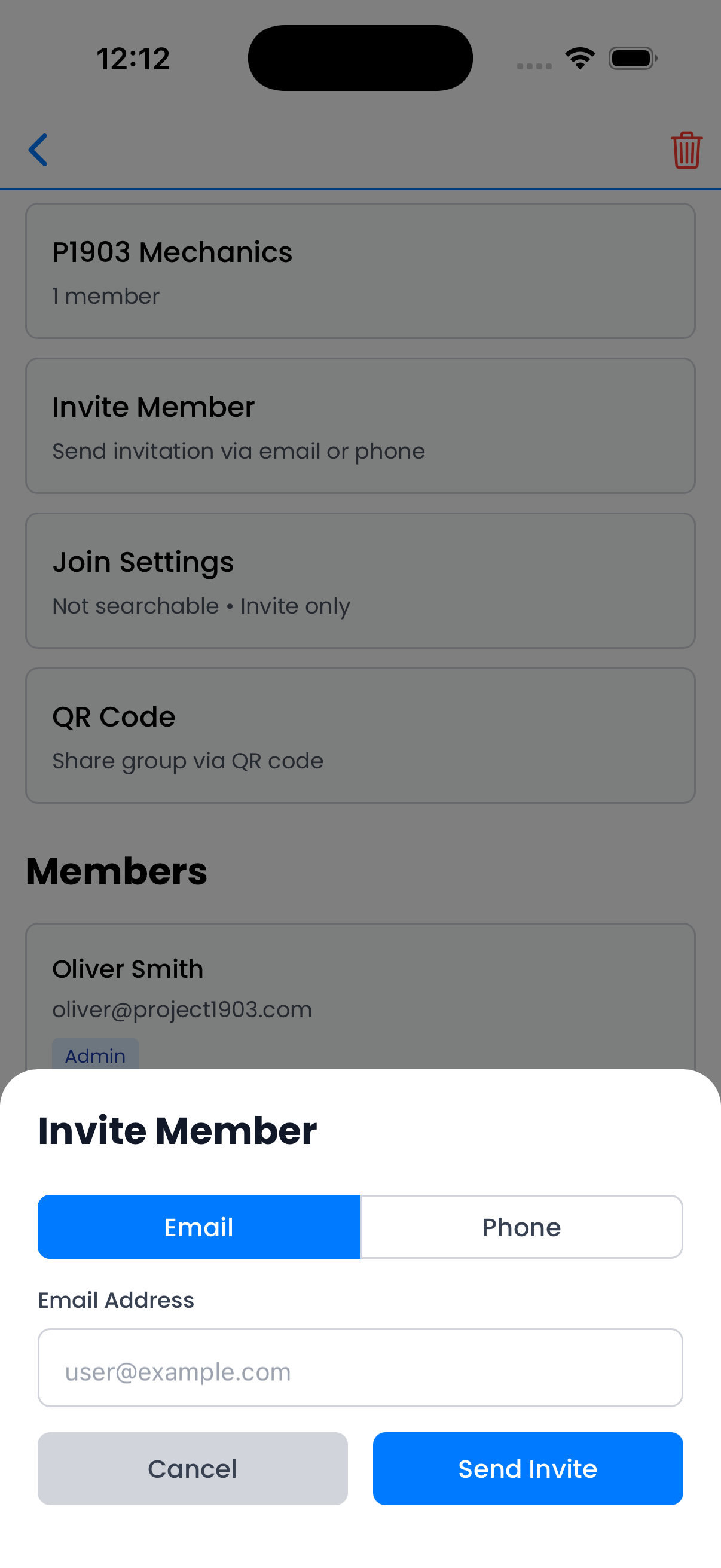
Invite members by email or phone number
Invite by QR Code
For in-person invitations:
- In the group details, tap Show QR Code
- Have the person scan the code with their phone
- They'll receive a prompt to join the group
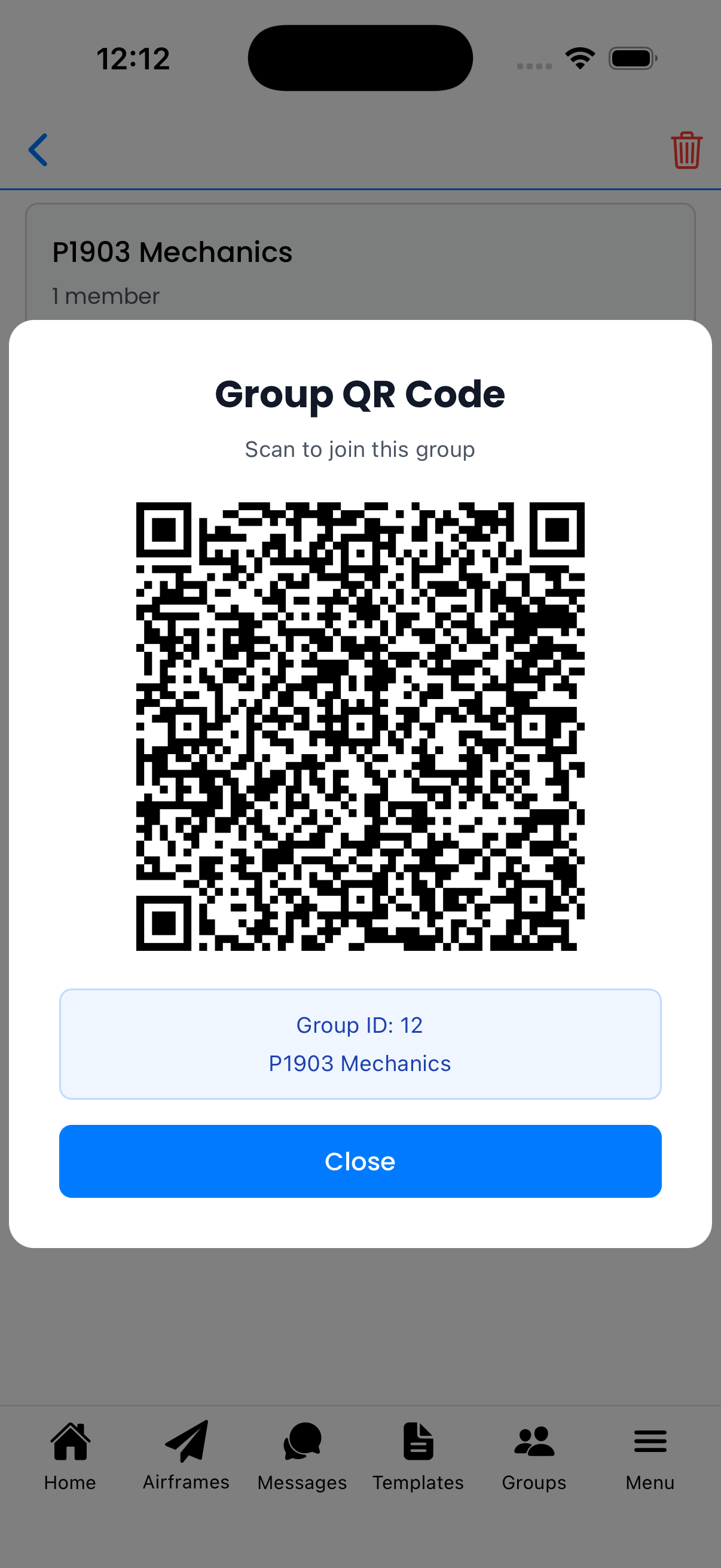
Share the QR code for quick in-person invites
Tip: The QR code is great for flight schools—post it in the briefing room so students can quickly join the fleet group.
Managing Group Members
Viewing Members
- Go to Groups
- Tap on a group to see its details
- Members are listed with their names and roles
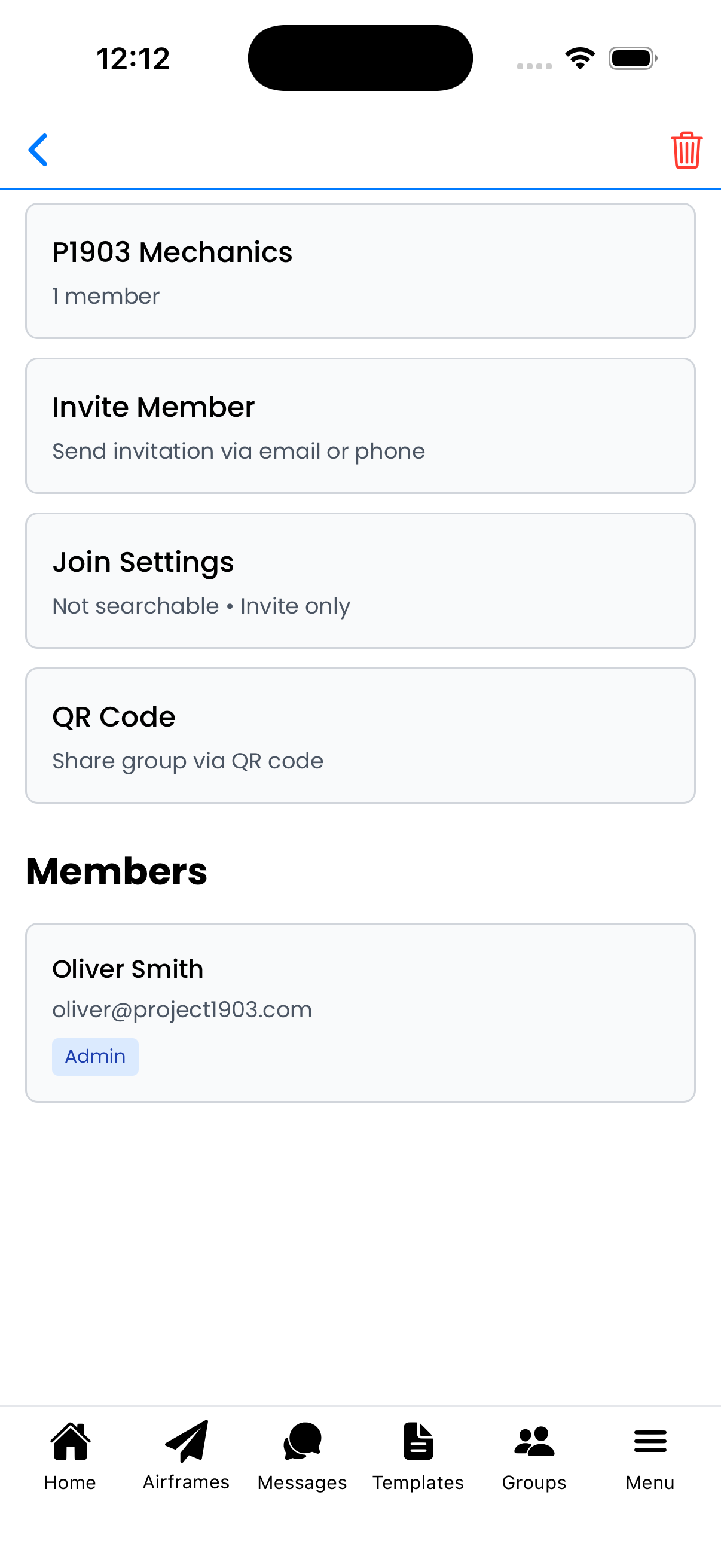
View group members and settings
Removing Members
As a group admin:
- Open the group details
- Find the member you want to remove
- Tap Remove or swipe to delete
- Confirm the removal
Joining a Group
If someone invites you to their group:
- Go to Groups
- Tap Join Group
- Enter the invitation code, or scan the QR code
- Tap Join
You'll now see the shared aircraft in your Aircraft List.
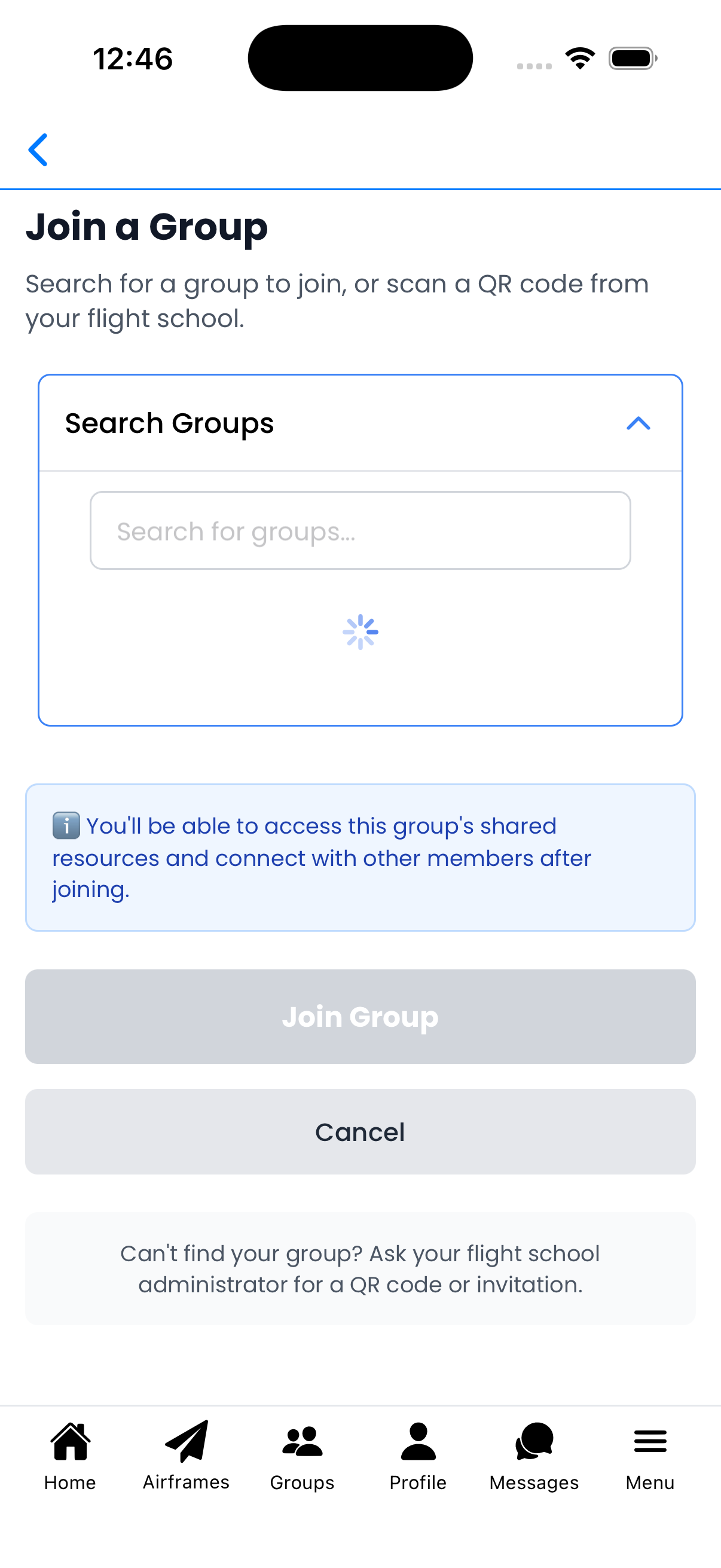
Join a group using an invitation code or QR scan
Common Sharing Scenarios
Partnership Aircraft
- Create a group named after the partnership or tail number
- Link it to the aircraft with Admin permissions
- Invite all partners
- Everyone can log flights and view the complete history
Mechanic Access
- Create a group for your maintenance shop or mechanic
- Link it to your aircraft with Maintain permissions
- Invite the mechanic(s)
- They can log maintenance without modifying aircraft settings
Flight School Fleet
- Create one group for the entire school
- Link all fleet aircraft with Standard permissions
- Instructors and students join the group
- Use different groups for instructors (Maintain) vs students (Standard) if needed
Note: You can link multiple groups to a single aircraft with different permission levels. For example: "Owners" (Admin) + "Renters" (Standard) + "Maintenance" (Maintain).
Best Practices
- Use descriptive group names - Makes it clear who the group is for
- Grant minimum necessary permissions - Give Maintain only to those who need it
- Review group membership regularly - Remove people who no longer need access
- Communicate with your team - Use Conversations for squawks and coordination