Overview
Logbook supports managing multiple aircraft, whether you're:
- An owner with multiple personal aircraft
- A flight school managing a fleet
- A maintenance shop tracking customer aircraft
- A club member with access to shared aircraft
The Aircraft List
Access your aircraft from the Airframes menu in the main navigation. The Aircraft List shows:
- Tail Number - The N-number or registration
- Aircraft Type - Make and model
- Total Hours - Current airframe time
- Status Dots - Compliance status at a glance
- Pin Icon - Indicates favorited aircraft
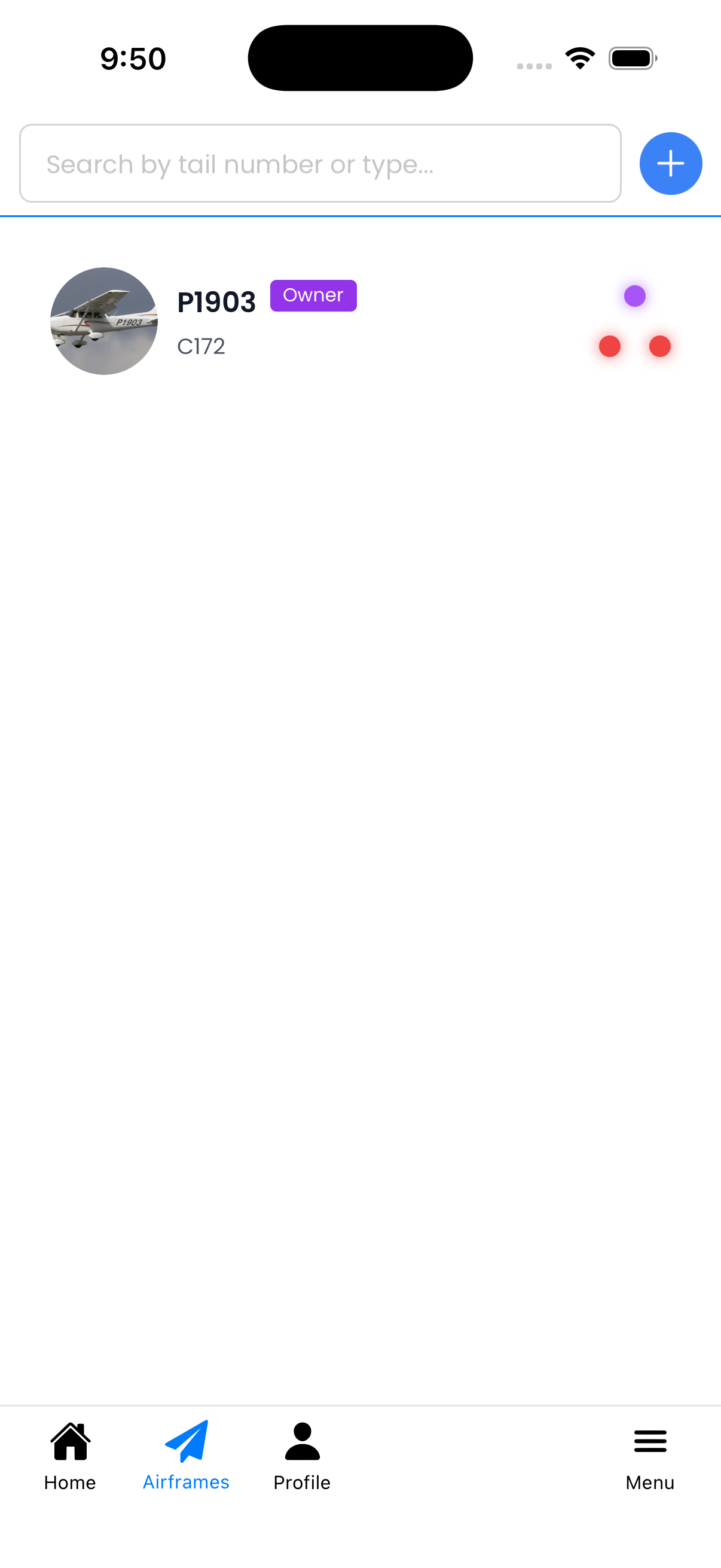
The Aircraft List displays all aircraft you have access to
Switching Between Aircraft
To work with a different aircraft:
- Go to Airframes in the navigation menu
- Tap on the aircraft you want to view
- You're now in the Aircraft Details view for that aircraft
From Aircraft Details, you can access flights, maintenance, documents, and settings for that specific aircraft.
Using Favorites
Pin your most-used aircraft for quick access from the Home screen:
Adding a Favorite
- Go to the Aircraft List
- Find the aircraft you want to favorite
- Tap the pin icon on the aircraft card
- The aircraft now appears in "My Favorites" on the Home screen
Removing a Favorite
- Go to the Aircraft List
- Find the pinned aircraft (pin icon will be filled/highlighted)
- Tap the pin icon again to unpin
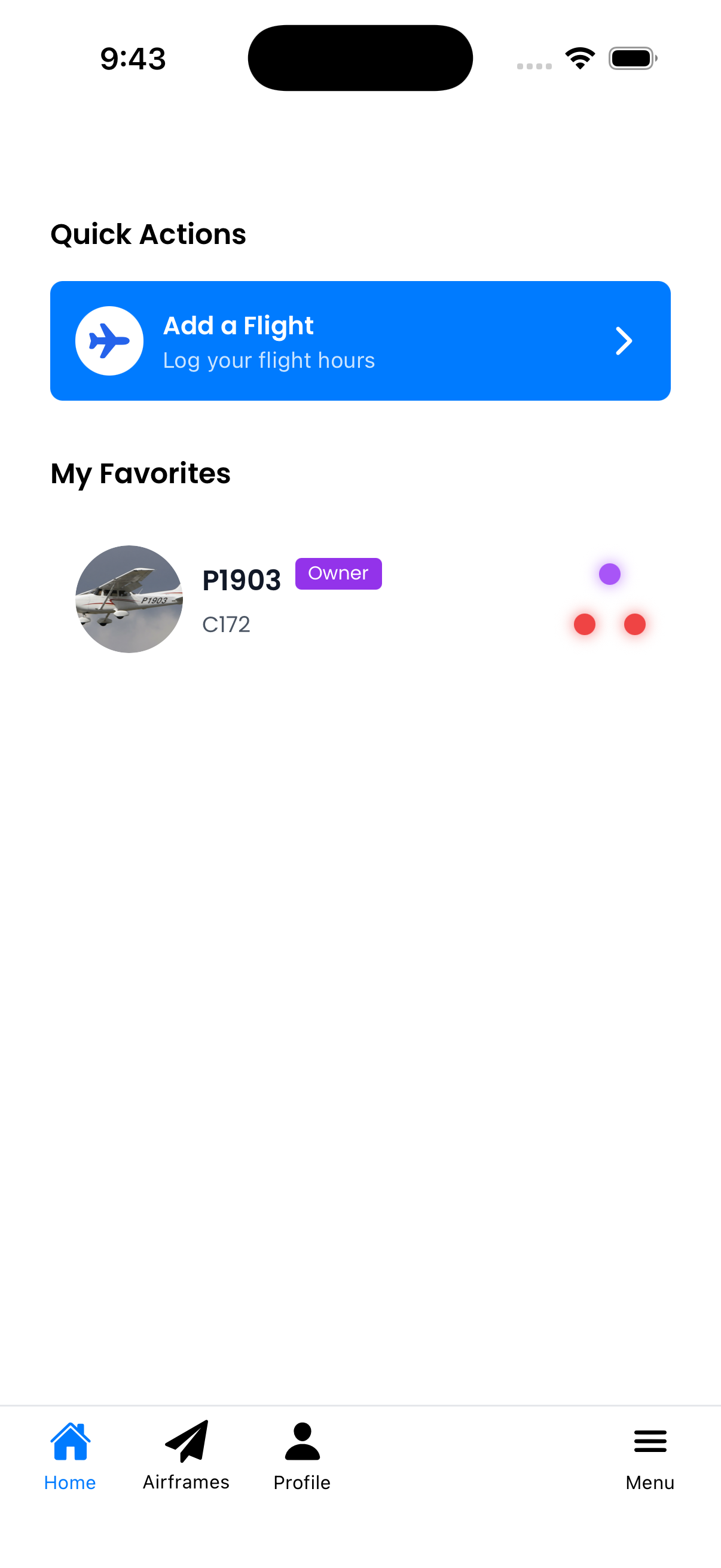
Favorited aircraft appear in "My Favorites" on the Home screen
Searching and Filtering
For larger fleets, use search to find specific aircraft:
- On the Aircraft List, tap the search icon
- Type part of the tail number, make, or model
- Results filter as you type
- Tap X to clear the search
Understanding Status at a Glance
Each aircraft card shows three status dots:
- Top dot - Airworthiness Directives (ADs)
- Bottom-left dot - Inspections
- Bottom-right dot - Maintenance items
Status colors:
- Green - All items current
- Yellow - Something coming due soon
- Red - Overdue—action required
- Purple - Status unknown (no tracking configured)
This lets you quickly scan your fleet and identify which aircraft need attention.
Adding More Aircraft
To add another aircraft to your account:
- Go to the Aircraft List
- Tap the + button
- Follow the FAA Wizard or enter details manually
Aircraft You Have Access To
The Aircraft List shows all aircraft you have access to:
- Your Aircraft - Aircraft you created or own
- Shared Aircraft - Aircraft shared with you by other users
- Group Aircraft - Aircraft from groups you've joined
Your permission level for each aircraft determines what actions you can take (view, log flights, log maintenance, etc.).
Organizing a Large Fleet
Tips for managing many aircraft:
- Use Favorites strategically - Pin aircraft that need immediate attention or frequent use
- Check status colors daily - Yellow and red dots indicate action items
- Use consistent naming - Helps when searching
- Organize by Groups - Create groups for different fleets or locations