Pre-Flight Checklist
Before you begin, have the following ready:
- Your aircraft's N-number (tail number)
- Current airframe total time (tachometer or Hobbs)
- Engine data: manufacturer, model, serial number, and current hours
- Propeller data: manufacturer, model, serial number, and current hours (if applicable)
The 5-Step Wizard
The FAA Wizard guides you through setting up your aircraft with data from the FAA registry. Here's what happens at each step:
Step 1: Tail Number & Aircraft Info
- Tap the + button on the Aircraft List screen (or add your first aircraft after signing up)
- Tap "Select..." next to Tail Number
- Start typing your N-number (e.g., "N1903X")
- Select your aircraft from the search results
- Review the auto-filled information:
- Manufacturer and model
- Serial number
- Engine manufacturer and model
- Enter your Current Airframe Time
- Verify the Number of Powerplants
- Toggle Has Propeller if your aircraft has a propeller
- Tap Next to continue
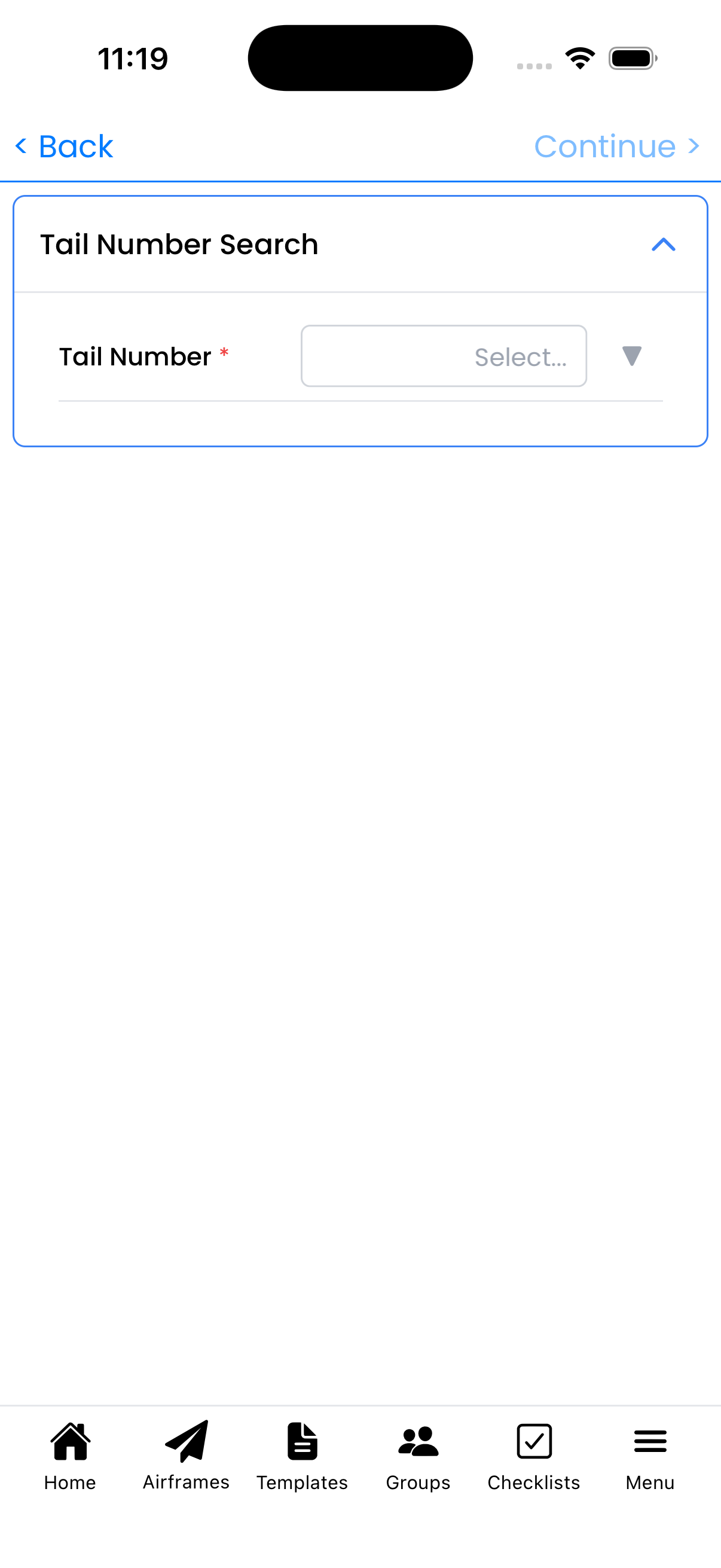
Step 1: Search by tail number and review auto-filled aircraft data
Step 2: Powerplant Info
Enter details for each engine:
- Verify the Manufacturer (e.g., "LYCOMING")
- Verify or enter the Model (e.g., "O-320-D2A")
- Enter the Serial Number from the engine data plate
- Enter Current Tach Time (current tachometer hours)
- Enter Major Overhaul Time (time at last major overhaul)
- For multi-engine aircraft, repeat for each engine
- Tap Next to continue
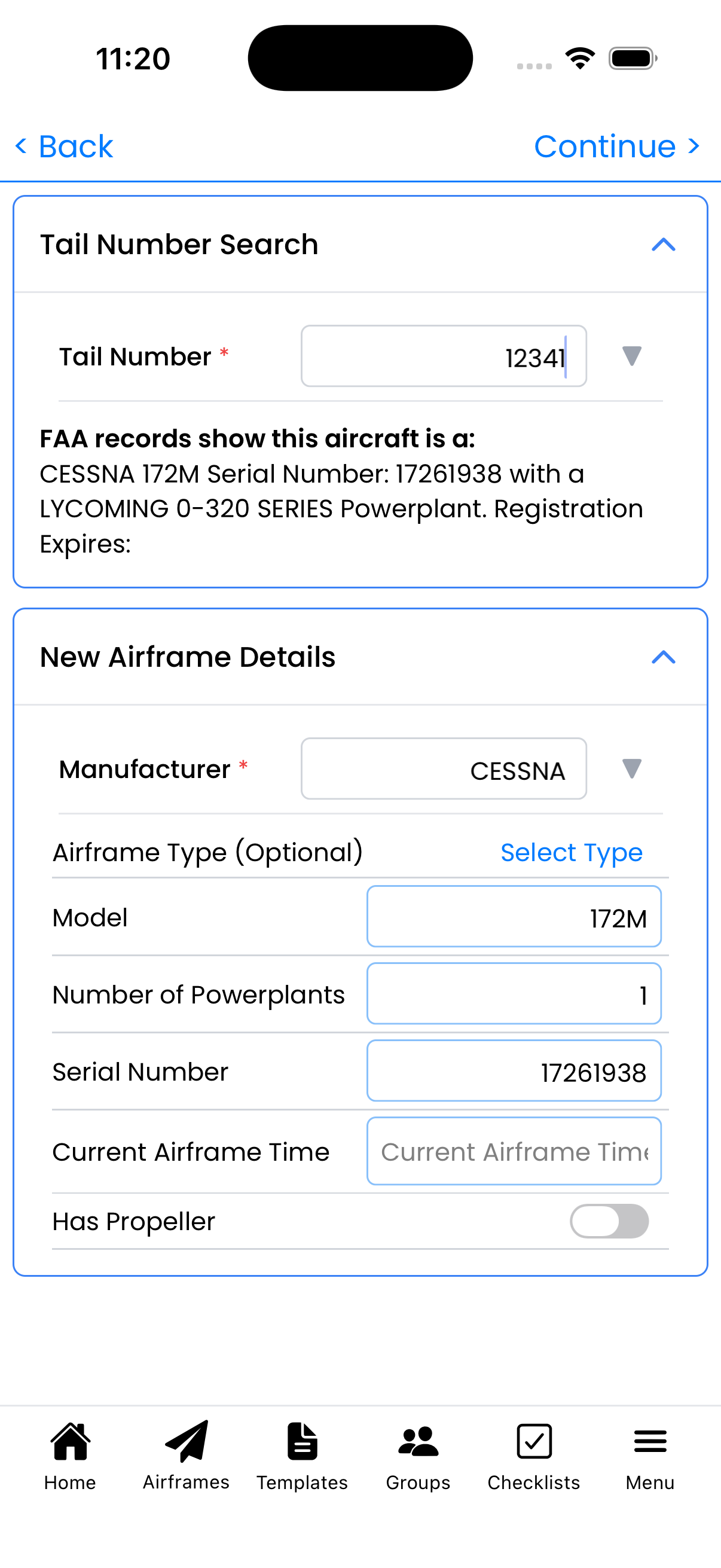
Step 2: Enter engine manufacturer, model, serial number, and times
Step 3: Propeller Info
If you enabled "Has Propeller" in Step 1:
- Enter the Manufacturer (e.g., "McCauley", "Hartzell")
- Enter the Model
- Enter the Serial Number
- Enter Current Tach Time
- Enter Major Overhaul Time
- Tap Next to continue
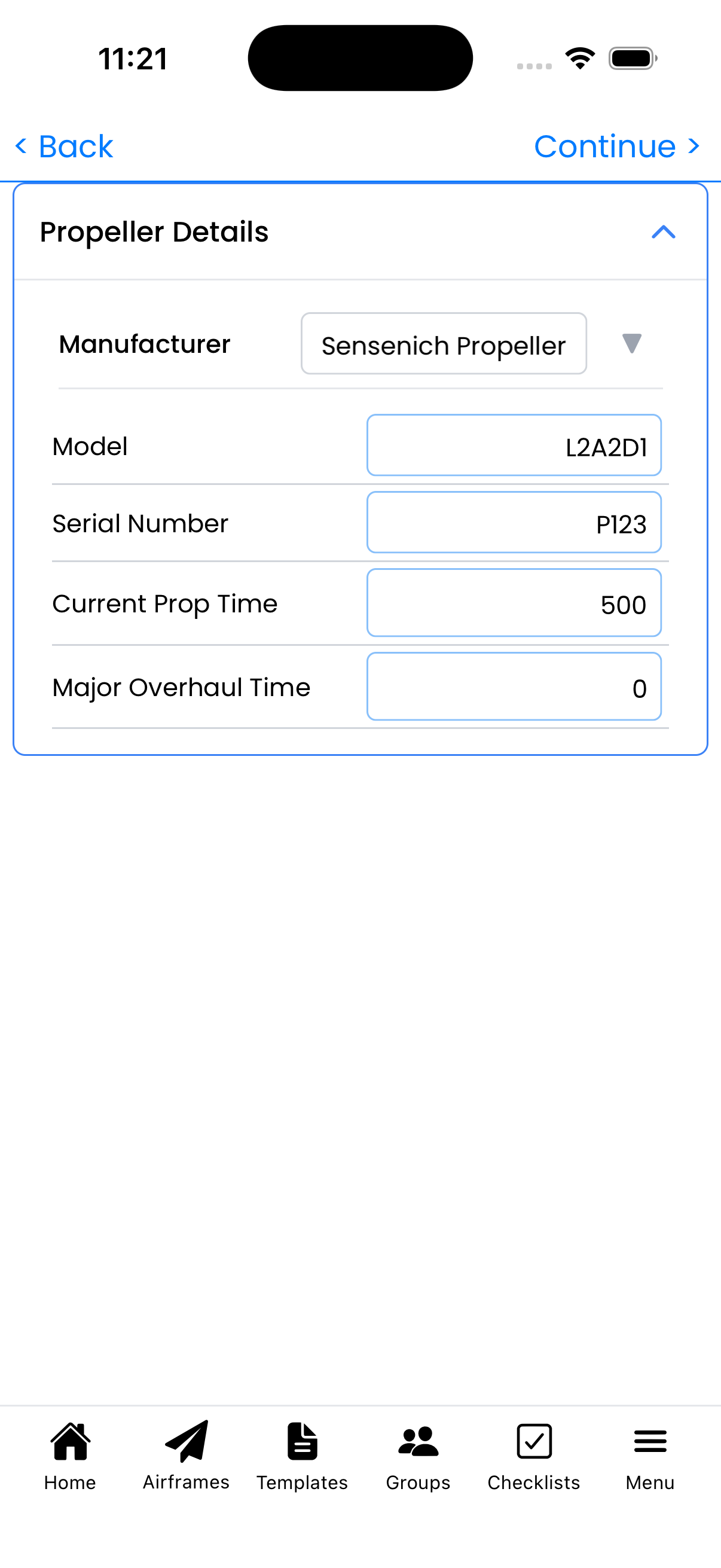
Step 3: Enter propeller details and times
Step 4: Inspection Types
Select which inspections to track for your aircraft:
- Browse available inspection types:
- Annual Inspection - Required yearly for Part 91 aircraft
- 100-Hour Inspection - Required for aircraft used for hire
- Pitot/Static Inspection - Required every 24 calendar months for IFR
- Transponder Inspection - Required every 24 calendar months
- ELT Inspection - Required annually
- Tap to select each inspection type you want to track
- Selected items show a checkmark
- Tap Next to continue
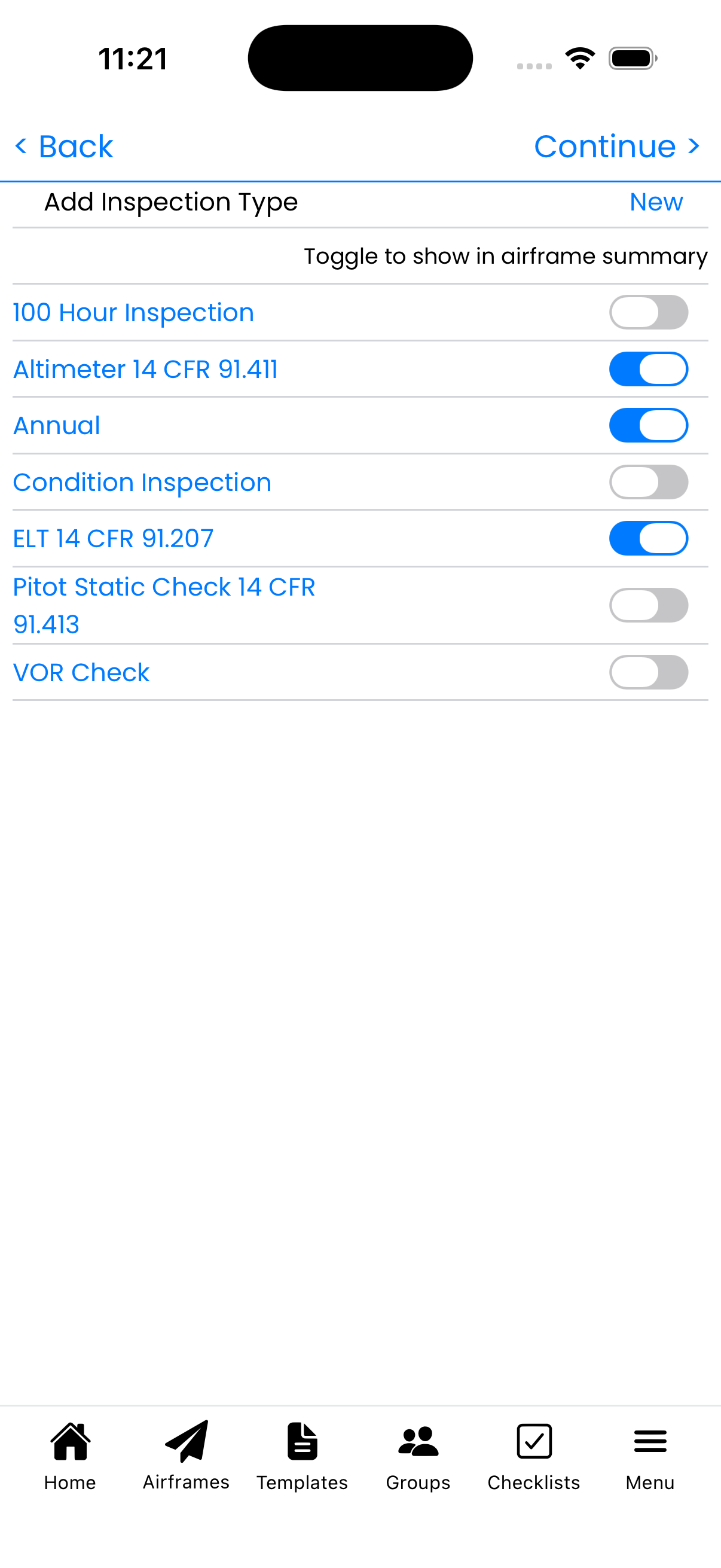
Step 4: Select inspections to track for your aircraft
Step 5: Maintenance Types
Select recurring maintenance items to track:
- Browse available maintenance types:
- Oil Change - Track by hours and/or calendar time
- Oil Filter Change
- Spark Plug Cleaning/Rotation
- Magneto Timing
- Brake Service
- Tap to select each maintenance type you want to track
- Tap Complete to finish the wizard
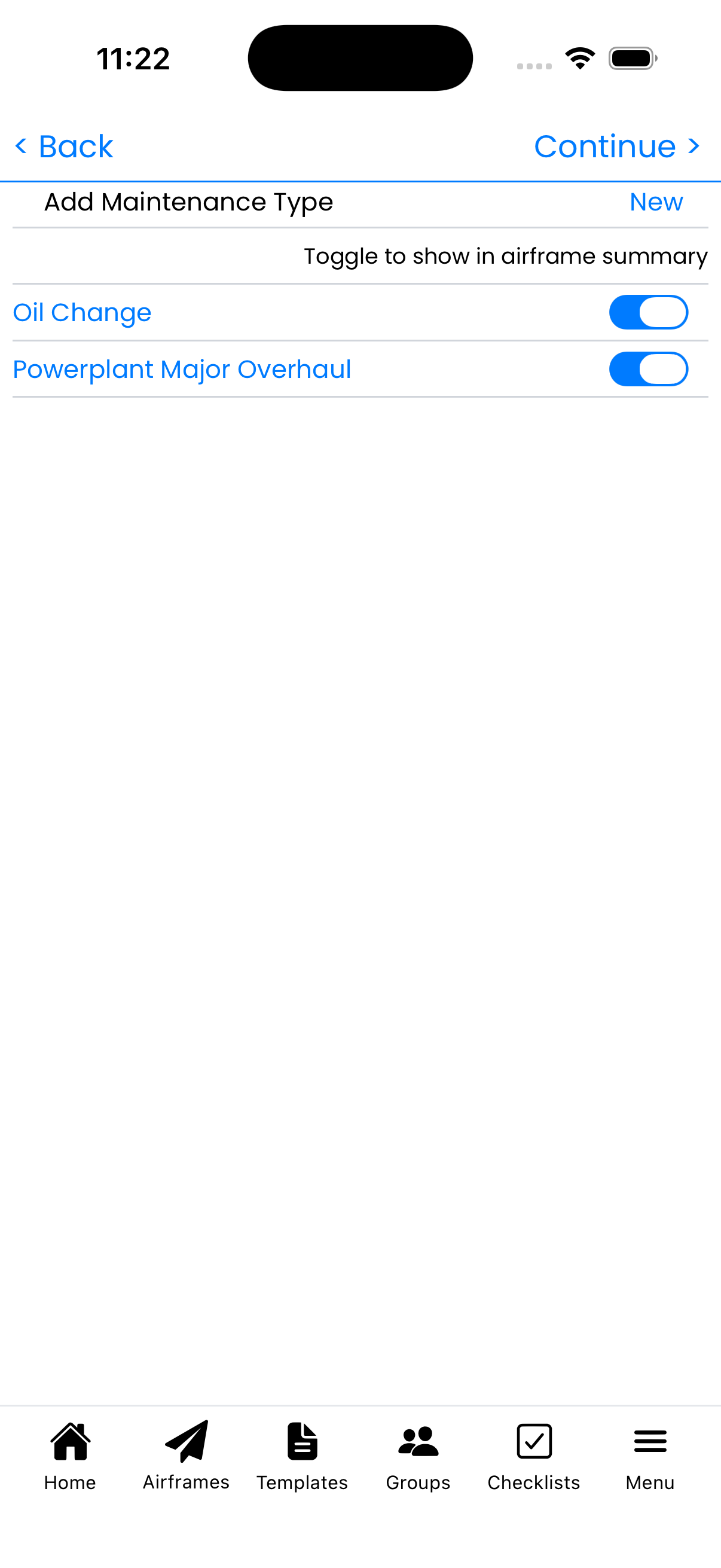
Step 5: Select recurring maintenance items to track
Pattern is Full—You're Ready
After completing the wizard:
- Your aircraft appears in the Aircraft List
- All selected inspection and maintenance types are tracked
- Status dots show compliance status (all will be purple/undetermined until you log your first maintenance entries)
- You can now log flights and maintenance for this aircraft
Troubleshooting
Aircraft not found in FAA search?
- Double-check the N-number spelling
- Try searching with or without the "N" prefix
- Recently registered aircraft may not yet be in the database
- For experimental or foreign aircraft, use manual entry instead
Wrong information auto-filled?
The FAA database may have outdated information. Simply edit any field to correct it—your changes override the FAA data.
Don't know engine/propeller times?
- Check your aircraft logbooks
- Contact your mechanic for the most recent annual inspection entries
- Enter your best estimate—you can update it later