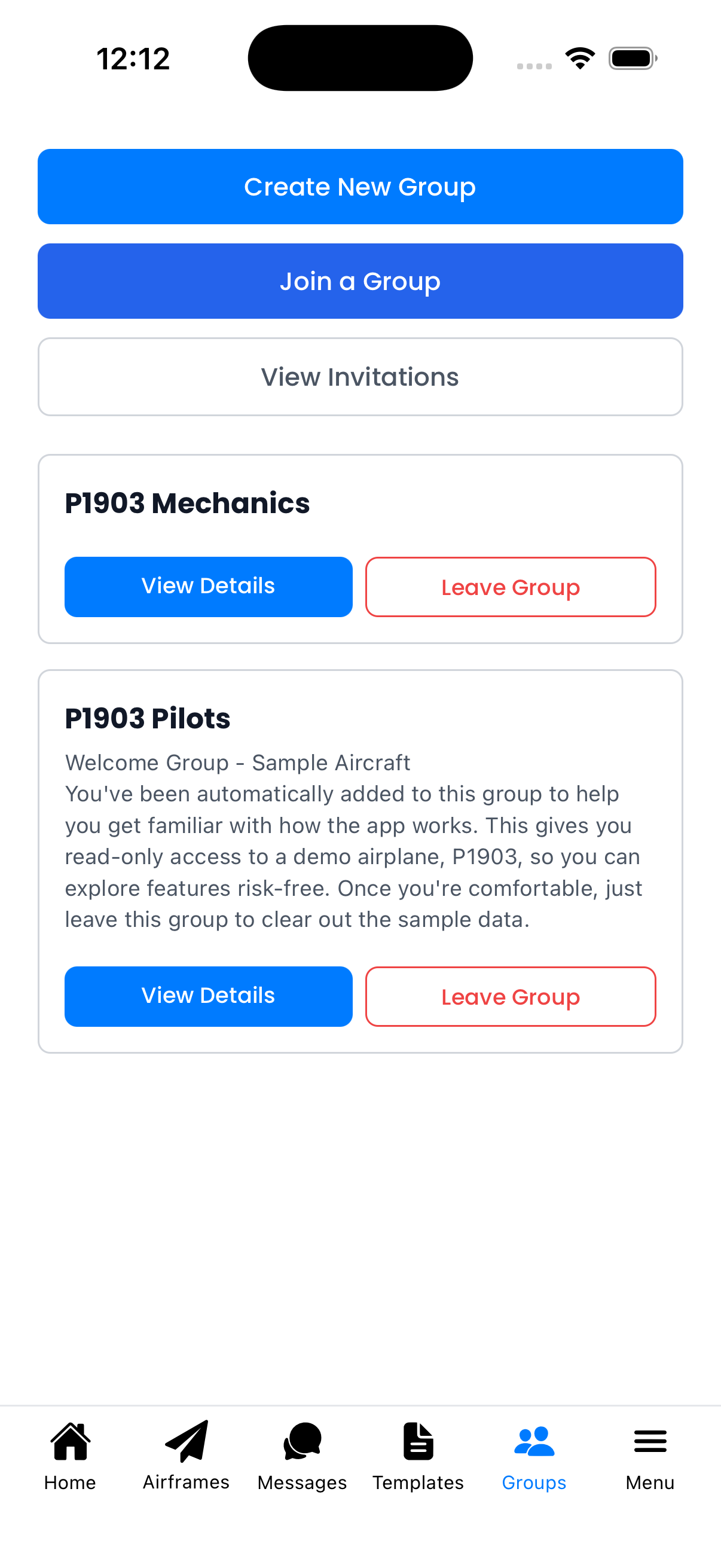
Join or create groups to share aircraft data with other users. Groups are useful for flying clubs, partnerships, maintenance shops, and flight schools.
What You Can Do Here
Create New Group - Start a group and become its admin
Join a Group - Search for or scan QR code to join
View Invitations - See pending group invitations
View Details - See group members and settings
Leave Group - Remove yourself from a group
Your Groups
The main section shows groups you belong to:
Group name - The name of each group
Description - What the group is for (if provided)
View Details - See members, invite settings, and QR code
Leave Group - Remove yourself from the group
Sample Group (P1903 Pilots)
New users are automatically added to the P1903 Pilots sample group:
Provides read-only access to a demo airplane (P1903)
Helps you explore features risk-free
Leave the group when comfortable to clear sample data
How to Access
Access Groups from:
Bottom navigation - Tap Groups if it appears
Menu drawer - Tap Menu → Groups
Why Use Groups?
Shared Aircraft Access - Group members can view aircraft associated with the group
Team Conversations - Include groups in conversations for team-wide visibility
Shared Templates - Share text templates with group members
Collaboration - Work together on maintenance tracking