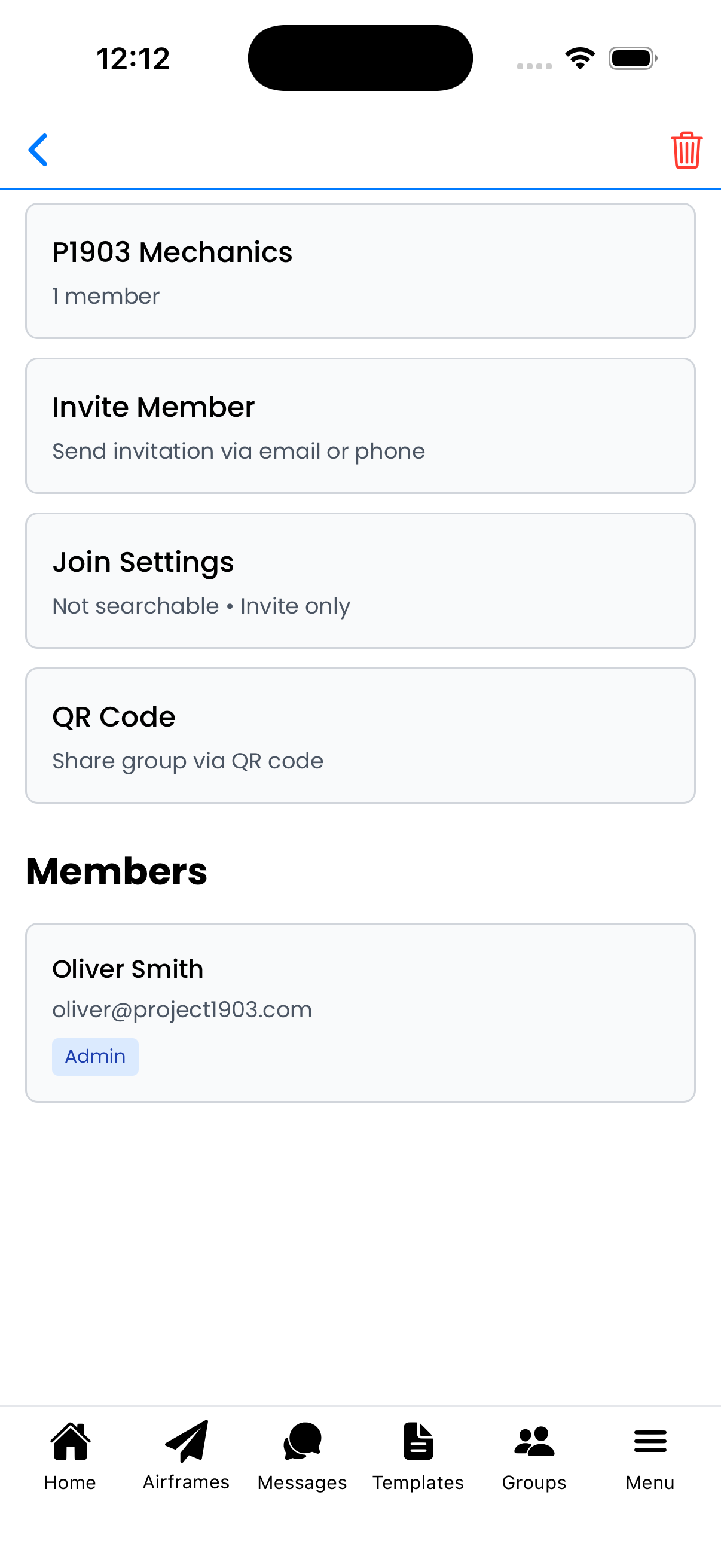
Group Details
View group information, manage members, and configure settings. Admin features are available only to group administrators.
Invite Member (Admin Only)
Tap Invite Member to send invitations:
- Email - Enter the person's email address
- Phone - Enter their phone number
The recipient will receive an invitation they can accept to join the group.
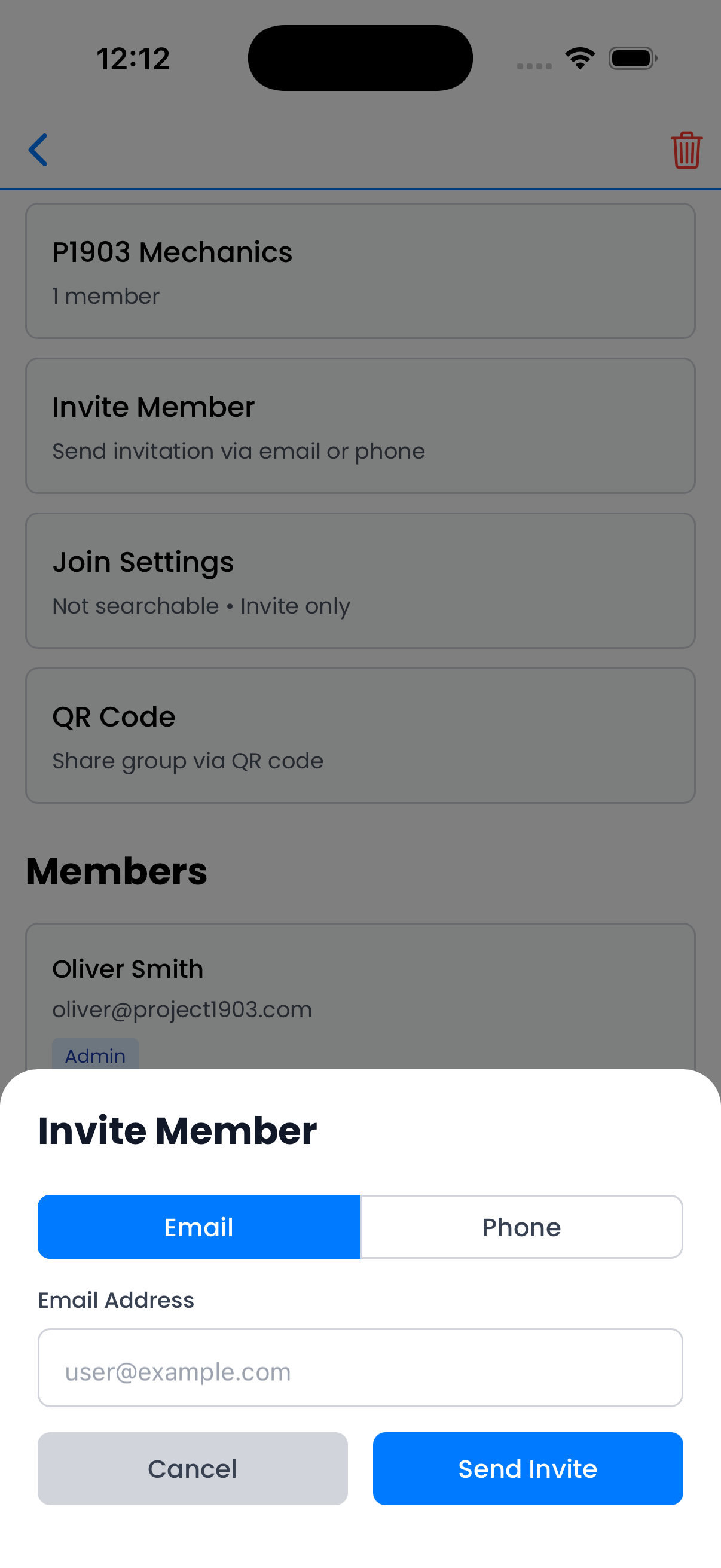
Invite member by email
Join Settings (Admin Only)
Tap Join Settings to configure how users can join:
- Searchable - Allow users to find this group in search
- Joinable - Allow users to join without invitation
- Join Password - Optional password required to join
When both are off, users can only join via invitation or QR code.
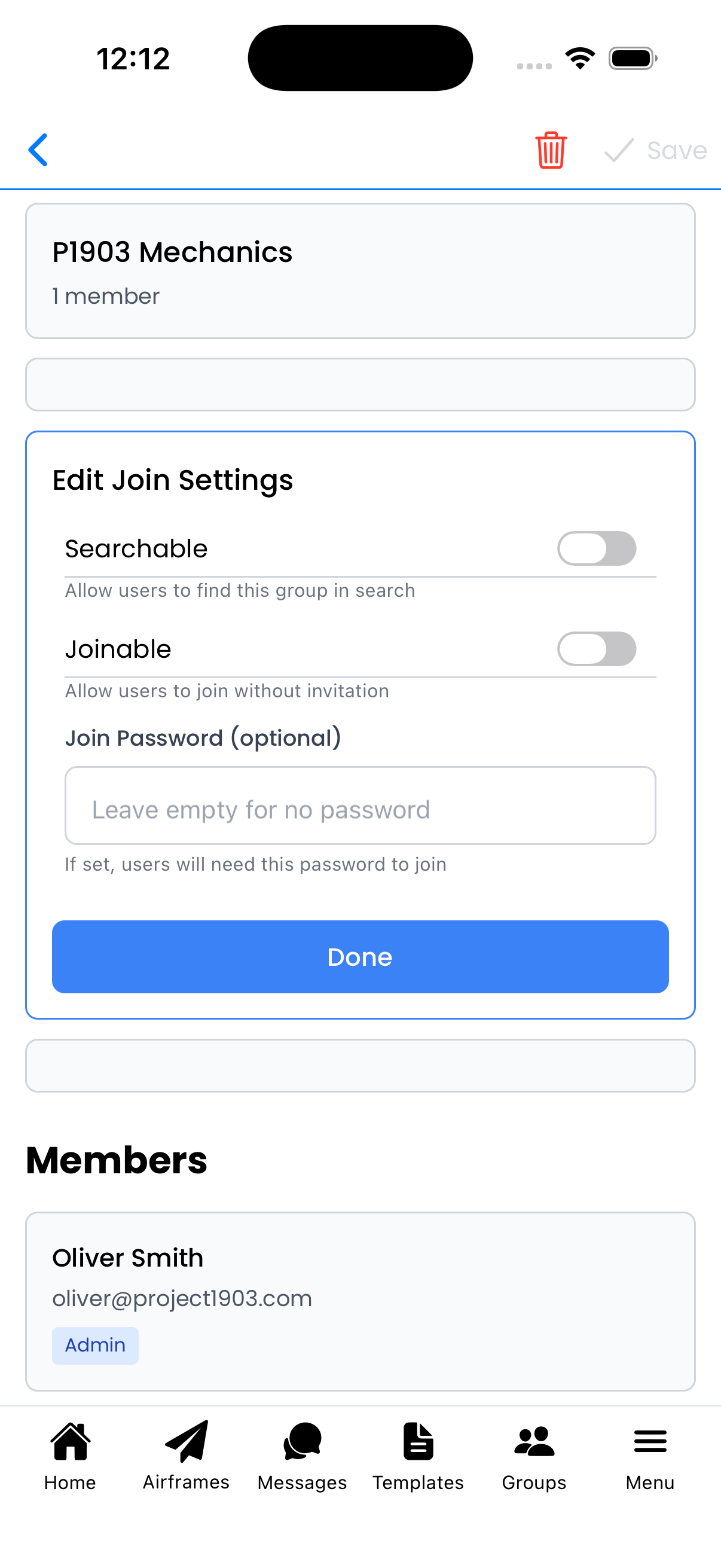
Configure join settings
QR Code Sharing
Tap QR Code to display a scannable code:
- Others can scan this code to join the group
- Shows the Group ID for reference
- Great for in-person sharing (flight schools, clubs)
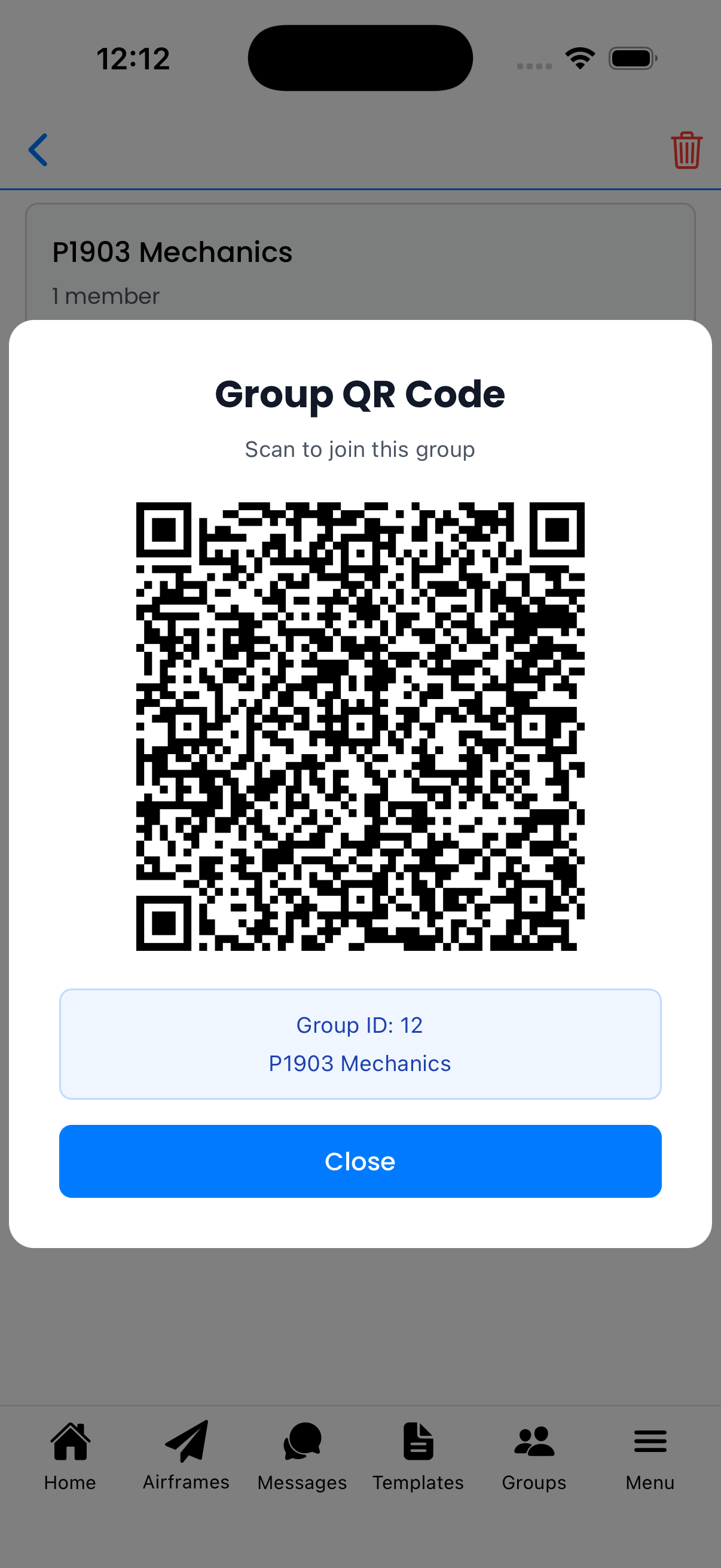
QR code for easy joining
Member View vs Admin View
Admin view includes:
- Invite Member option
- Join Settings option
- Delete group (trash icon)
- Full member list
Member view shows:
- Group info and description
- QR Code option
- Admin members only
- Note about contacting admins
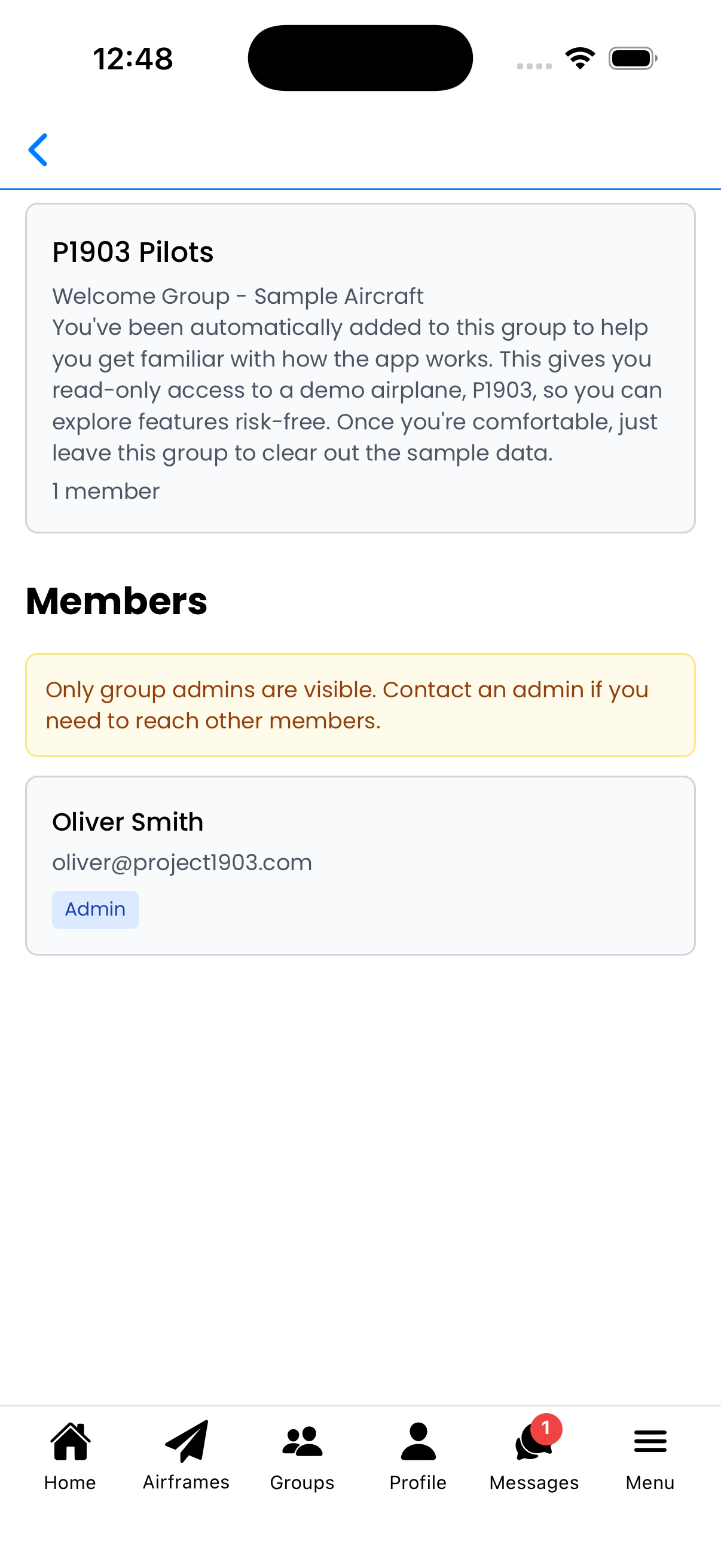
Member view (non-admin)
Delete Group (Admin Only)
To delete a group:
- Tap the trash icon in the top-right
- Confirm by tapping Delete
Warning: This action cannot be undone. All associated conversations will be archived.
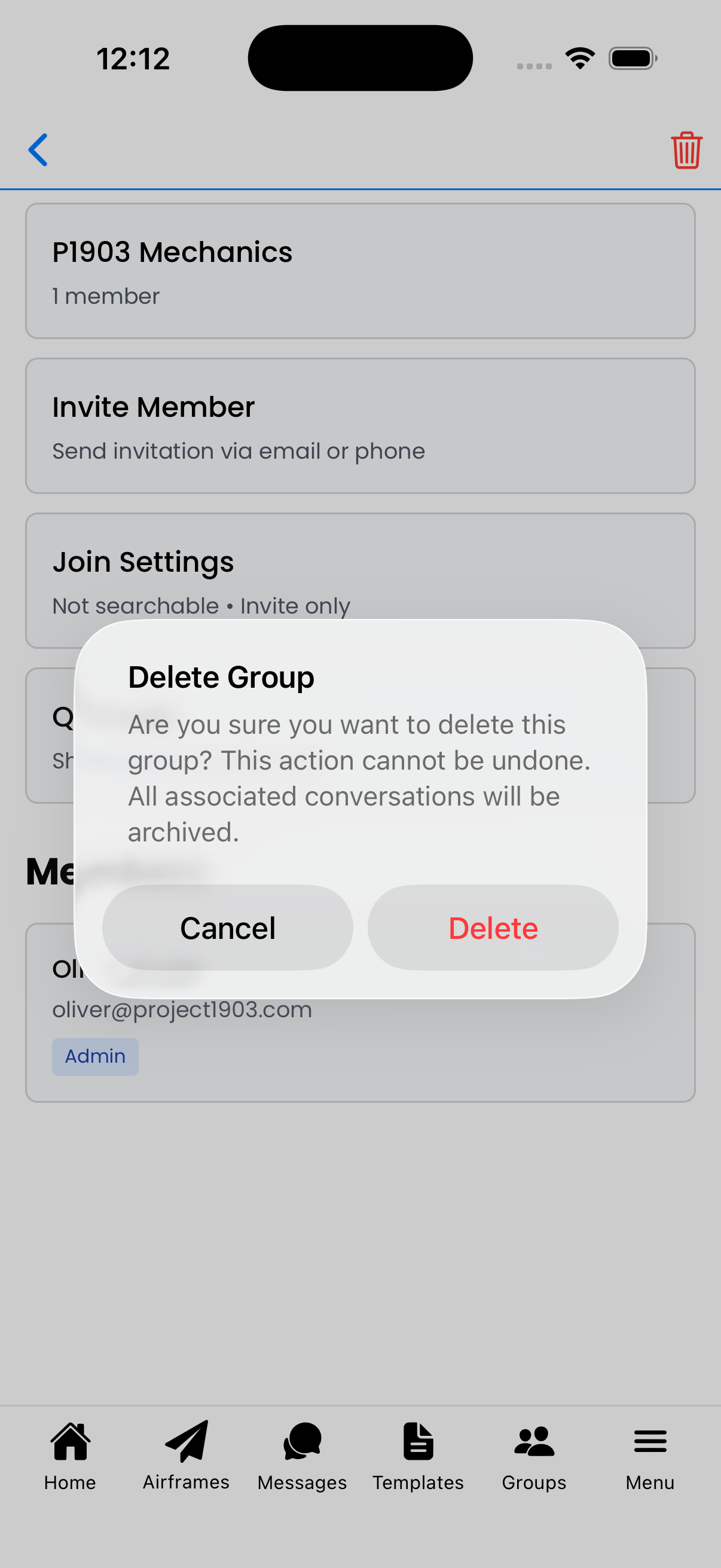
Delete group confirmation