Review Import
Review and edit AI-extracted maintenance data before creating a maintenance log entry. Verify the details, make corrections, and approve or reject the import.
Scanned Images
The Scanned Images section shows the original photos:
- Tap any image to view it full-screen
- Add Image - Scan additional pages if needed
These images will be attached to the maintenance entry when approved.
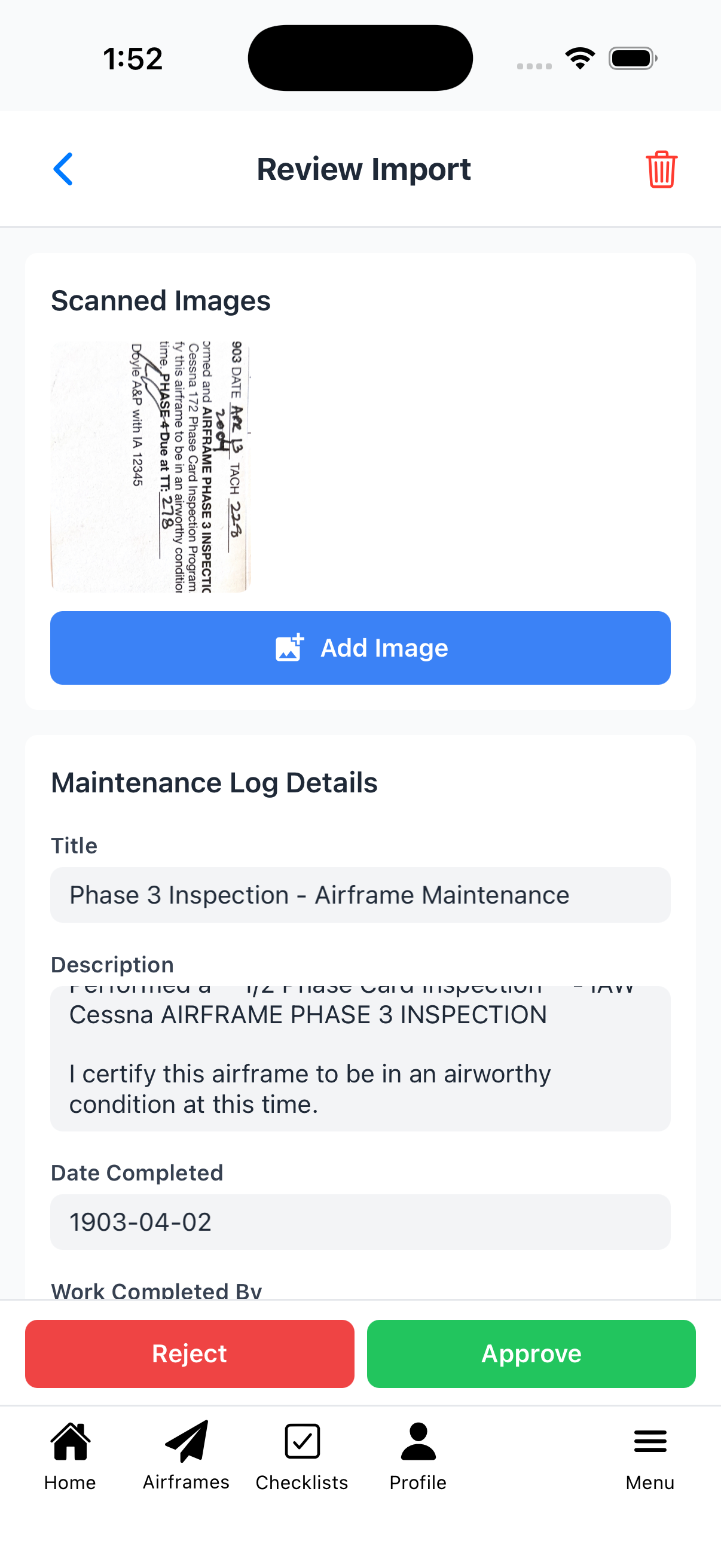
Scanned logbook page with extracted details below
Tags & Logbook Sections
Configure how the entry will be categorized:
- Tags - AI-suggested tags based on content (editable)
- Build Log Entry - Check if this is aircraft construction/restoration work
- Logbook Sections - Choose which sections to include this entry:
- Airframe - Include in airframe logbook
- Powerplant - Include in engine logbook
- Propeller - Include in propeller logbook
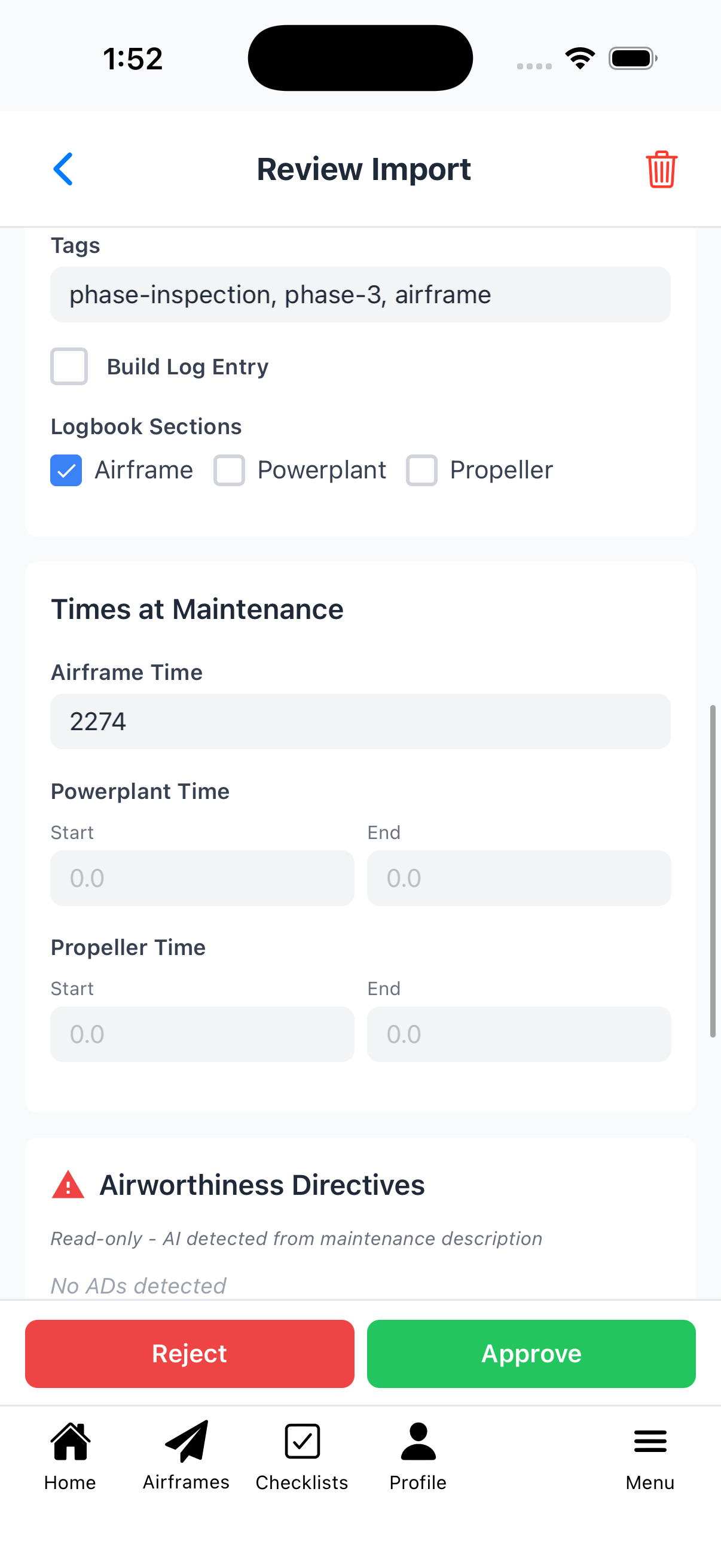
Tags, Build Log checkbox, and Logbook Sections
AI Detections
The AI analyzes the maintenance description to detect compliance items:
Airworthiness Directives
- Shows any AD numbers detected in the text
- Read-only - AI detected from maintenance description
Inspections
- Shows detected inspection types (e.g., "Phase 3")
- Displays the component (Airframe/Powerplant/Propeller)
- Shows calculated Next Due value
- Priority indicator (High/Medium/Low)
Maintenance Types
- Shows detected recurring maintenance items
- Read-only - based on AI analysis
Note: These detections are suggestions. When approved, you can further edit the maintenance entry and manually link to inspections, ADs, or maintenance types.
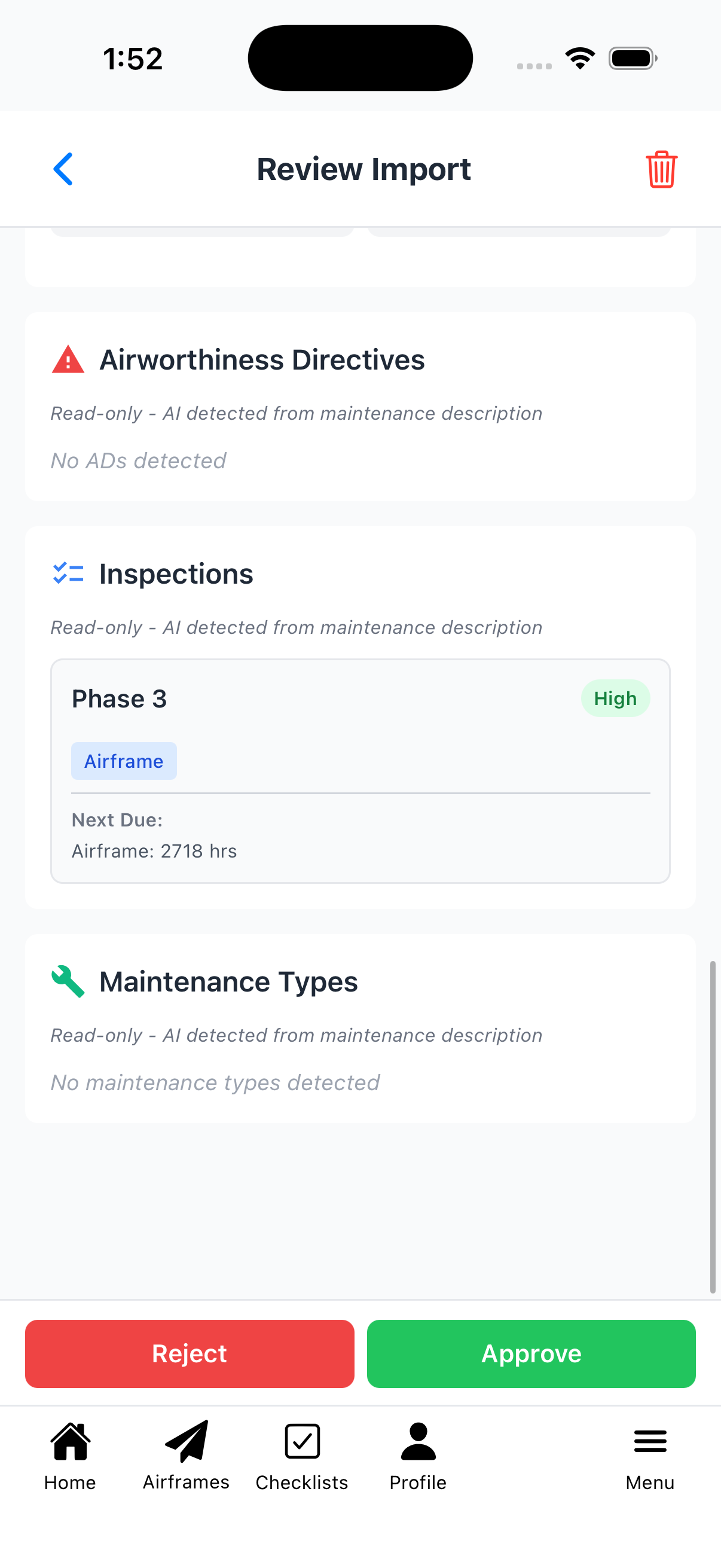
AI-detected Phase 3 inspection with Next Due
Approve or Reject
After reviewing, choose an action:
Approve
- Tap the green Approve button
- Confirm in the dialog
- A new maintenance log entry is created with all the reviewed data
- You can further edit the entry after creation
Reject
- Tap the red Reject button
- Confirm in the dialog
- The import is marked as rejected and archived
- No maintenance entry is created
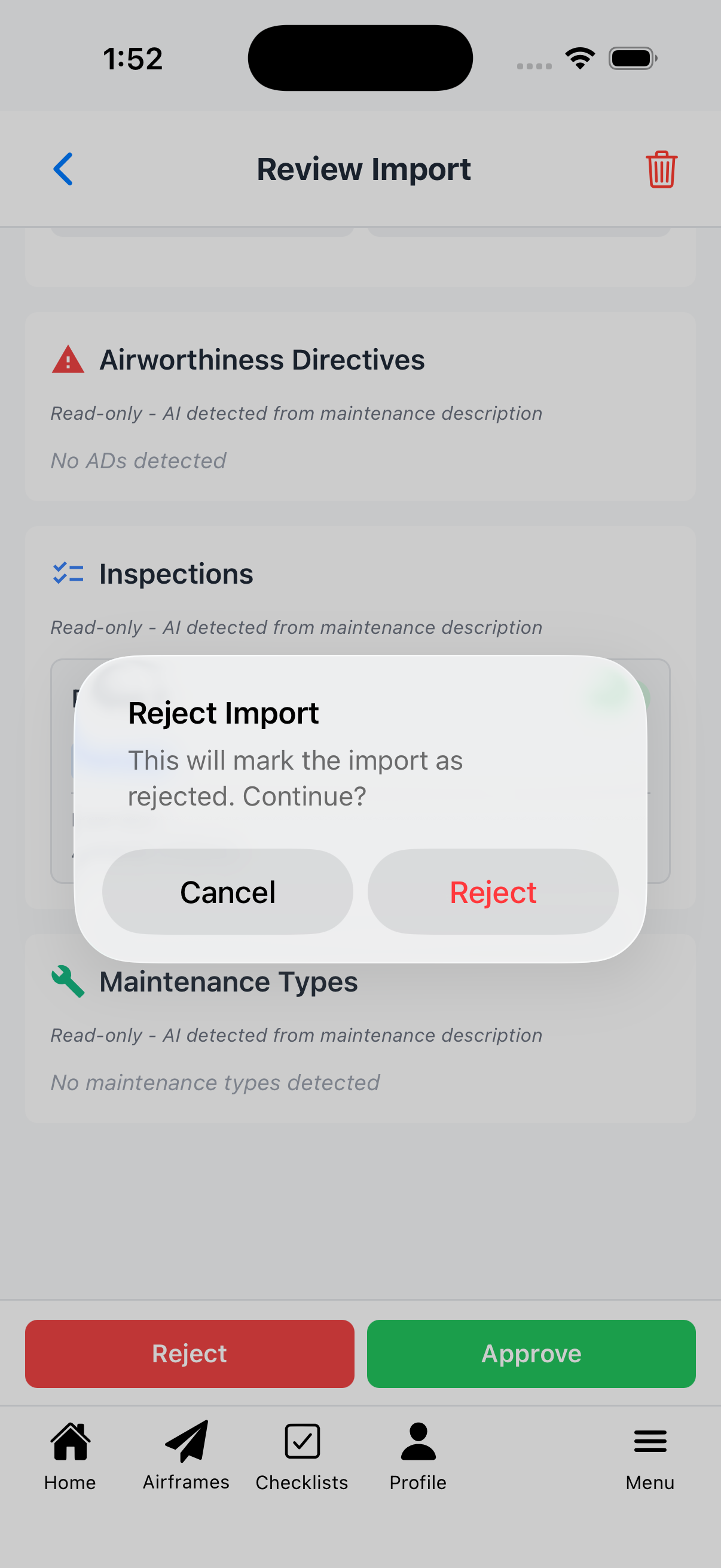
Reject confirmation - import will be archived