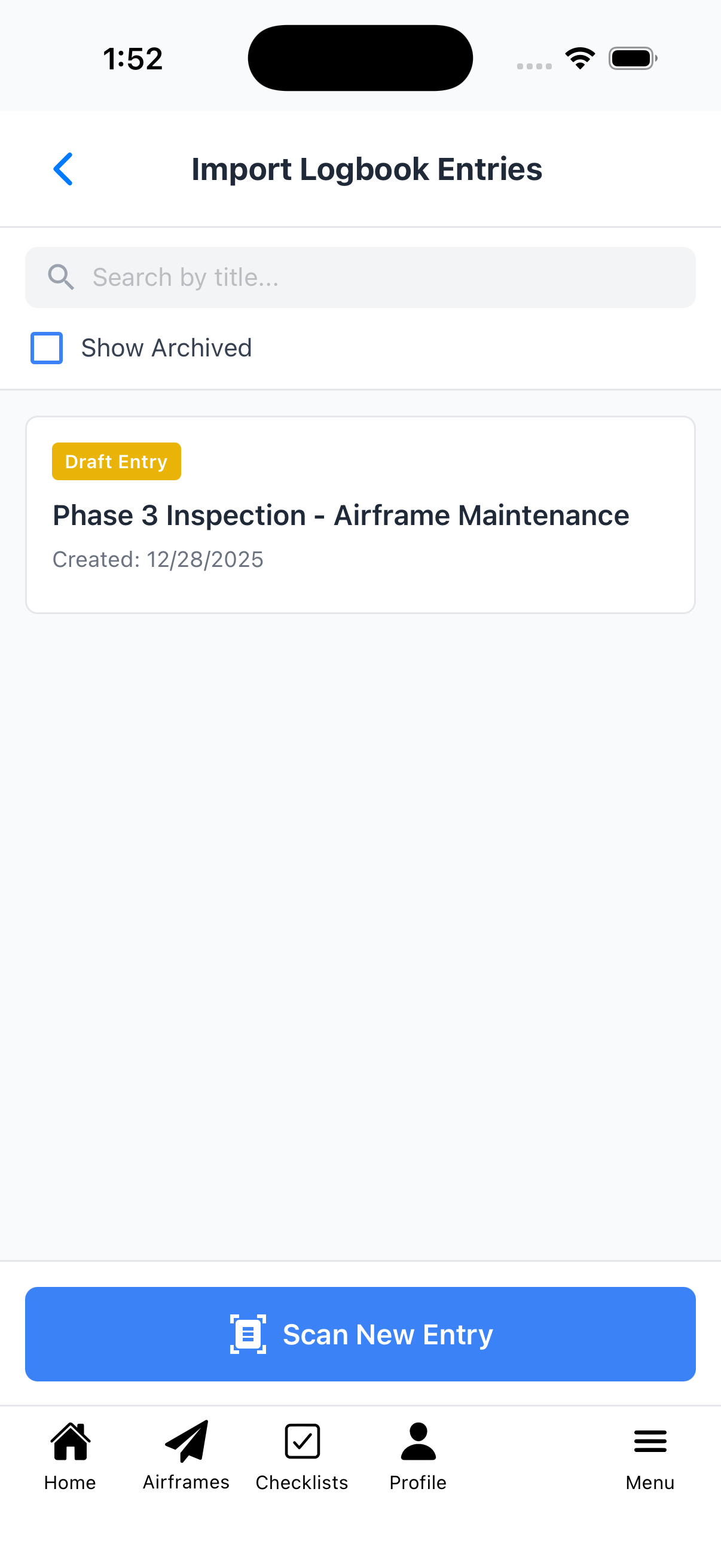
Import Logbook Entries
Use AI-powered scanning to digitize paper maintenance logbook pages. Scan photos of logbook entries and the app will automatically extract the maintenance details, detect inspections, and identify applicable ADs.
Scanning New Entries
To scan a paper logbook page:
- Tap the Scan New Entry button at the bottom
- Position your camera over the logbook page
- The scanner will automatically detect edges and capture the image
- Review the captured image and tap the checkmark to confirm
- You can scan multiple pages for a single entry
- When done, the AI will process the images and extract maintenance details
Tip: For best results, ensure good lighting and hold the camera steady. The scanner works best with flat, unwrinkled pages.
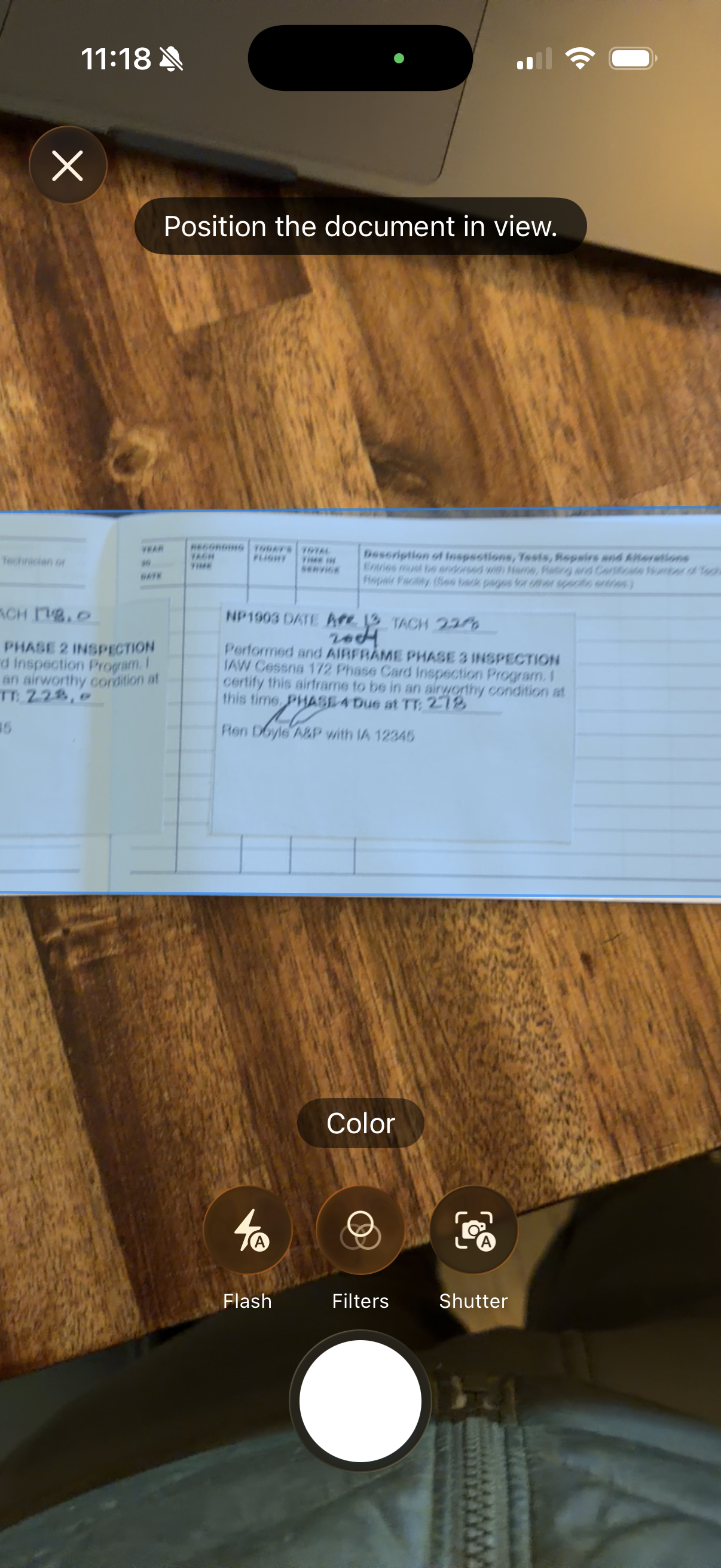
Position the camera over the logbook page
Confirming Scans
After capturing an image:
- The scanner automatically crops and adjusts the image
- Review the captured logbook page
- Tap the checkmark (✓) to confirm and keep the scan
- Tap X to discard and try again
You can scan multiple pages for a single entry - useful for logbook entries that span multiple pages.
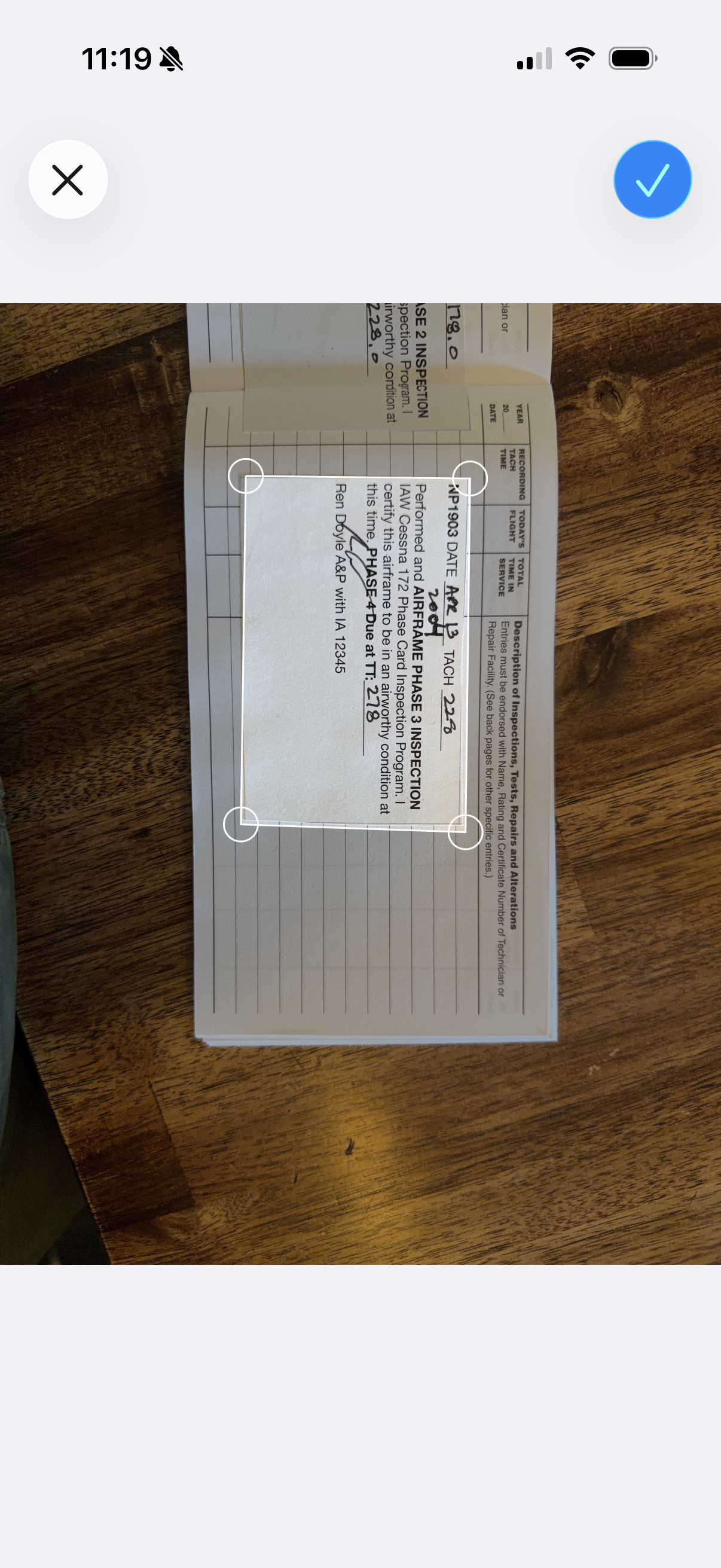
Tap checkmark to confirm the scan
Import Status
Each import shows its current status:
- Just Added - Scanned but not yet sent to AI
- Processing - AI is analyzing the scanned images
- Draft Entry (yellow badge) - Ready for your review
- Approved - Converted to a maintenance log entry
- Rejected - Marked as rejected (visible with Show Archived)
The list shows the import title and creation date for each entry.
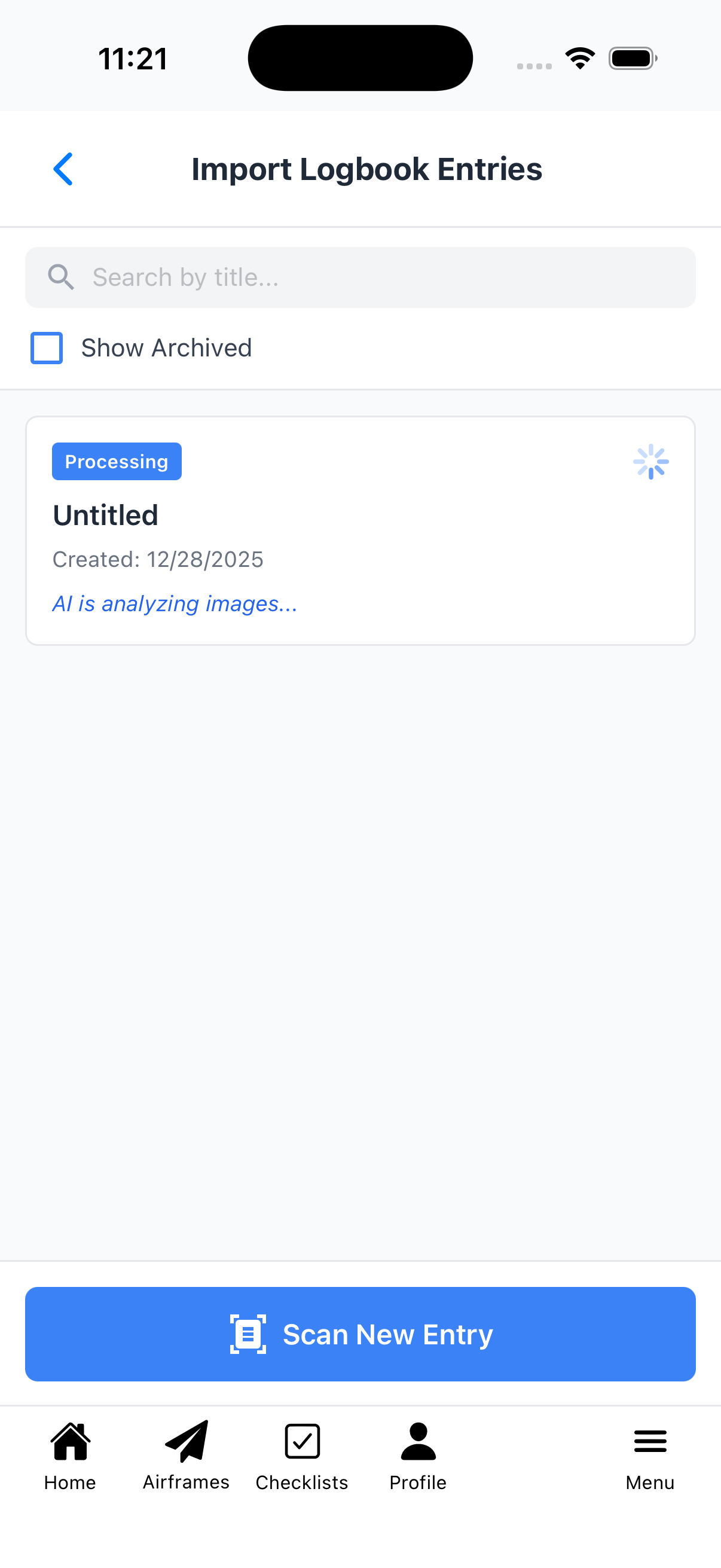
AI analyzing the scanned logbook page
How to Access This Screen
You can reach this screen from:
- Open Aircraft Details
- Tap the gear icon (⚙️) in the top-right corner
- In Aircraft Setup, tap Import Logbook Entries
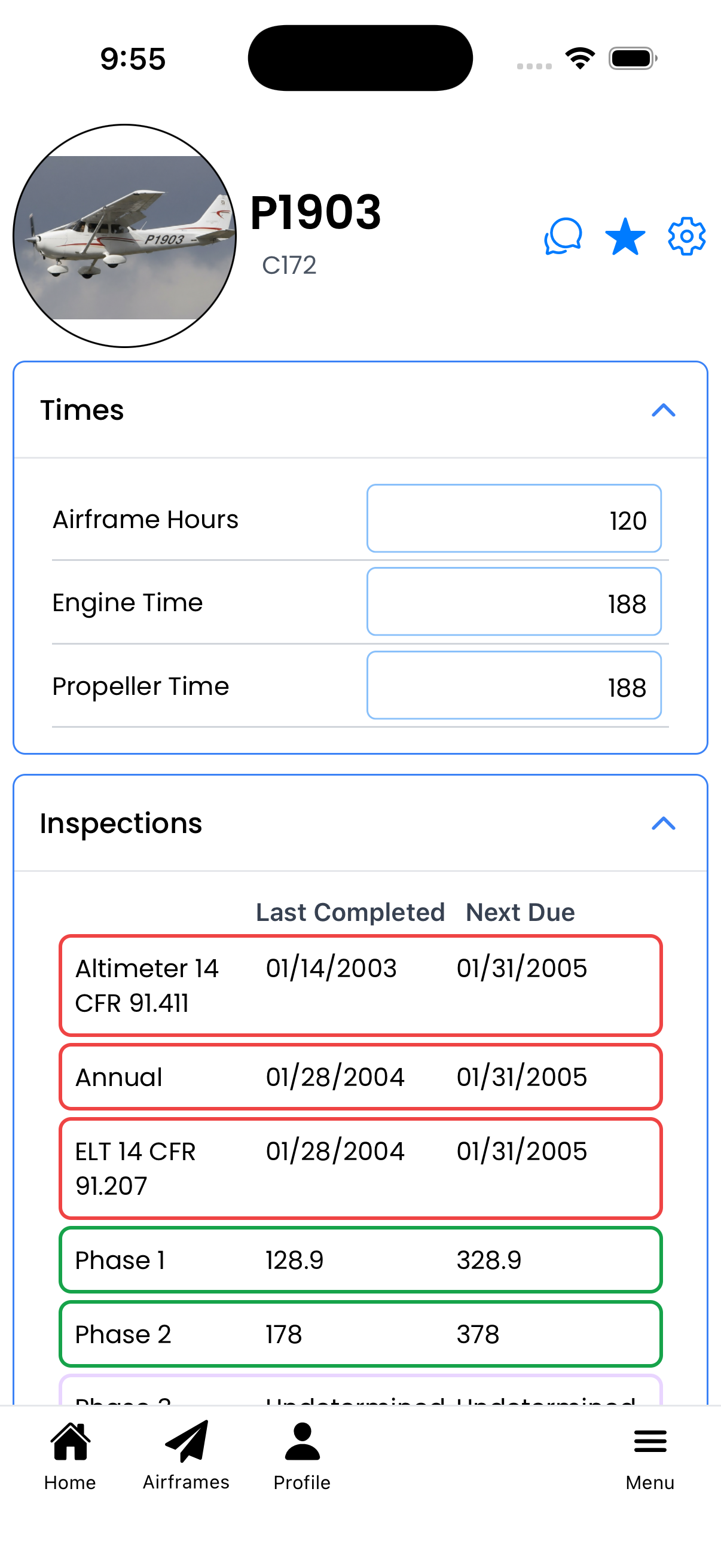
Tap the gear icon to access Setup