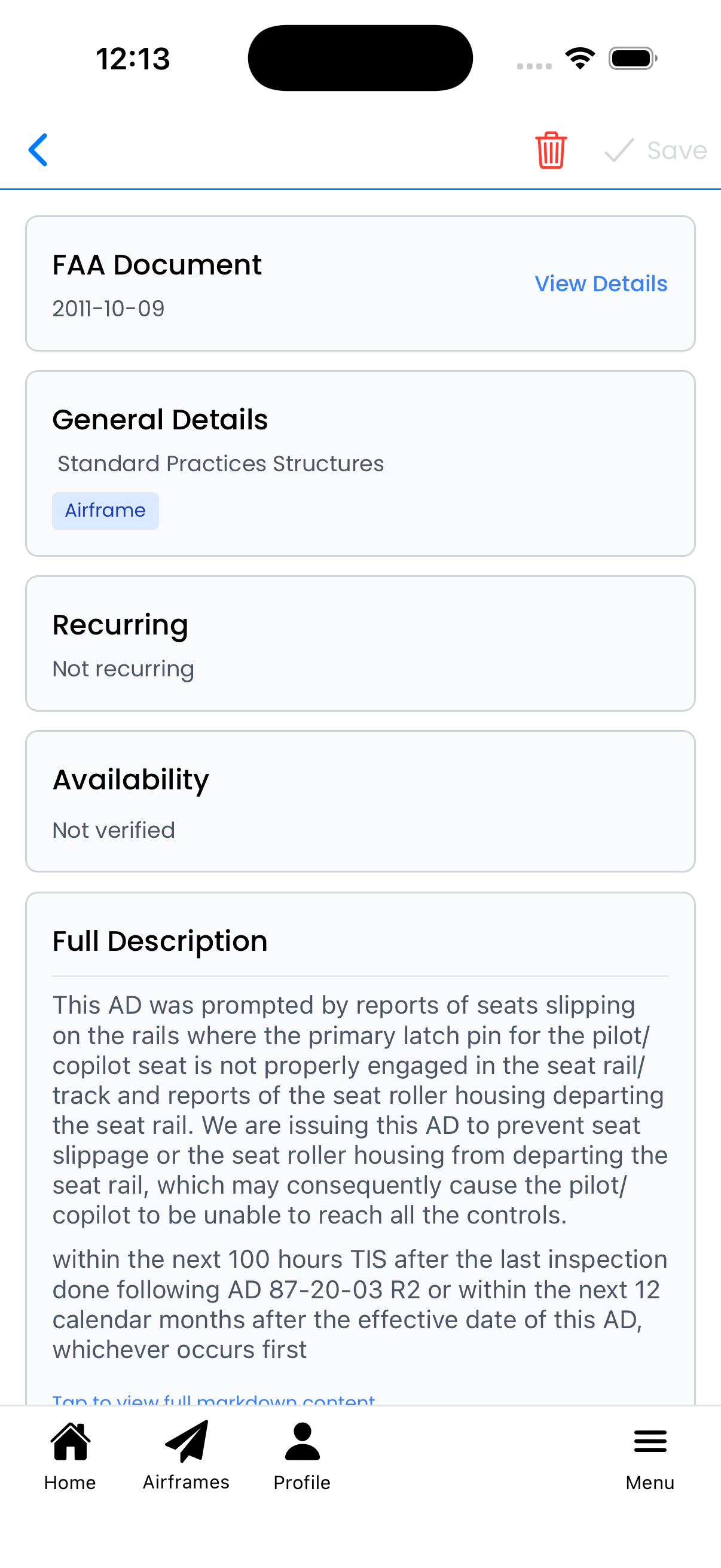
Airworthiness Directive Editor
View and edit Airworthiness Directive (AD) details. Access official FAA documentation, configure recurring requirements, and add custom notes for compliance tracking.
FAA Document
Tap the FAA Document card to view official AD information:
- FAA Document Number - The official AD identifier (e.g., "2011-10-09")
- Status - Current status of the AD (e.g., "Current")
- Key Information - Docket number, amendment, and effective date
- Applicability - Which aircraft makes and models the AD applies to
Tap View Details to open the full FAA document viewer.
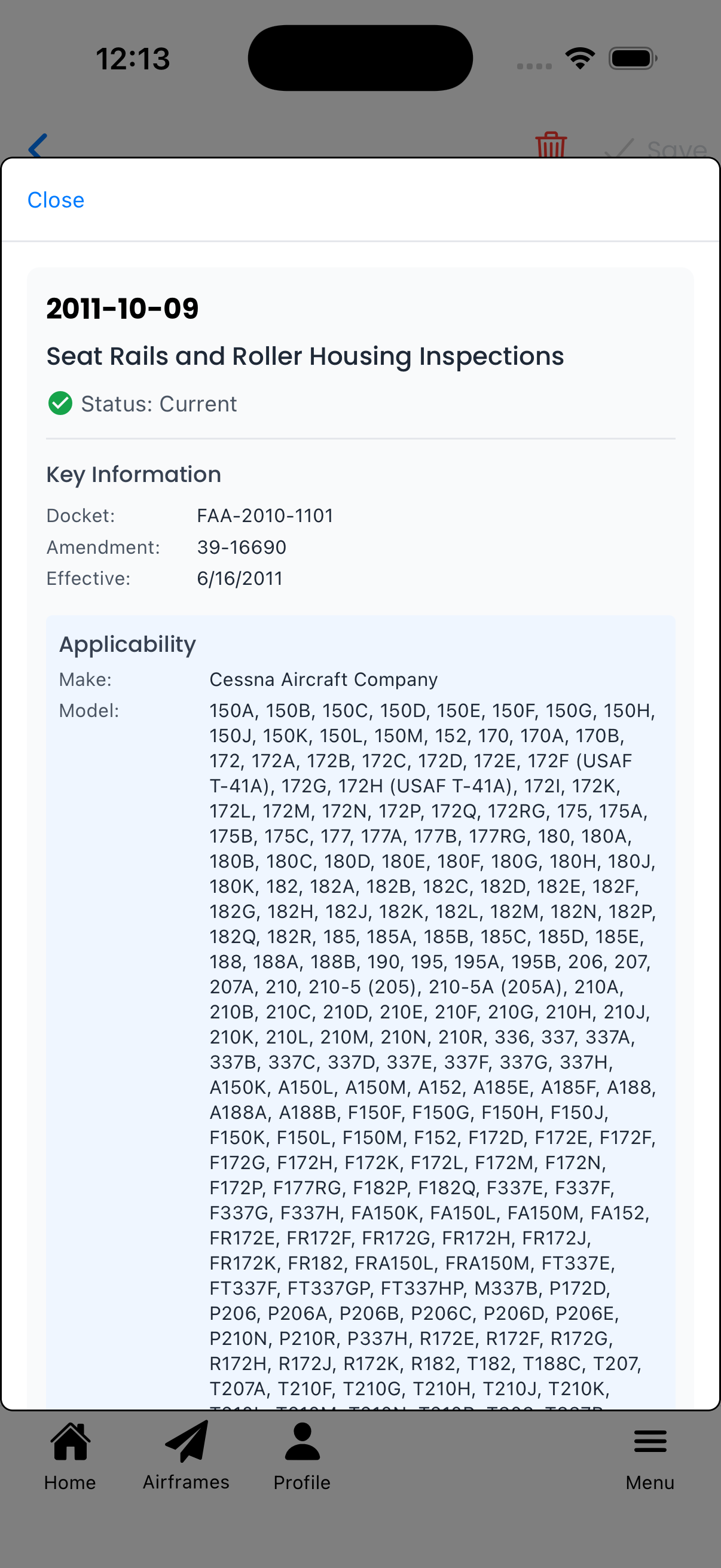
Official FAA AD information and applicability
Full Document (PDF Viewer)
Tap Show Full Document to view the complete FAA Federal Register document:
- Official FAA Document - The actual Federal Register publication
- Complete Text - Full regulatory text, summary, dates, and all details
- Hide Full Document - Tap to collapse the PDF viewer
- View Online - Opens the document on regulations.gov for official reference
Tip: Use the Full Document view when you need to verify exact compliance requirements or reference the original FAA publication.
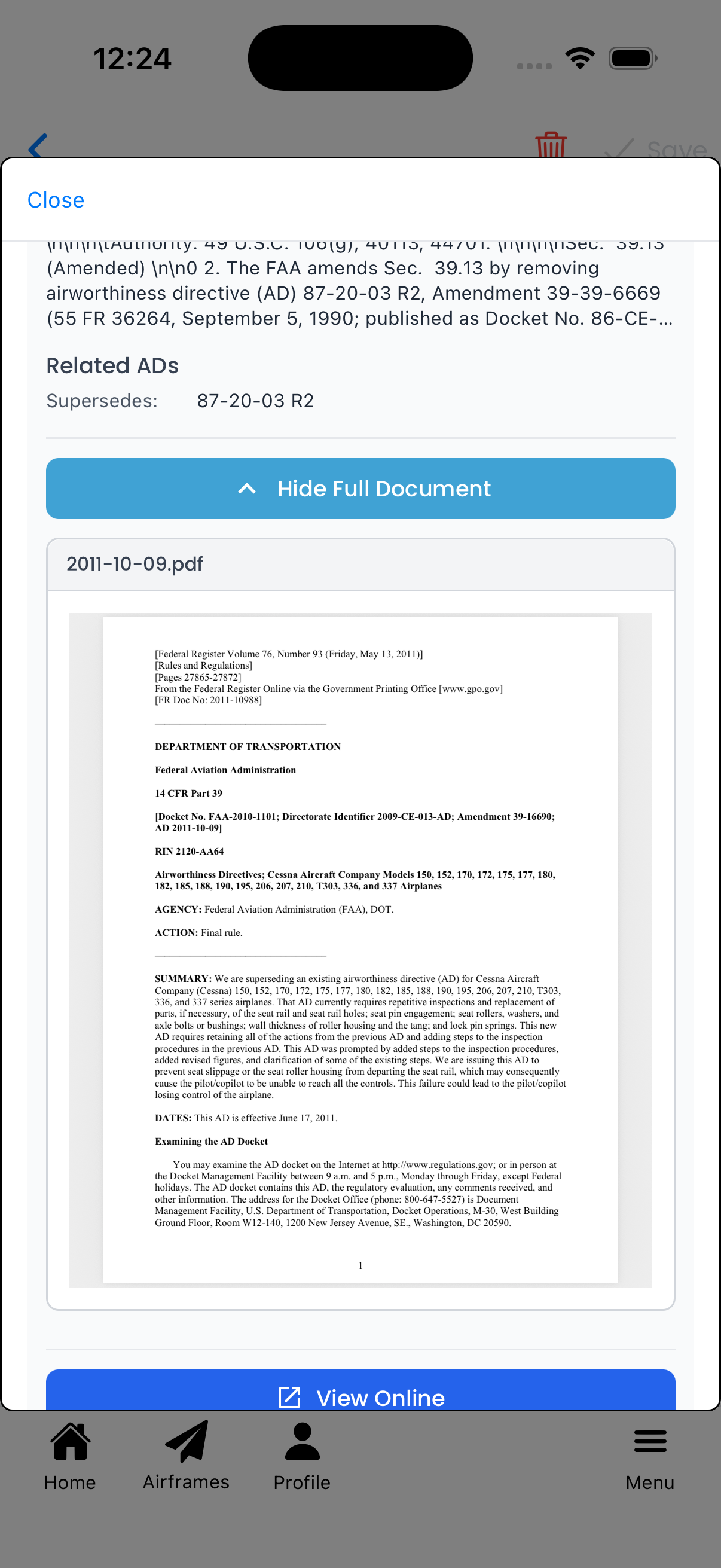
Complete FAA Federal Register PDF with View Online option
General Details
Tap the General Details card to configure basic information:
- Entry Title - A descriptive name for the AD
- Applies to Airframe - Toggle on if this AD applies to the airframe
- Applies to Powerplant - Toggle on if this AD applies to engines
- Applies to Propeller - Toggle on if this AD applies to propellers
Tap Done when finished editing to collapse the panel.
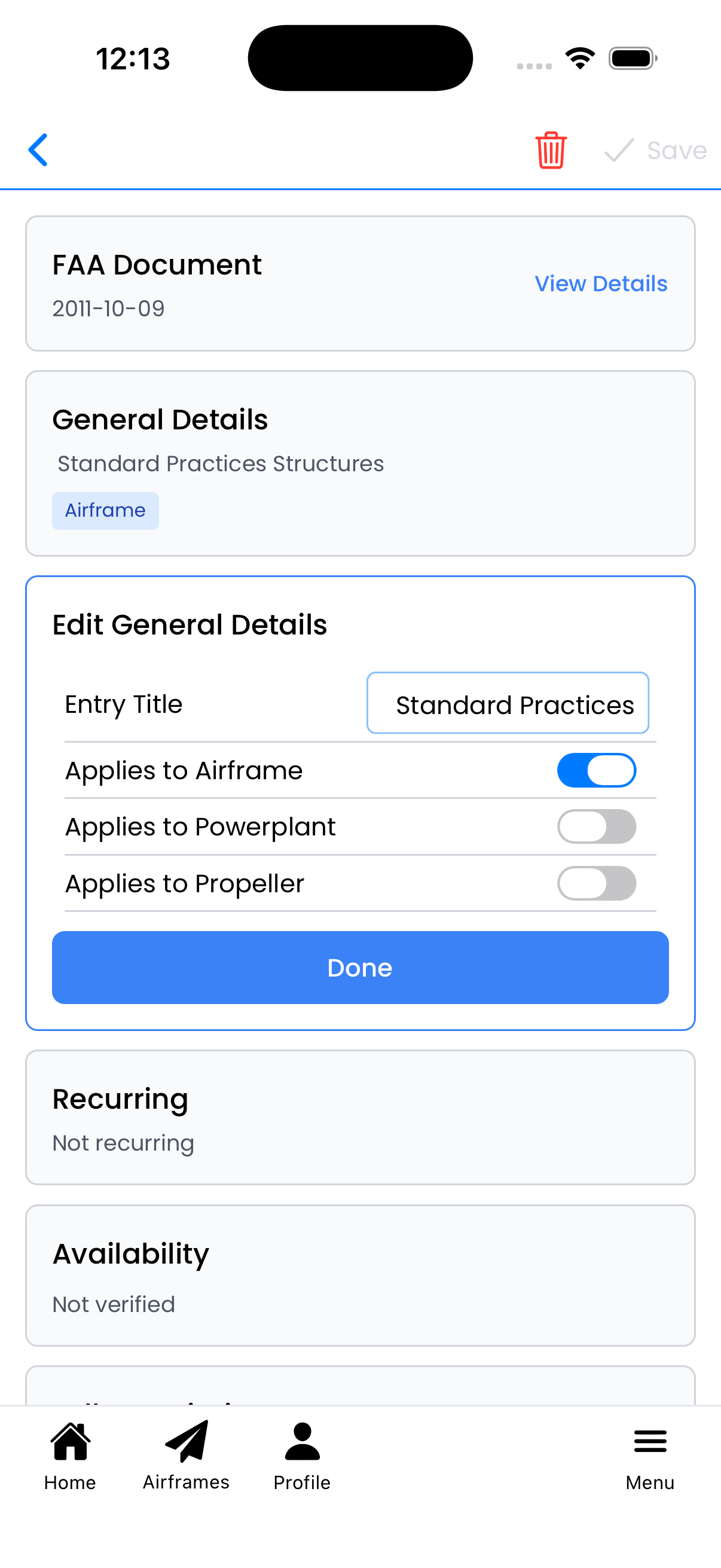
Configure title and component applicability
Recurring Settings
Tap the Recurring card to configure ongoing compliance requirements:
- Is Recurring - Toggle on if the AD requires repeated compliance actions
- Recurring Interval Amount - How often the action must be performed
- Recurring Interval Unit - Select the time unit:
- Days - Calendar days
- Calendar Months - Monthly intervals
- Equipment Hours - Based on flight/operating hours
- Other - Custom interval type
Note: Many ADs are one-time compliance only. Only enable recurring if the AD specifically requires repeated inspections or actions.
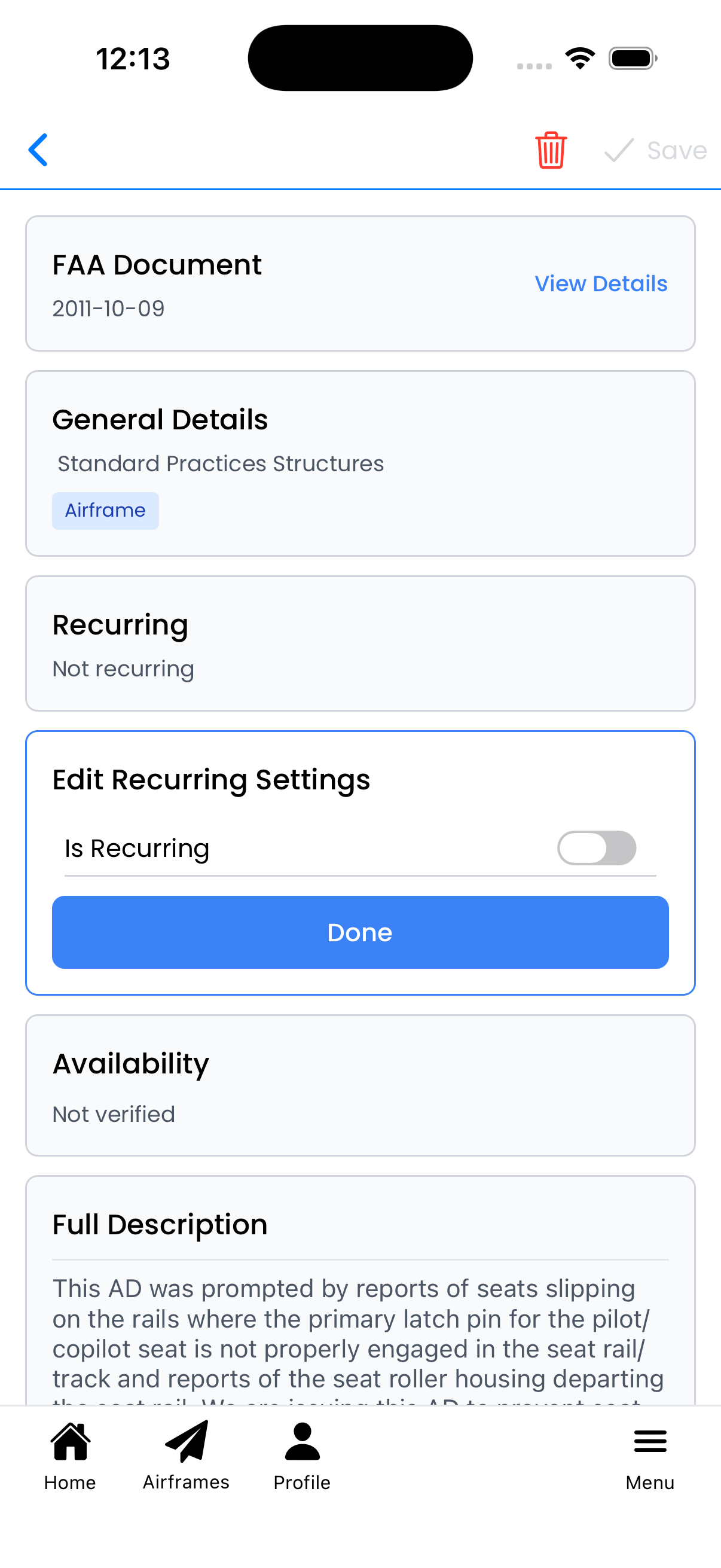
Configure recurring compliance intervals
Availability
Tap the Availability card to view or edit verification status:
- Is Verified - Toggle indicates whether this AD has been verified by Logbook against official FAA records
- Verified ADs - These have been confirmed to match official FAA documentation
- Not verified - Custom AD entries that haven't been verified
Note: Only system administrators can change the verification status. This ensures data integrity for official FAA ADs.
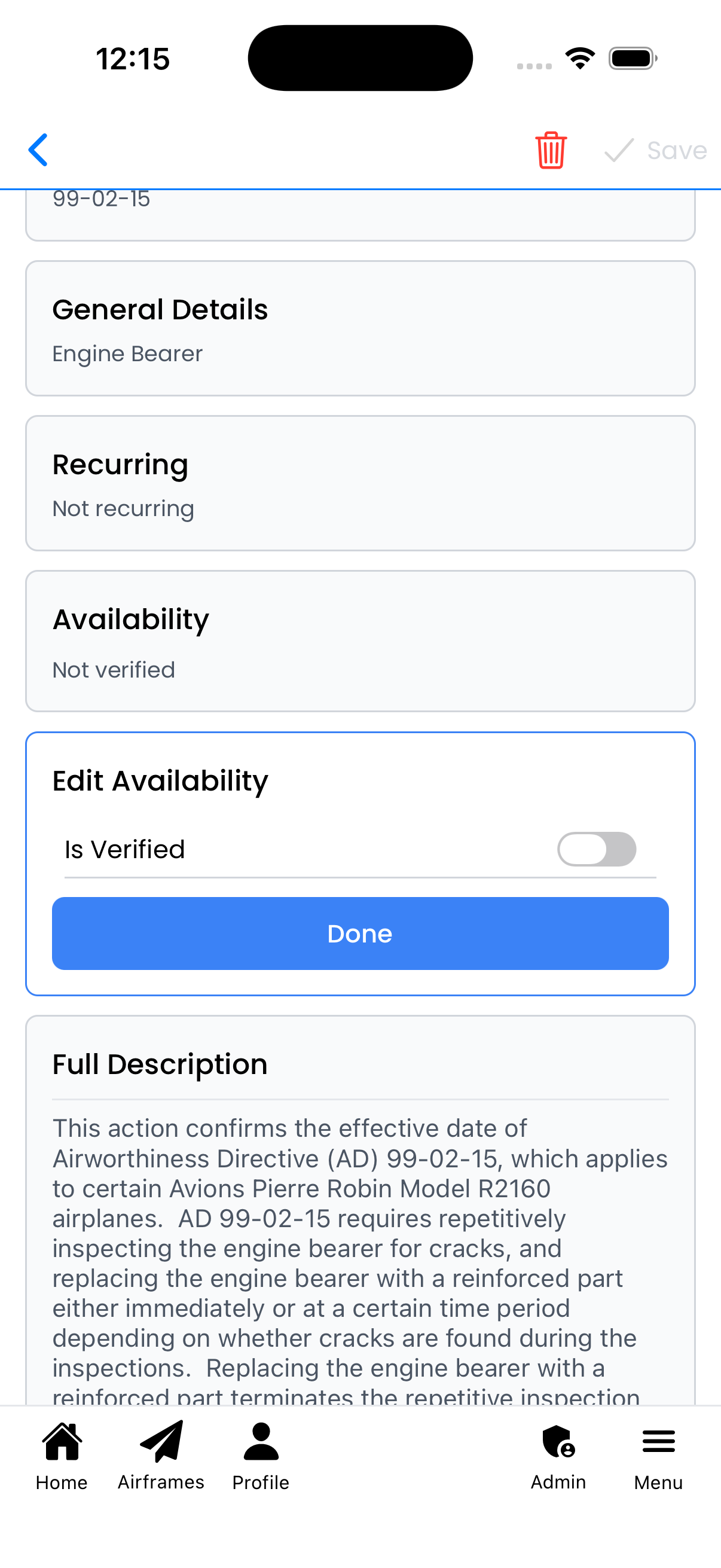
Is Verified toggle (system admin only)