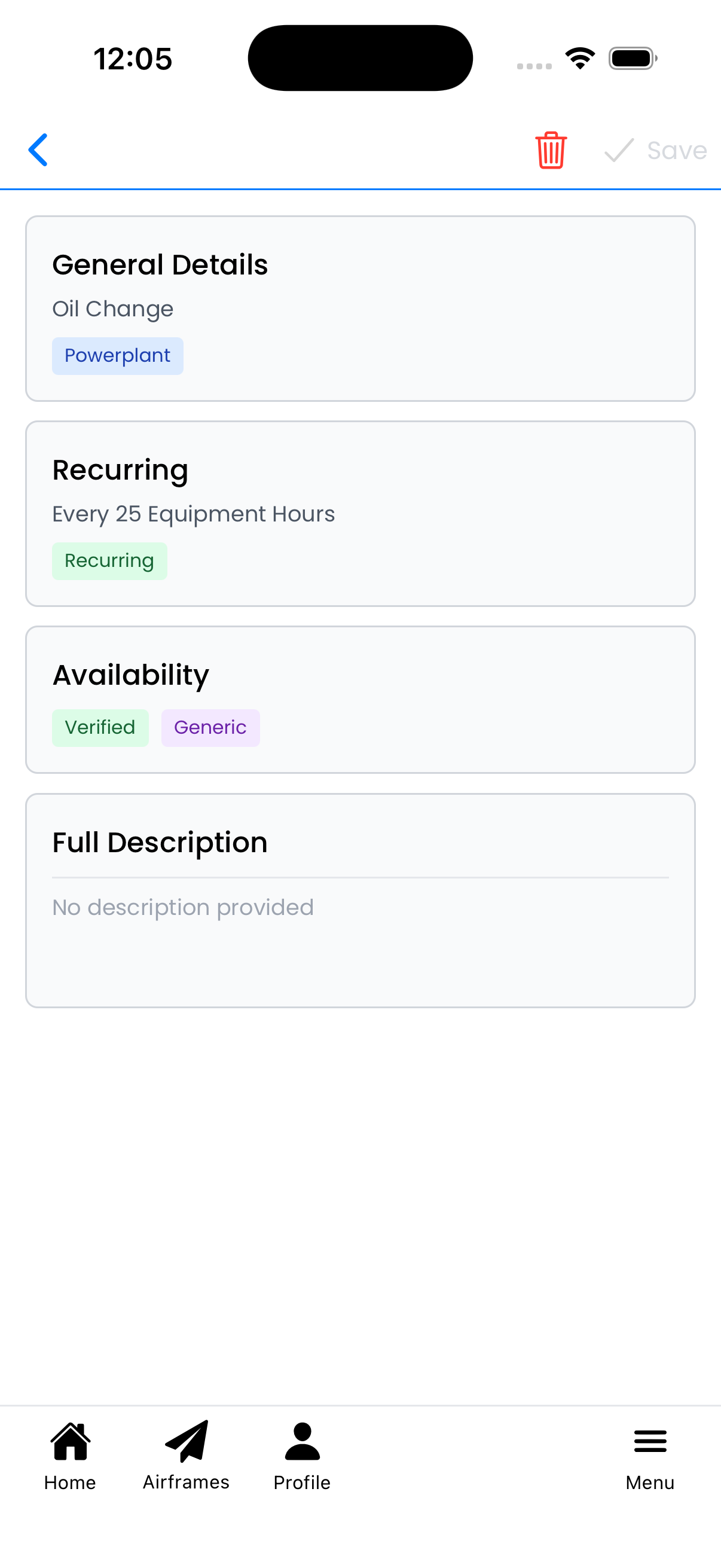
Maintenance Type Editor
Create or edit maintenance types that define recurring maintenance items for your aircraft. Configure when maintenance is due, what components it applies to, and add detailed descriptions.
General Details
Tap the General Details card to configure basic information:
- Entry Title - The name of the maintenance type (e.g., "Oil Change")
- Applies to Airframe - Toggle on if this maintenance applies to the airframe
- Applies to Powerplant - Toggle on if this maintenance applies to engines
- Applies to Propeller - Toggle on if this maintenance applies to propellers
Tap Done when finished editing to collapse the panel.
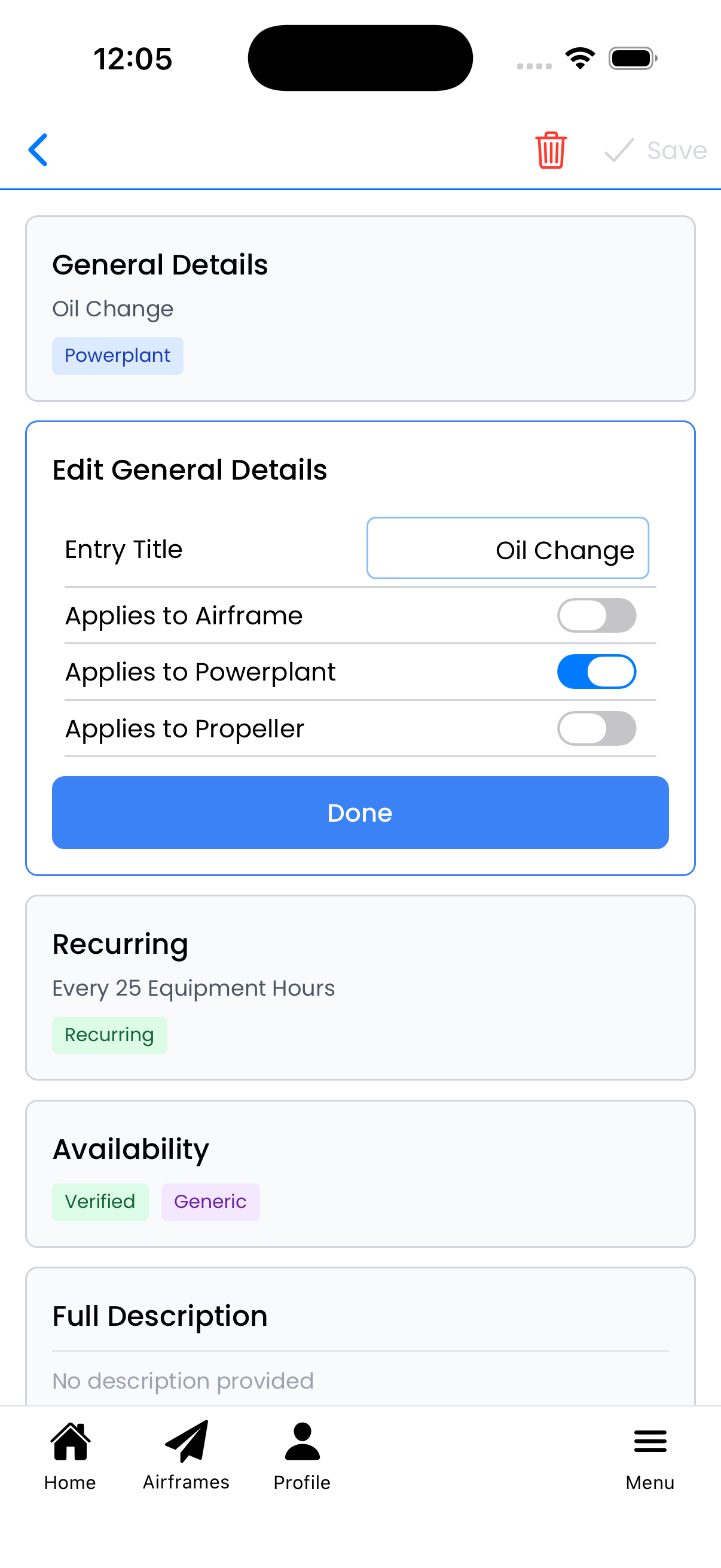
Configure title and component applicability
Recurring Settings
Tap the Recurring card to set up maintenance intervals:
- Is Recurring - Toggle on to enable recurring schedule
- Recurring Interval Amount - Enter the number (e.g., 25, 50, 2000)
- Recurring Interval Unit - Select the time unit:
- Days - For calendar-based intervals
- Calendar Months - For monthly intervals
- Equipment Hours - For hour-based maintenance (most common)
- Other - For custom interval types
Example: Oil changes are typically set to "25 Equipment Hours" or "50 Equipment Hours" depending on manufacturer recommendations.
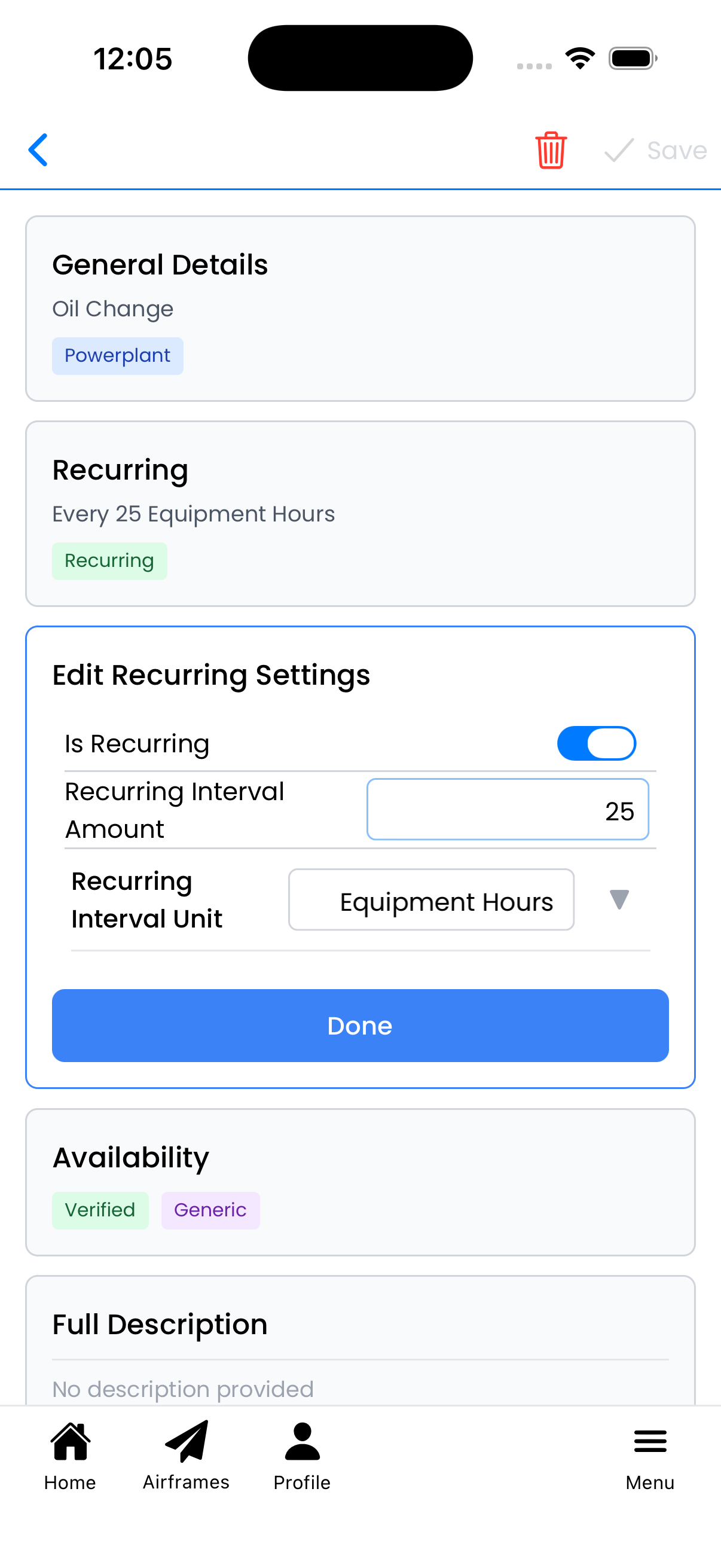
Set maintenance interval (e.g., every 25 equipment hours)
Availability
Tap the Availability card to configure sharing options:
- Is Verified - Indicates this is a standard maintenance type verified by Logbook (system admin only)
- Is Generic - When enabled, this maintenance type can be used across multiple aircraft types
Tags appear on the card to show current settings:
- Verified - Standard maintenance verified by Logbook
- Generic - Can be used with any aircraft
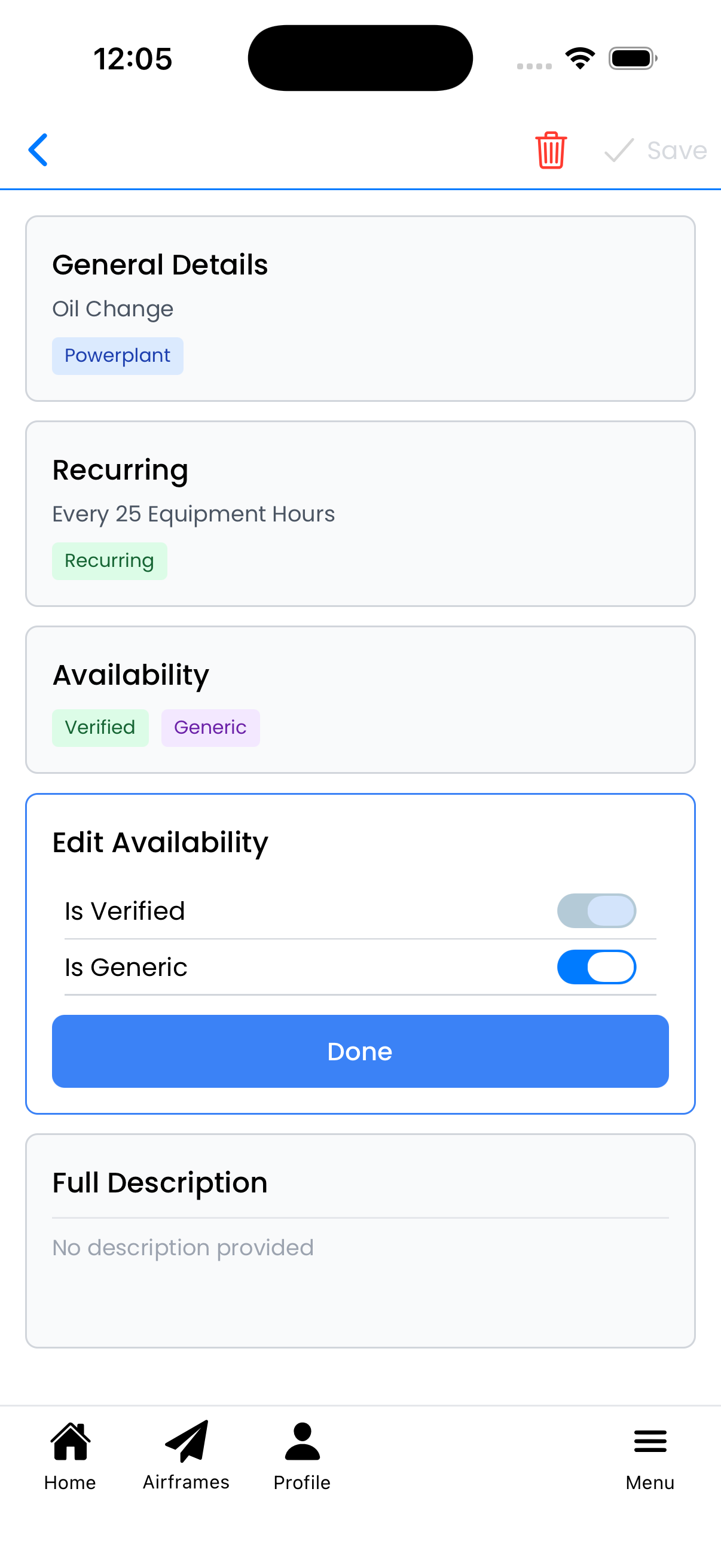
Configure verification and generic status
Full Description
Tap the Full Description card to add detailed maintenance notes:
- The description supports markdown formatting
- Use the Edit link to switch to edit mode
- Preview shows your formatted text
Good descriptions include:
- Specific procedures or steps
- Required parts or materials
- Manufacturer references or service bulletin numbers
- Special tools needed
See the Markdown Formatting Guide for formatting tips.
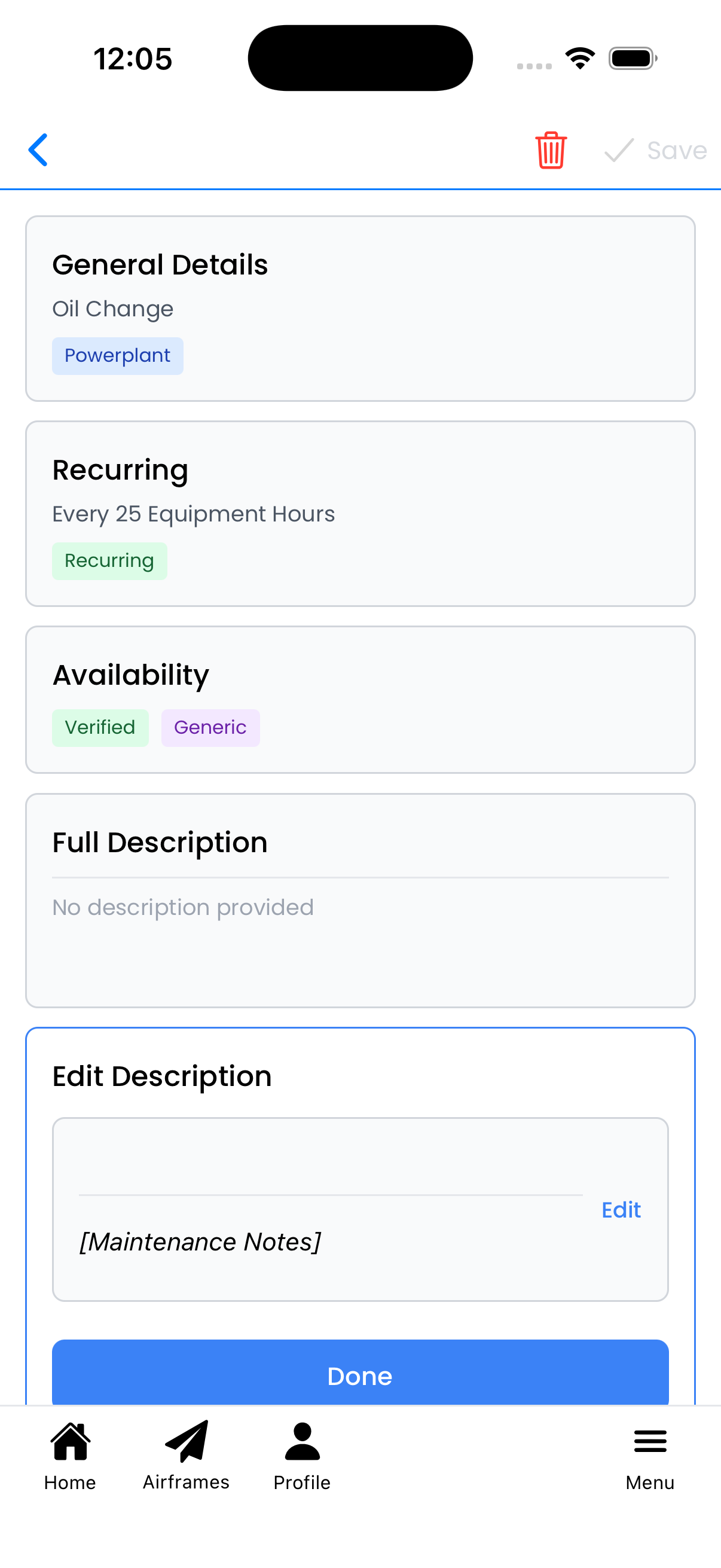
Add detailed markdown-formatted descriptions
Saving Changes
Changes are not saved automatically. Look for the header indicators:
- NOT SAVED - Orange text indicates you have unsaved changes
- Save - Tap to save all changes
The Save button becomes active when you have unsaved changes. Always tap Save before navigating away.
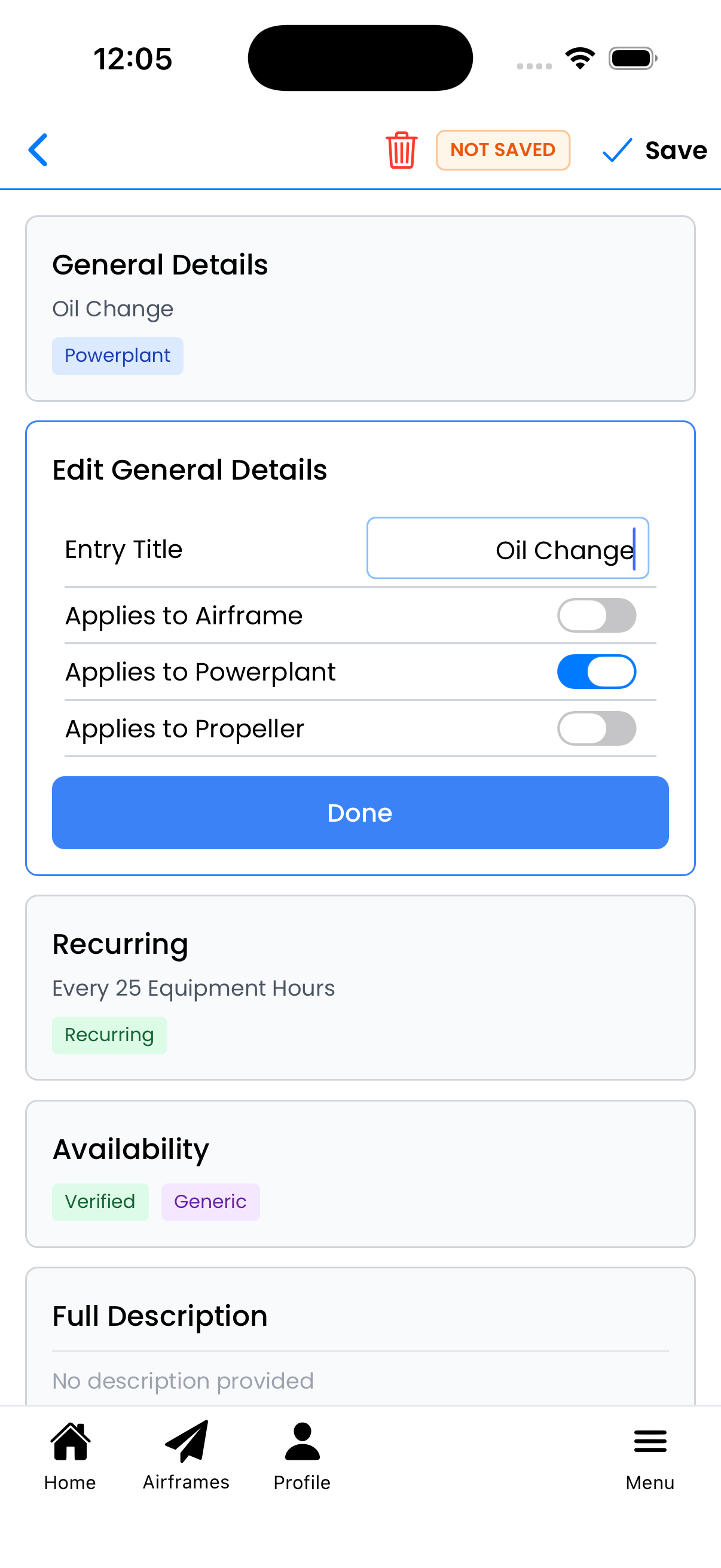
Orange "NOT SAVED" indicates pending changes
Deleting a Maintenance Type
To delete a maintenance type:
- Tap the trash icon in the header
- A confirmation dialog will appear
- Tap Delete to confirm, or Cancel to keep the maintenance type
Warning: Deleting a maintenance type cannot be undone. Any aircraft tracking this maintenance type will no longer show it.
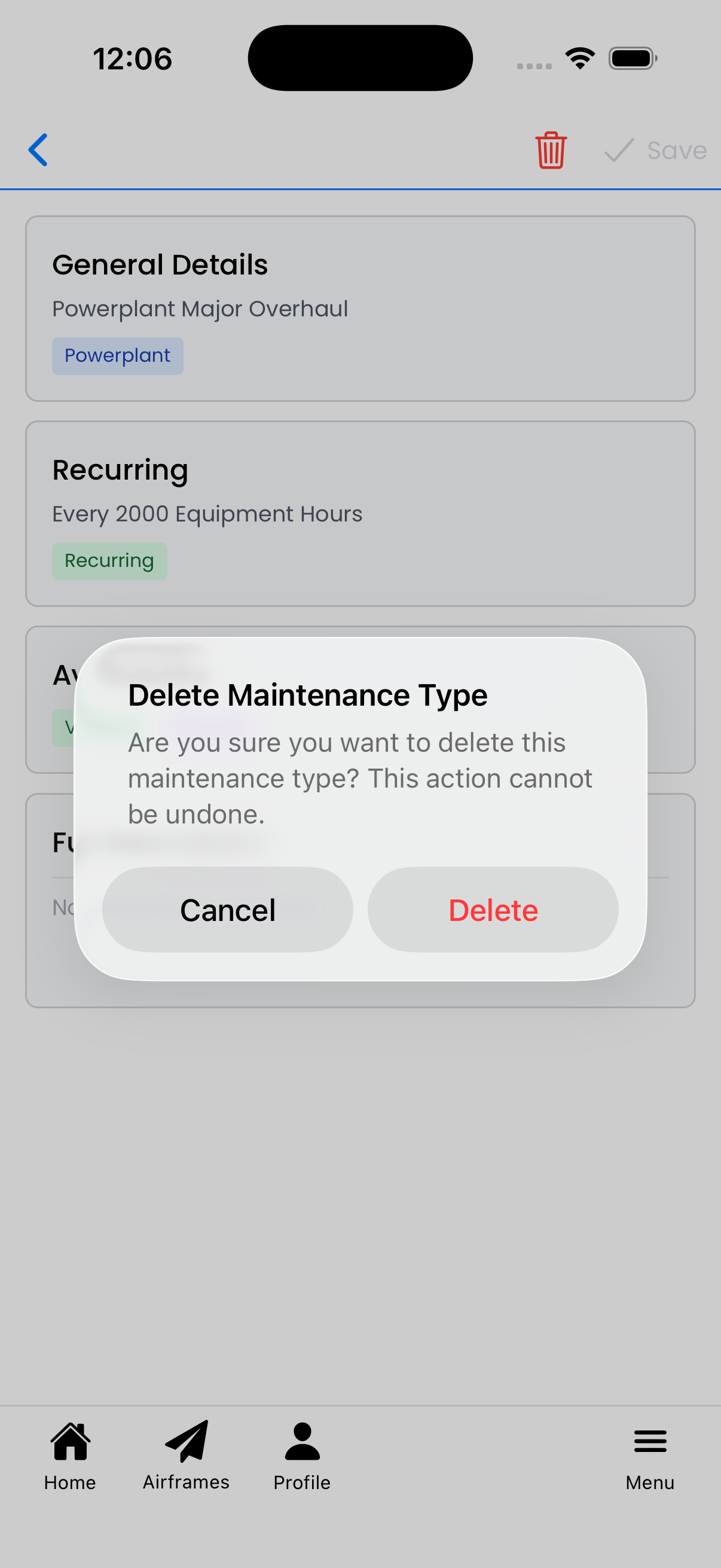
Confirm before deleting a maintenance type